
Master cinematic modes in Ghost of Yotei: Remove black bars, optimize visual filters, and enhance gameplay experience
Understanding Letterbox View and Black Bar Mechanics
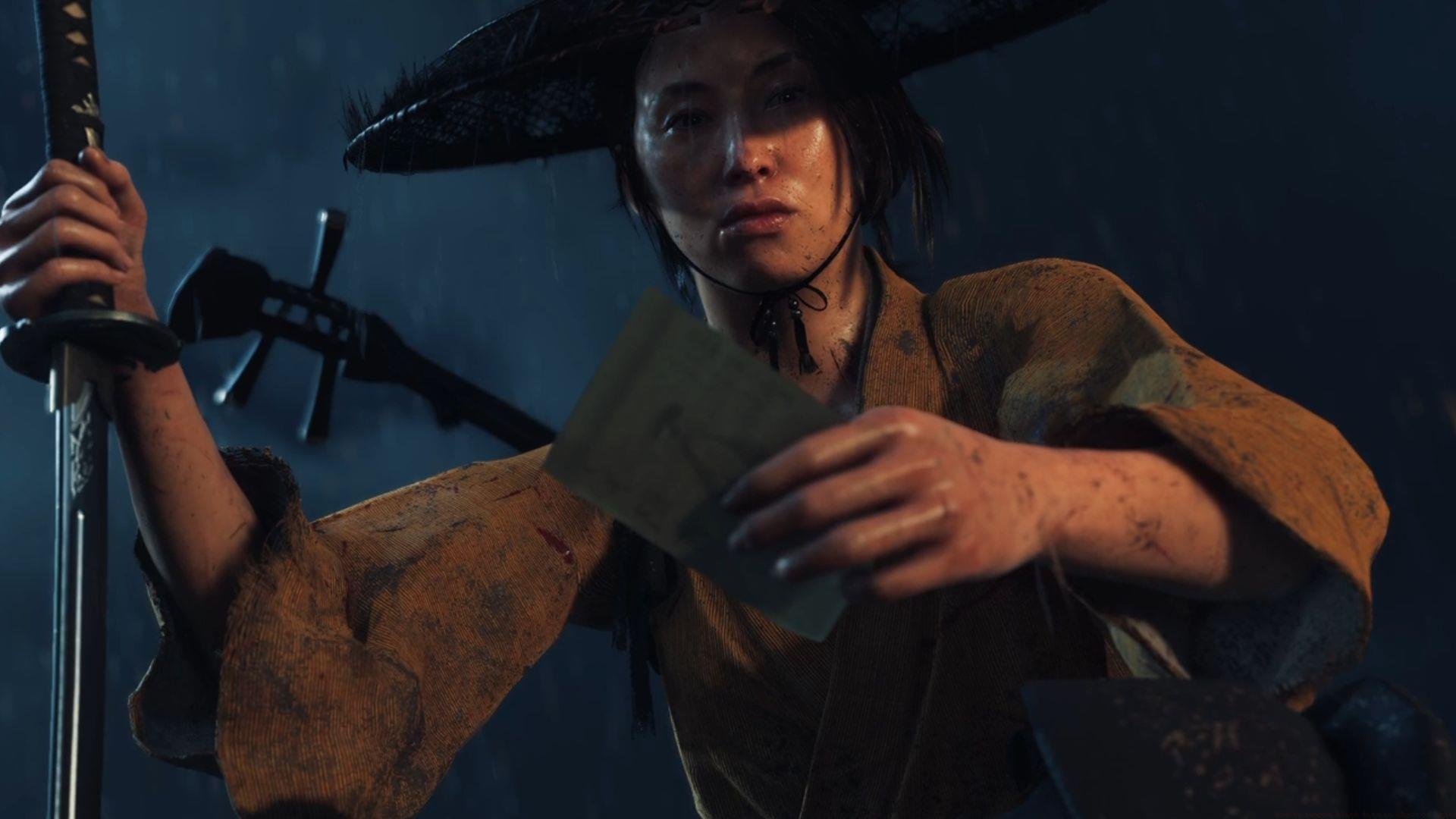
Ghost of Yotei delivers an immersive journey that masterfully combines engaging gameplay mechanics with emotionally resonant narrative storytelling through carefully crafted cinematic presentations. The game’s distinctive visual identity emerges from multiple presentation modes and the strategic letterbox framing that frequently activates during horseback travel across Ezo’s tranquil environments. These cinematic black bars represent a deliberate artistic choice that divides player opinion – some appreciate the filmic quality while others prefer an unobstructed view.
The controller’s R3 button serves as your primary tool for view adjustment. Initially pressing this button might activate an unexpected zoom perspective that feels disorienting. To achieve your preferred viewing intensity, repeatedly click the right analog stick multiple times to cycle through available zoom presets. This straightforward technique instantly eliminates cinematic black bars during exploration sequences and reinstates the complete screen view, revealing significantly more environmental detail.
Certain narrative moments intentionally prevent black bar removal. Developers at Sucker Punch strategically implemented permanent letterboxing during pivotal story beats to heighten emotional impact and direct player focus. These temporary sequences typically conclude automatically, with the standard view restoring once the cinematic moment concludes. Understanding when the game intentionally restricts control helps appreciate the director’s vision while maintaining gameplay flow.
The Three Cinematic Mode Directors
Ghost of Yotei presents three distinct cinematic visual modes that players can manually activate to apply specialized filters and visual treatments. These options pay homage to iconic Japanese film directors: Kurosawa, Miike, and Watanabe. Each mode transforms the gameplay experience through unique aesthetic approaches that reference their namesake’s cinematic legacy.
- Inspired by: Akira Kurosawa
- Effects: This mode employs a sophisticated monochromatic filter that significantly enhances cinematic immersion while delivering authentic retro atmosphere. The black-and-white presentation echoes Kurosawa’s classic samurai films, with enhanced contrast ratios that make combat silhouettes particularly striking.
- Inspired by: Takashi Miike
- Effects: Miike’s influence manifests through intensified visceral combat visuals including enhanced blood effects and environmental mud textures, combined with deliberately constrained camera movements that create claustrophobic tension during enemy encounters.
- Inspired by: Shinichirō Watanabe
- Effects: Watanabe mode introduces exclusive lo-fi musical compositions developed under the director’s supervision, combined with color grading that mimics contemporary anime aesthetics and smoother camera transitions that complement the atmospheric soundtrack.
Advanced Visual Customization Strategies
Maximizing your visual experience requires understanding how different display types interact with Ghost of Yotei’s presentation options. Fullscreen mode delivers its most impressive impact on large-screen displays where the expanded field of view showcases Ezo’s breathtaking landscapes in their full glory. Conversely, cinematic modes typically work better on standard-sized screens where the intentional framing enhances composition without sacrificing too much visible area.
Strategic Mode Selection: Employ Kurosawa mode for main story missions to enhance narrative weight, switch to Miike mode during intense combat sequences for added visceral impact, and activate Watanabe mode during exploration phases to benefit from the atmospheric soundtrack and smoother visual flow.
Common Adjustment Errors: Many players mistakenly believe cinematic modes affect gameplay difficulty – they purely alter presentation. Another frequent error involves spamming R3 button presses rapidly, which can cause view mode skipping. Methodical, deliberate presses yield better results. Additionally, attempting to disable black bars during scripted story moments will prove futile as these are intentionally locked for artistic reasons.
For comprehensive gameplay assistance beyond visual customization, consult our complete Ghost of Yotei strategy guide and walkthrough collection.
No reproduction without permission:GameCDjnh » How to remove black bars in Ghost of Yotei Master cinematic modes in Ghost of Yotei: Remove black bars, optimize visual filters, and enhance gameplay experience