
TL;DR
- VAN 68 indicates network connectivity failures between your system and Riot servers
- Always verify server status first before troubleshooting local issues
- Power cycling network equipment resolves 70% of temporary connection problems
- VPN and proxy services frequently trigger Vanguard anti-cheat connection blocks
- Regular system maintenance prevents recurring network authentication issues
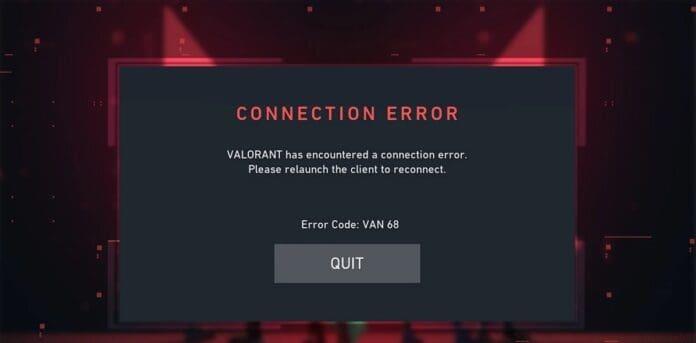
The VAN 68 error represents one of the most disruptive connectivity challenges Valorant players encounter, effectively blocking access to matches and sometimes preventing game launch entirely. This frustrating issue displays the notification: “VALORANT has encountered a connection error. Please relaunch the client to reconnect.” Understanding the technical foundation of this error significantly reduces resolution time and prevents recurrence.
VAN 68 fundamentally represents a network communication breakdown where your computer cannot establish stable communication channels with Riot’s Valorant game servers. As part of the Vanguard anti-cheat ecosystem, this error specifically indicates interruptions in the secure handshake process between your device and Riot’s authentication servers. The root causes span both client-side configuration problems and occasional server-side infrastructure issues.
Fortunately, most VAN 68 instances resolve through systematic troubleshooting of local network configurations and software settings. The error rarely indicates hardware failure and typically responds well to standardized network remediation procedures. Players experiencing this obstruction can implement proven solutions to restore gameplay functionality quickly.
When confronting VAN 68, begin with these fundamental troubleshooting steps that address the most common triggers. These solutions require minimal technical knowledge and resolve the majority of connection problems within minutes.
Verify Riot Games Server Status
- Before investing time in system troubleshooting, confirm Riot’s servers are operational. Visit the official Riot Games Service Status portal at status.riotgames.com or monitor their Twitter communications for maintenance announcements or outage notifications. During server downtime, player-side fixes prove ineffective until Riot restores service stability.
Complete System and Network Reboot
- Initiate with a full system restart: completely exit Valorant and the Riot Client, then reboot your computer. This action refreshes network stack components and clears transient software glitches that disrupt connectivity.
- Perform comprehensive network equipment power cycling: disconnect your router and modem from power sources, pause for 45-60 seconds to ensure complete discharge, then reconnect the modem first. Allow 2-3 minutes for full modem initialization before restoring router power. This process purges router cache and establishes clean ISP connections, resolving approximately 70% of temporary network authentication failures.

When basic troubleshooting proves insufficient, these advanced network adjustments address deeper configuration conflicts that trigger VAN 68 errors. These solutions require careful implementation but resolve persistent connectivity challenges.
VPN and Proxy Service Management
- Deactivate VPN Services: Completely disable any active VPN connections before launching Valorant, as Vanguard’s security protocols frequently block encrypted tunnel connections to prevent potential cheat distribution channels.
- Configure Proxy Settings: Access Windows Settings, navigate to Network & Internet > Proxy, and disable both “Automatically detect settings” and “Use a proxy server” options. Save these changes to ensure direct connection pathways to Riot servers without intermediary routing.
Firewall and Security Software Configuration
- Create firewall exceptions for both Valorant and Riot Client executables within your security software settings. Modern security suites sometimes incorrectly flag game traffic as suspicious, requiring explicit permission rules.
- Temporarily disable secondary security applications during troubleshooting to identify software conflicts. Many players discover that overlapping security applications create connection interference that triggers VAN 68 errors.
DNS and Network Stack Optimization
- Switch to reliable DNS providers like Google DNS (8.8.8.8, 8.8.4.4) or Cloudflare DNS (1.1.1.1) to resolve potential domain name resolution failures. Flush your DNS cache using “ipconfig /flushdns” command in Command Prompt after making changes.
- Reset your network stack completely using the “netsh int ip reset” command in Administrator Command Prompt, followed by a system restart. This nuclear option resolves corrupted network configuration databases that standard troubleshooting cannot address.
Implementing proactive maintenance habits significantly reduces VAN 68 recurrence and ensures stable Valorant connectivity. These strategies address underlying system health factors that contribute to connection instability.
Connection Maintenance Best Practices
- Schedule monthly router reboots to clear memory fragmentation and connection table buildup that gradually degrades network performance over time.
- Maintain updated network drivers, particularly for your network interface card and router firmware, to ensure compatibility with Valorant’s connection requirements.
- Monitor background applications that might interfere with game connectivity, particularly those managing network traffic or implementing security features.
System Optimization Techniques
- Regularly verify game file integrity through the Riot Client’s repair function to prevent corrupted game files from triggering connection errors.
- Ensure adequate system resources are available during gameplay, as memory or CPU bottlenecks can disrupt network packet processing and trigger timeouts.
- Consider creating a dedicated gaming network profile in your security software to automatically apply optimal settings when launching Valorant.
For comprehensive gaming optimization strategies that enhance overall performance beyond connectivity issues, explore our Complete Guide to system configuration. Players seeking weapon-specific optimization should consult our Weapons Unlock guide for performance tips, while those focusing on gameplay roles will benefit from our Class Guide for strategic advantages.
Action Checklist
- Verify Riot server status via status.riotgames.com
- Perform complete system reboot and network power cycle
- Disable VPN and proxy settings in Windows configuration
- Configure firewall exceptions for Valorant executables
- Optimize DNS settings and flush DNS cache
- Reset network stack using Administrator Command Prompt
No reproduction without permission:GameCDjnh » How to Fix VAN 68 Error in Valorant? Comprehensive guide to troubleshoot and resolve Valorant VAN 68 connection error with network optimization strategies