
Master FOV customization in Vampire The Masquerade Bloodlines 2 with this comprehensive guide and advanced optimization tips
Understanding FOV and Its Importance in Vampire Games
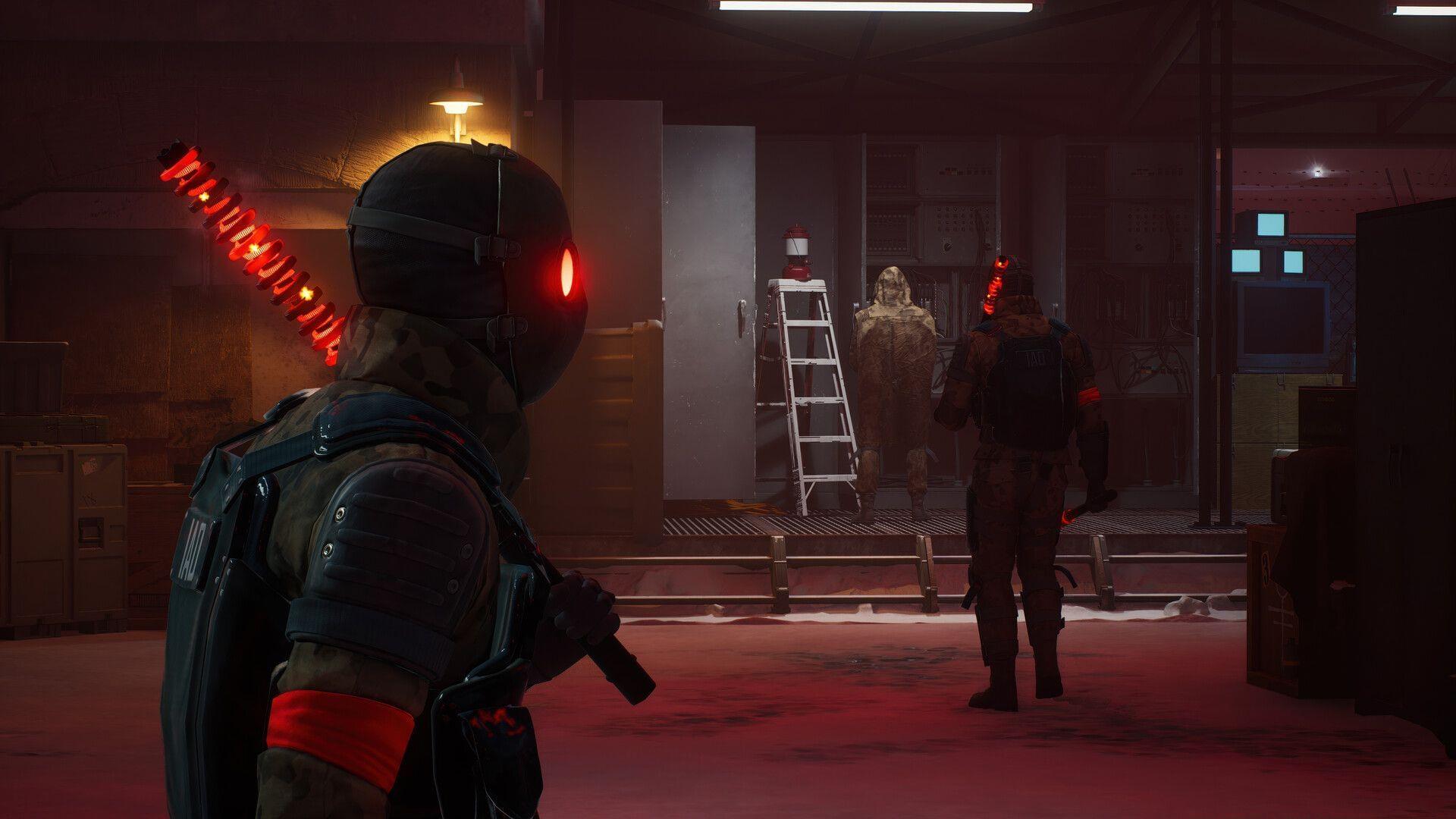
Mastering FOV adjustment in Vampire The Masquerade Bloodlines 2 transforms your entire gaming experience. Field of view determines how much peripheral vision your character possesses, directly impacting situational awareness and immersion within Seattle’s supernatural underworld. Many players encounter motion sickness or claustrophobic sensations with default settings, making customization essential for comfortable extended gameplay sessions.
The absence of native FOV sliders represents a significant oversight for a first-person RPG, forcing dedicated fans to seek alternative solutions. Wider fields of view provide tactical advantages during combat encounters and exploration sequences, while narrower settings can enhance cinematic moments and focused storytelling.
Universal Unreal Engine Unlocker Setup Process
Before diving into the modification process, understanding the tool’s functionality ensures safe implementation. The Universal Unreal Engine Unlocker serves as a gateway to developer features typically hidden from regular players. This legitimate utility temporarily modifies game memory to enable console access without permanently altering game files.
Critical Safety Precautions: Always download the Unlocker from official repositories like GitHub to avoid malware risks. Verify file integrity through community forums and ensure your antivirus recognizes the tool as safe. Create backup saves before proceeding, as improper modifications could potentially corrupt your progress.
System compatibility varies across different Unreal Engine versions, but Bloodlines 2 utilizes UE4, which enjoys excellent support from the current Unlocker iteration. Ensure your Windows version supports the required .NET frameworks and that game files aren’t encrypted or modified by other mods during this process.
Step-by-Step FOV Modification Guide
Here’s a detailed step-by-step guide to change this setting:
Pro Tip: The FOV change applies immediately without requiring game restarts. Experiment with different values during various gameplay scenarios to find your perfect setting. Consider adjusting FOV when switching between combat, exploration, and dialogue sequences for specialized experiences.
Advanced FOV Optimization Strategies
Beyond basic field of view adjustments, experienced players can fine-tune their visual experience for specific scenarios. Competitive players often prefer higher FOV values (100-110) for maximum environmental awareness during combat, while role-playing enthusiasts might opt for cinematic values (85-95) that enhance storytelling immersion.
Performance Considerations: Increasing FOV expands rendered geometry, potentially impacting frame rates on lower-end systems. Monitor your performance metrics after adjustments and consider balancing FOV with other graphical settings. Ultra-wide monitor users typically require values above 100 to prevent distorted peripheral vision.
Advanced Console Commands: Beyond basic FOV, experiment with ‘sg.ResolutionQuality’ for sharpness adjustments and ‘r.MotionBlurQuality 0’ to disable blur effects that can conflict with wide field of view settings. These complementary commands create a cleaner, more responsive visual experience.
Troubleshooting Common Issues
Many players encounter predictable obstacles during their FOV modification journey. If the developer console refuses to activate, verify that the DLL injection succeeded by checking the Unlocker status indicators. Some antivirus software may interfere with the injection process—temporarily disabling real-time protection during setup often resolves this.
Game Stability Solutions: Experiencing crashes after FOV changes typically indicates driver conflicts or incompatible values. Reset to default by typing ‘fov 80’ and gradually increase in 5-point increments. Update your graphics drivers and ensure no other modification tools are running concurrently.
Persistent Problems: For ongoing issues, the Bloodlines 2 modding community provides extensive troubleshooting resources. Community patches and updated Unlocker versions frequently address compatibility problems with new game updates. Always check patch notes before attempting modifications after major title updates.
Read more about: All outfits in Vampire The Masquerade Bloodlines 2 and how to unlock them
That covers the comprehensive approach to customizing your field of view in Vampire The Masquerade Bloodlines 2.
Check out some of our other related articles below:
No reproduction without permission:GameCDjnh » How to change FOV in Vampire The Masquerade Bloodlines 2 on PC Master FOV customization in Vampire The Masquerade Bloodlines 2 with this comprehensive guide and advanced optimization tips