
Battlefield 6 CPU optimization guide with advanced configuration tweaks for performance improvement
Understanding Battlefield 6’s CPU Performance Issues
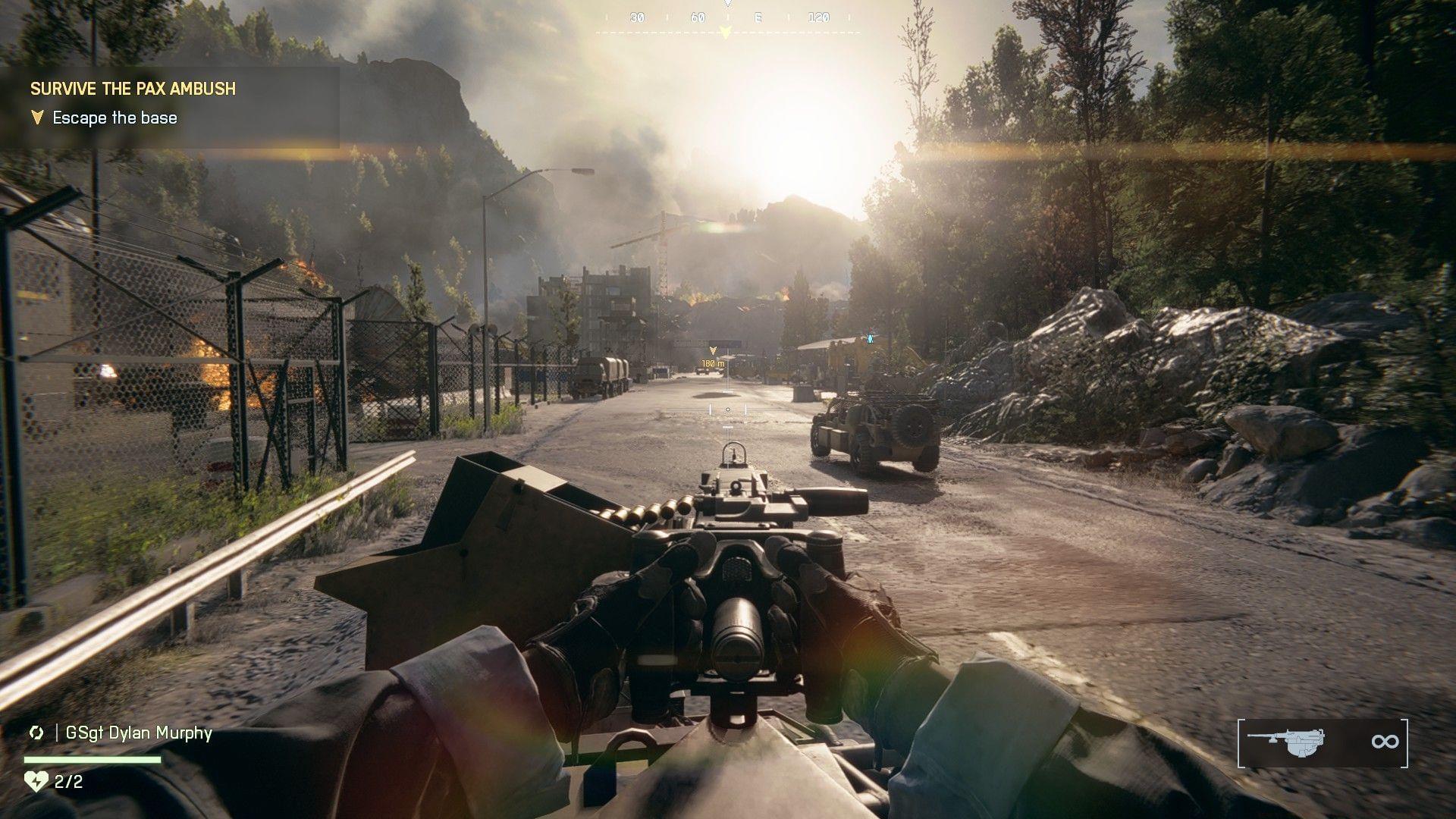
Battlefield 6 stands as one of the most graphically demanding first-person shooters currently available, showcasing unprecedented environmental destruction, dynamic lighting systems, and intricately detailed battlefields. This visual excellence unfortunately demands substantial processing power, leading to widespread CPU utilization challenges. Across gaming communities including Reddit threads and official EA support forums, numerous players have documented excessive processor load that impacts gameplay fluidity. While no universal solution exists, the gaming community has identified an effective configuration adjustment that delivers noticeable improvements for most systems.
Locating Your Game Installation Directory
Begin by navigating to your Battlefield 6 installation folder. The precise location varies depending on your gaming platform’s default setup:
Pro Tip: If you’ve customized your installation path, you can quickly locate the directory through your game launcher’s settings. In Steam, right-click Battlefield 6 in your library, select Properties > Local Files > Browse Local Files. This method ensures accuracy regardless of your installation configuration.
Creating the User Configuration File
Once you’ve accessed the correct directory, generate a new text document named “user.cfg” and launch it using Notepad or any preferred text editor. Insert these configuration lines into the file:
The initial two parameters must correspond precisely to your processor’s physical core count, while the final entry should align with your CPU’s total thread capacity. Research your specific processor model online to determine accurate values. Maintain the third and fourth parameters at their default zero settings for optimal performance balance.
Advanced Configuration: For processors with hybrid architectures (like Intel’s P-cores and E-cores), you may need to experiment with assigning specific core counts to different thread types. Modern CPUs with performance and efficiency cores benefit from allocating more threads to performance cores while reserving efficiency cores for background tasks.
Advanced CPU Optimization Strategies
Beyond the basic configuration, several additional strategies can further enhance Battlefield 6’s CPU performance. Consider implementing these complementary optimizations:
In-Game Settings Adjustment: Lowering specific graphics options like shadow quality, anti-aliasing, and post-processing effects can significantly reduce CPU overhead. The terrain quality and destruction detail settings particularly impact processor load during intensive combat sequences.
Background Process Management: Before launching the game, close unnecessary background applications, especially web browsers with multiple tabs, streaming software, and other resource-intensive programs. These applications compete for CPU resources and can exacerbate performance issues.
Driver and System Updates: Ensure your graphics drivers, chipset drivers, and operating system are fully updated. Recent driver versions often include game-specific optimizations and bug fixes that can improve CPU utilization efficiency.
Troubleshooting and Safety Measures
If you’re concerned about potential game file modifications or system stability, rest assured that the user.cfg file operates as a safe configuration layer that doesn’t alter core game files. Should the optimization not yield desired results or introduce performance irregularities, simply remove the user.cfg file and restart Battlefield 6 to revert to default settings.
Common Issues and Solutions: Some players report initial stuttering after implementing the configuration changes – this typically resolves after the game cache rebuilds. If performance degrades, verify your CPU core and thread counts are correctly specified. Overestimating these values can sometimes cause more significant performance issues than the original problem.
Temperature Monitoring: Even with successful CPU optimization, continue monitoring your processor temperatures during extended gaming sessions. Consider reducing graphical settings further if your hardware approaches recommended specifications to maintain thermal stability and consistent frame rates.
No reproduction without permission:GameCDjnh » How to fix Battlefield 6 high CPU usage issue Battlefield 6 CPU optimization guide with advanced configuration tweaks for performance improvement