
Comprehensive troubleshooting guide to fix Delta Force Login Failed Id 4/35 error and prevent recurrence
Understanding the Login Failed Id 4/35 Error
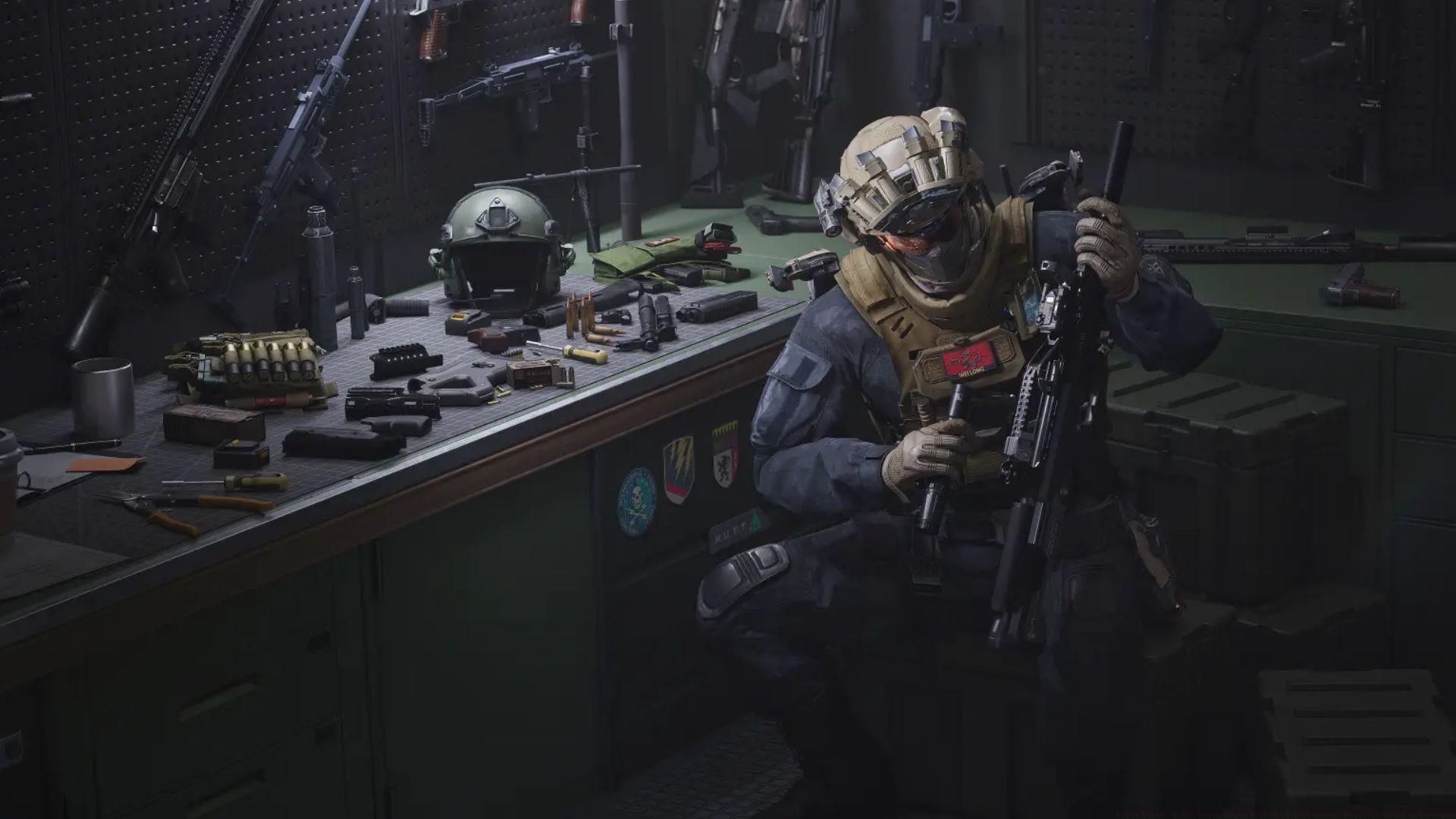
Encountering the Delta Force Login failed Id 4/35 error typically indicates authentication failures that prevent access to game servers. This specific error code often relates to session validation problems, where the game client cannot establish proper communication with authentication servers. Understanding the underlying mechanisms helps implement targeted solutions rather than random troubleshooting attempts.
The error primarily stems from three core areas: session file corruption that disrupts credential validation, platform connectivity issues between Steam and game servers, and security software interference blocking necessary network communications. Many players mistakenly assume server-side problems when the issue frequently resides in local configuration or file integrity.
Immediate Fix Solutions
Begin with the most effective solution that addresses corrupted session data. Navigate to your game installation directory using File Explorer or through Steam’s browse local files option. The critical path requires accessing: Delta ForceLauncherCacheTSF4G2 where temporary session files are stored. Delete all contents within this specific folder, which forces the game to generate fresh authentication tokens upon next launch.
Session File Reset Procedure:
When file corruption extends beyond session data, utilize Steam’s built-in repair functionality. Access your Steam library, right-click on Delta Force, and select Properties. Navigate to the Installed Files section and initiate the ‘Verify integrity of game files’ process. This comprehensive scan identifies missing, corrupted, or altered game components and automatically replaces them with valid versions.
Steam Integrity Check Steps:
Connection resets often resolve transient communication glitches. Completely exit Steam using Task Manager to ensure all background processes terminate. Relaunch Steam and attempt to start Delta Force, which establishes fresh connection handshakes between the game client and authentication servers.
Advanced Troubleshooting Methods
Security software represents a common but overlooked obstacle for online gaming connectivity. Modern antivirus suites and firewall applications may mistakenly flag game authentication processes as suspicious activity. Configure exceptions for both Delta Force executable files and the game launcher within your security software settings. For temporary testing, disable real-time protection briefly to determine if it’s causing the blockage, but re-enable immediately afterward.
Firewall Configuration Steps:
Network configuration issues can disrupt the delicate communication required for game authentication. Reset your network adapter through Windows settings or command prompt using ‘ipconfig /flushdns’ and ‘netsh winsock reset’ commands. Consider temporarily switching between wired and wireless connections to identify infrastructure-related problems. Router configuration adjustments may be necessary if using strict firewall settings.
When standard solutions prove ineffective, complete launcher reinstallation may be required. Uninstall the Delta Force launcher through Programs and Features, then download a fresh copy from official sources. This approach addresses deeper installation corruption that file verification cannot detect. Ensure you backup game settings and configuration files before proceeding with this method.
Prevention and Optimization Strategies
Implementing proactive maintenance routines significantly reduces recurrence of authentication errors. Regularly clear temporary game files and cache data before launching sessions. Schedule monthly Steam integrity checks for all frequently played games to catch corruption early. Maintain updated graphics drivers and system software, as outdated components can indirectly affect game authentication processes.
Connection stability enhancements include using wired Ethernet connections when possible, optimizing router Quality of Service (QoS) settings for gaming traffic, and avoiding bandwidth-intensive activities during gameplay sessions. Monitor system resource usage to ensure adequate memory and processing power remains available for authentication processes.
Develop a systematic troubleshooting approach when errors occur, starting with simplest solutions before progressing to more complex interventions. Document successful resolution methods for future reference. Join official game communities to stay informed about widespread server issues that might affect connectivity, saving unnecessary troubleshooting for problems outside your control.
Also read: Delta Force “Failed to get the branch list” error
Also read: How to possibly fix the Delta Force ACE Center Exception error
Also read: Delta Force crashing on PC: Possible fixes and reason
Stay informed about ongoing Delta Force updates and technical developments:
No reproduction without permission:GameCDjnh » Delta Force: Delta Force Login failed Id 4/35 error: Possible fixes and reasons Comprehensive troubleshooting guide to fix Delta Force Login Failed Id 4/35 error and prevent recurrence