
TL;DR
- Use hotbars to track gathering items and essential tools like Aether Compass for real-time inventory monitoring
- Create custom macros with personalized icons for social interactions and job switching using /micon commands
- Prioritize quests manually in your journal and reset striking dummy enmity through direct interaction
- Customize UI themes and utilize waymarks for both dungeons and open-world navigation
- Master controller shortcuts like L1+R3 for rapid menu scaling adjustments
Final Fantasy XIV contains numerous interface optimizations that veteran players often overlook. This comprehensive guide reveals essential techniques for both PC and controller users to significantly enhance gameplay efficiency.
1. Advanced Item Tracking via Hotbar
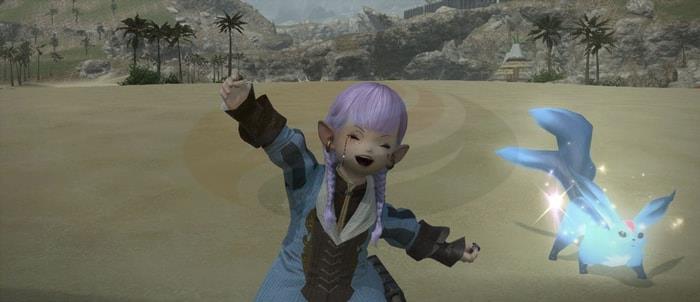
Beyond standard abilities, your hotbar serves as a powerful inventory management tool. Place fishing bait, caught fish, and gathering materials directly on accessible slots to monitor quantities without interrupting your workflow. This technique proves invaluable during timed nodes or fishing sessions where inventory space management becomes critical. The visual counter updates in real-time, eliminating the need to constantly open your inventory during active gathering rotations.
10. Essential Tool: Aether Compass Hotbar Placement
Many players overlook the Aether Compass as a temporary tool, but assigning it permanently to your hotbar transforms aether current hunting. With instant access, you can continuously scan while traveling between objectives, dramatically reducing the time investment required to unlock flying in new regions. Consider placing it alongside your mount and minion buttons for consistent accessibility.
5. Advanced Macro Icon Customization
Custom macro icons significantly enhance visual recognition and interface organization. Beyond the basic icon selector, utilize the /micon command for precise control over appearance. Well-designed icons prevent accidental activation and create a more personalized gaming experience that reflects your playstyle preferences.
The /micon system allows assignment of any game asset as your macro visual representation. Master this command structure to create intuitive visual cues that match your macro’s purpose, whether for combat rotations, crafting sequences, or social interactions.
Professional Examples:
/micon “Resurrection” action – displays the standard resurrection skill icon
/micon “Eastern Bow” emote – utilizes the Eastern Bow emote visual
/micon “Carpenter” classjob – shows the default Carpenter profession symbol
/micon “Soul of the Dancer” item – employs the job’s soulstone for aesthetic job-changing macros
(Item icon assignment requires the corresponding item in your inventory or armoury chest.)
4. Efficient Social Interaction Macros
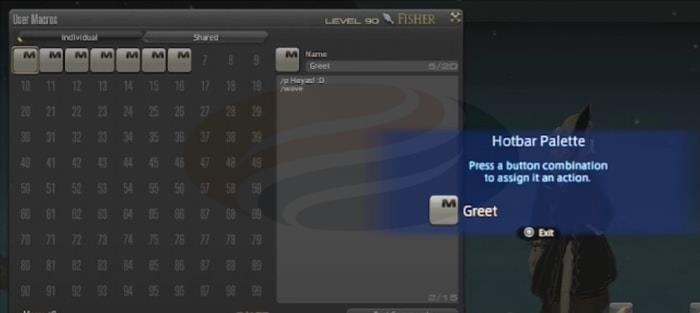
Streamline repetitive communication with customized greeting and farewell macros. Controller users particularly benefit from assigning common phrases like “/p Hello” to hotbar slots, eliminating tedious typing during group content. Enhance these macros by incorporating synchronized emotes for more expressive social presence without manual input.
3. Dynamic Class Switching During Queue Times
Maximize downtime efficiency by changing classes while waiting for duty finder queues. This allows continuation of gathering, crafting, or exploration activities without sacrificing queue position. The system automatically prompts for class reversion when your duty commences, ensuring seamless transitions between activities.
Advanced Strategy: Maintain separate gear sets for your queue class and active downtime class to avoid inventory clutter. This approach transforms potentially wasted waiting time into productive gameplay sessions.
6. Strategic Quest Prioritization System
Override the automatic quest sorting by manually prioritizing objectives through your journal interface. This ensures your five active quest slots display the most time-sensitive or progression-critical tasks. Proper quest organization can reduce travel time by up to 30% through optimized routing.
7. Striking Dummy Enmity Reset Technique
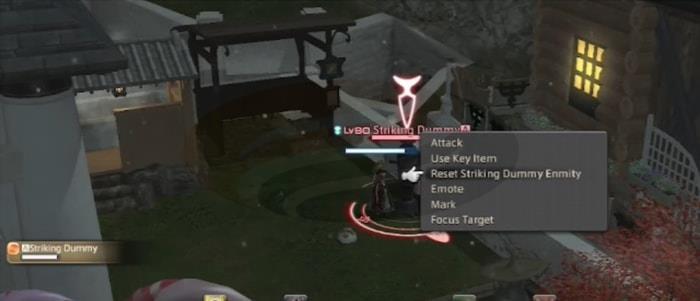
Combat practice sessions often leave striking dummies maintaining enmity indicators. Quickly reset this by directly interacting with the dummy and selecting “Reset Striking Dummy Enmity” from the context menu. This immediate reset prevents visual clutter in housing districts or practice areas.
8. Complete UI Theme Personalization
Refresh your visual experience by switching between Dark, Light, and Classic menu themes in System Configuration. Note that theme changes require logout and login to fully implement, so schedule this customization during natural breaks in gameplay.
9. Extended Waymark Utility Applications
Waymarks provide essential navigation beyond dungeon mechanics. Deploy them in open world areas to mark hunting locations, gathering nodes, or scenic viewpoints. These persistent markers remain visible through weather effects and darkness, serving as reliable reference points during exploration.
11. Rapid Controller Menu Scaling
Controller users can instantly adjust active window sizing using L1+R3 to activate the virtual mouse, then cycling through UI scales with repeated R3 presses. This on-the-fly adjustment proves invaluable when reviewing market board data or crafting logs where text legibility becomes crucial.
Pro Tip: Combine this with the cross hotbar system for a fully customized controller experience that matches your playstyle preferences.
These advanced techniques represent just the beginning of FFXIV interface optimization. Each adjustment contributes to a more streamlined gameplay experience that lets you focus on content rather than interface navigation.
Have you discovered other efficiency techniques? Share your expertise in the comments below to help fellow Warriors of Light enhance their Eorzean adventures.
Action Checklist
- Assign gathering materials and bait to hotbar slots for real-time quantity tracking
- Place Aether Compass on permanent hotbar position for continuous scanning
- Create social macros with custom icons using /micon commands
- Set up class switching gear sets for efficient duty finder downtime utilization
- Configure quest journal priorities and waymark placements for optimized navigation
No reproduction without permission:GameCDjnh » Useful Tips for Final Fantasy XIV Players Master FFXIV with 11 expert UI customization, macro, and efficiency tips for PC and controller players