
TL;DR
- Valorant only runs on Windows and requires Boot Camp installation on Intel Macs
- Apple Silicon Macs cannot run Valorant due to incompatible anti-cheat system
- Secure Boot must be set to Full Security before Windows installation
- Minimum 64GB free space required, with 128GB recommended for optimal performance
- Performance optimization requires specific Windows and in-game settings adjustments
As a tactical first-person shooter that exploded onto the gaming scene in 2020, Valorant has captivated millions with its precise gunplay and strategic team dynamics. Developed by Riot Games, this free-to-play title combines elements from classic shooters like Counter-Strike with unique character abilities, creating a compelling competitive experience that has Mac users wondering about accessibility options.
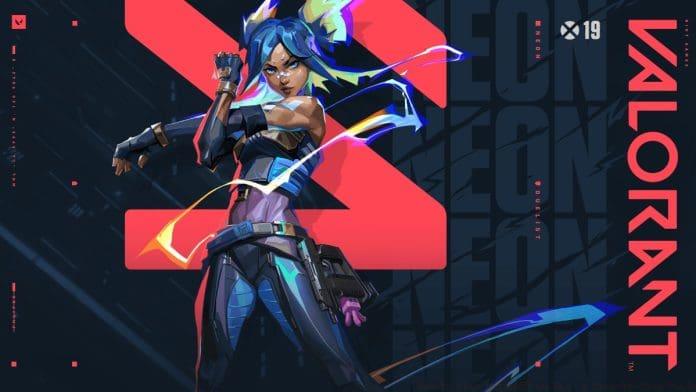
The game’s core mechanics revolve around 5v5 matches where teams alternate between attacking and defending objectives across multiple game modes. Unlike traditional shooters, each agent brings distinctive tactical abilities that complement different playstyles, from duelists who excel in direct combat to controllers who manipulate the battlefield. Understanding these class dynamics can help transition between different tactical shooters more effectively.
Unfortunately, Valorant maintains strict platform exclusivity to Windows systems and isn’t available through cloud gaming services. This limitation stems primarily from Riot’s Vanguard anti-cheat system, which operates at kernel level and conflicts with macOS security architecture. The anti-cheat’s deep system integration prevents compatibility with virtualization solutions like Parallels Desktop or CrossOver, creating significant barriers for Mac gamers seeking access.
For Intel-based Mac users, Boot Camp provides the only viable pathway to experiencing Valorant’s tactical gameplay. This native Apple utility allows you to partition your hard drive and install Windows directly, bypassing the compatibility issues that plague virtualization attempts. However, this approach requires careful preparation and understanding of several technical requirements.
Before initiating the Boot Camp process, verify your Mac meets the essential specifications. You’ll need a minimum of 64GB free storage space, though 128GB is strongly recommended to accommodate Windows updates, game installations, and future content patches. RAM requirements should exceed Valorant’s minimum specifications—8GB suffices for basic operation, but 16GB ensures smoother performance during intense firefights.
The Secure Boot configuration represents a critical preparatory step many users overlook. This security feature must be set to “Full Security” mode before Windows installation begins. If you’ve previously modified these settings, you’ll need to reset them through macOS recovery mode by holding Command-R during startup, selecting Utilities > Startup Security Utility, and choosing the Full Security option before rebooting normally.
Once your Mac meets the preliminary requirements, the Windows installation process follows a structured sequence. Begin by launching Boot Camp Assistant from your Applications > Utilities folder. The assistant will guide you through partitioning your drive—allocate at least 64GB for Windows, though competitive gamers should consider 128GB to accommodate multiple game titles and weapon customization files that enhance gameplay flexibility.
Older macOS versions preceding El Capitan require a USB drive with 16GB minimum capacity for Windows installation media. Modern macOS releases handle this process without external media, downloading necessary files directly during setup. Regardless of your macOS version, ensure stable internet connectivity throughout the installation, as Boot Camp must download specific Windows support software and drivers optimized for your Mac hardware.
Following Windows installation, immediately install the Boot Camp drivers package to ensure proper hardware functionality. These drivers optimize graphics performance, enable keyboard shortcuts, and ensure trackpad responsiveness—critical elements for precise aiming in Valorant’s competitive matches. After driver installation, download Valorant through the official website and prepare for the additional optimization steps that maximize gaming performance.
Achieving optimal Valorant performance on Mac hardware requires both system-level adjustments and in-game configuration. Begin by updating Windows to the latest version and ensuring all Boot Camp drivers are current. Within Windows, access Power Options and select High Performance mode to prevent CPU throttling during matches. Additionally, disable unnecessary background applications and visual effects through System Properties > Advanced > Performance Settings.
Within Valorant’s video settings, competitive players should prioritize frame rate over visual fidelity. Set material quality to low, disable anti-aliasing, and reduce shadow details to maximize rendering performance. Resolution scaling at 75-80% often provides the optimal balance between visual clarity and performance on Mac hardware. These adjustments can increase frame rates by 30-50%, providing crucial advantages in fast-paced firefights where every millisecond counts.
Common installation issues often involve Secure Boot conflicts or driver incompatibilities. If Valorant fails to launch, verify Vanguard has proper system permissions through Windows Security settings. Thermal management represents another frequent challenge—Mac laptops benefit from cooling pads during extended gaming sessions to prevent performance degradation. For comprehensive gaming strategies beyond installation, consult our complete tactical shooter guide covering advanced techniques applicable across multiple titles.
Action Checklist
- Verify Intel Mac compatibility and 64GB free space
- Configure Secure Boot to Full Security via recovery mode
- Use Boot Camp Assistant to partition drive and install Windows
- Install Boot Camp drivers and update Windows completely
- Optimize Valorant settings for maximum FPS performance
No reproduction without permission:GameCDjnh » How To Play VALORANT on Mac: A Step-by-Step Guide Complete guide to installing Valorant on Mac using Boot Camp with performance optimization tips