
A comprehensive guide to installing, managing, and troubleshooting mods in PEAK using the BepInEx framework.
Why Mod PEAK? Enhancing Your Climbing Experience
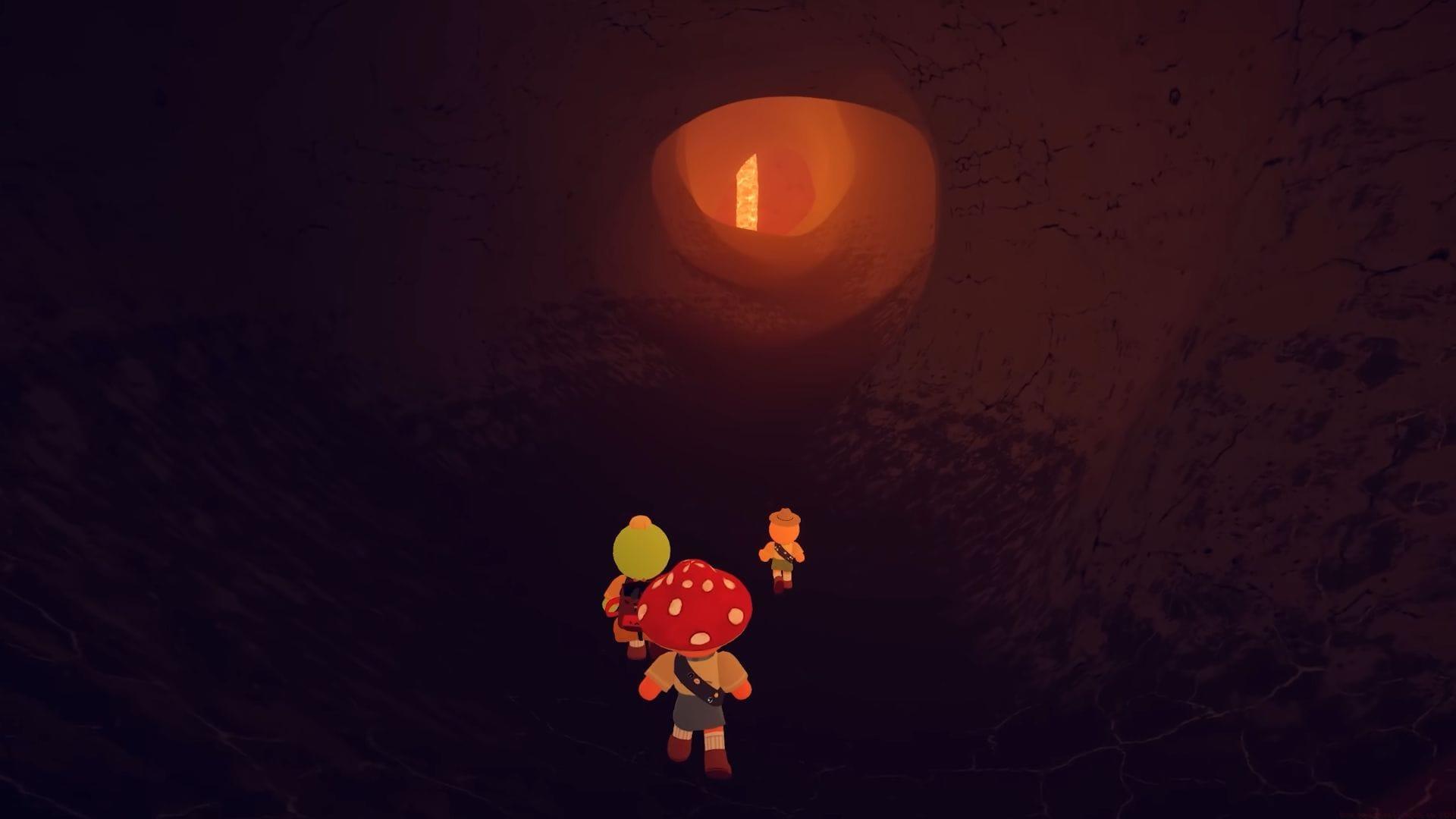
Integrating mods in PEAK fundamentally transforms the game, allowing you to tailor difficulty, add quality-of-life features, or unlock entirely new gameplay mechanics. Beyond simple cheats like infinite stamina, mods can introduce sophisticated tools, UI enhancements, and community-created content that extend replayability. While the initial setup requires careful manual steps, this process grants you fine-grained control over your modding environment, making subsequent additions swift and straightforward.
Foundational Setup: Installing BepInEx
The absolute prerequisite for any modding in PEAK is BepInEx, a universal mod loader that acts as a framework for other modifications. Think of it as the operating system for your mods. Here is the precise installation procedure:
Pro Tip: Avoid extracting files directly to your Downloads folder. Using the desktop minimizes path errors during the drag-and-drop process.
Extract the entire contents of the BepInEx ZIP file directly into the opened PEAK game folder. Use a tool like 7-Zip or Windows’ built-in extractor. A successful extraction will create a new BepInEx folder alongside the game’s .exe files.
Also read: 7 best mods for PEAK
Critical Initialization Step: Launch PEAK normally through Steam after extraction. Run it just long enough for the main menu to appear, then close the game. This first launch allows BepInEx to generate its necessary internal folder structure, most importantly the plugins folder where all your future mods will reside. Skipping this step is a common mistake that leads to mods not loading.
Installing Your First Mod: A Step-by-Step Walkthrough
With BepInEx ready, you can now install gameplay modifications. We’ll use the popular ‘PeakUnlimited’ mod as a universal example.
Common Pitfall: If a mod doesn’t work, first check the game’s log file (`BepInEx/LogOutput.log`). Often, errors here will point to missing dependencies or version mismatches, which are common reasons for failure.
Advanced Mod Management & Troubleshooting
The process for installing any mod—be it InfiniteStamina, NoFallDamage, or FlyMode—is identical to the steps above. The universal pathway for all PEAK mods is:
You can install multiple mods simultaneously by placing all their .dll files into this single plugins folder. However, for stability, consider these advanced strategies:
Optimization Tip 1: Install Mods Incrementally. Add one mod at a time, then launch the game to test functionality. This makes it easy to identify which mod causes a crash or conflict if problems arise.
Optimization Tip 2: Manage Mod Compatibility. Check each mod’s page for required dependencies (like other .dll libraries) and ensure they are also placed in the plugins folder. Also, verify that the mod version is updated for the latest PEAK patch; outdated mods are a primary source of game instability.
Optimization Tip 3: Organize Your Plugins Folder. While not required, creating simple subfolders (e.g., `QoL_Mods`, `Gameplay_Overhauls`) can help you manage a large mod collection, though this is for your organization only and doesn’t affect loading.
Remember, the modding community is dynamic. A mod that works today may break after a game update. Regularly check Thunderstore for mod updates and community posts about known issues.
Mod Removal & System Cleanup
Uninstalling a mod is simpler than installation. If you wish to remove a mod, follow this safe removal protocol:
Locate the specific .dll file corresponding to the mod you want to remove (e.g., PeakUnlimited.dll) and delete it. There is no need to delete configuration files unless you also want to remove saved settings; they are harmless if left behind.
Verification: After deletion, launch the game. The mod’s effects should be gone. If you experience issues, it’s possible the mod altered save files. In such rare cases, consult the mod’s original page for specific uninstallation instructions.
To completely reset your modding environment, you can delete the entire BepInEx folder. This will remove all mods and the framework itself. A fresh game launch will then run PEAK in its vanilla, unmodded state.
This concludes our comprehensive guide on installing, managing, and troubleshooting mods in PEAK.
Check out: How to play PEAK with more than 5 players
No reproduction without permission:GameCDjnh » How to install mods in PEAK A comprehensive guide to installing, managing, and troubleshooting mods in PEAK using the BepInEx framework.