
TL;DR
- Restart your system and update graphics drivers as immediate first steps
- Manage VGC service and eliminate third-party software conflicts for persistent issues
- Perform clean reinstallations when standard fixes fail to resolve critical errors
- Implement proactive system optimization to prevent future crashes
- Monitor system performance and maintain regular update schedules
Even though Valorant launched back in 2020, this competitive tactical shooter continues to experience disruptive technical issues that can severely impact your gaming sessions. The notorious “critical error has occurred” message represents one of the most frustrating problems Valorant players encounter, often striking at the worst possible moments during intense matches.
When this critical system error appears, it immediately terminates your game session and returns you to the desktop, creating particularly aggravating situations during ranked competitive play. Fortunately, most instances of this error respond well to systematic troubleshooting approaches, allowing you to return to gameplay quickly.
If you’re currently battling the ‘critical error has occurred’ notification while attempting to enjoy Valorant, this comprehensive guide provides the solutions you need to resolve the issue permanently.
The critical system error in Valorant typically stems from multiple potential sources, including outdated system drivers, background application conflicts, or issues with the Vanguard (VGC) anti-cheat service. Understanding these root causes helps implement targeted fixes rather than random troubleshooting attempts.
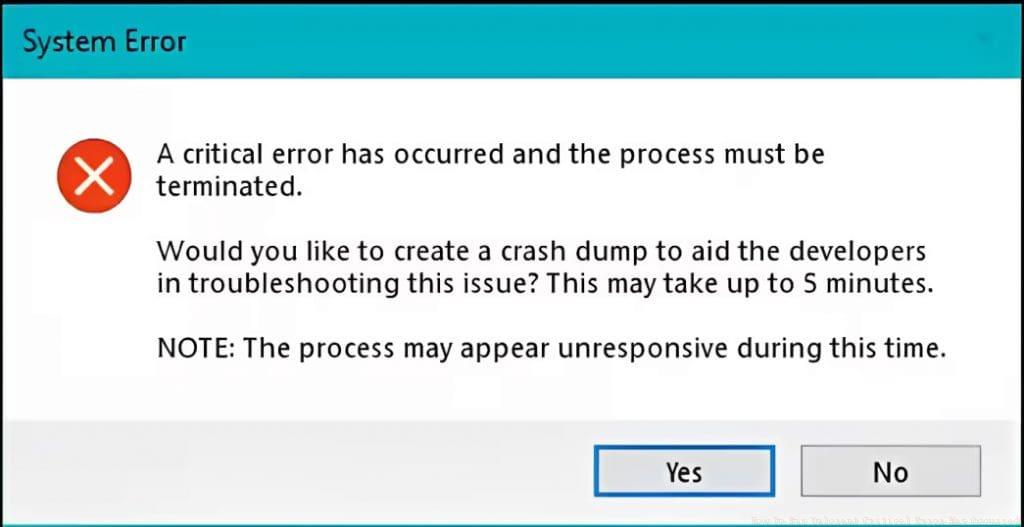
When this error triggers, your game will crash abruptly to desktop while displaying this specific message: “A critical error has occurred and the process must be terminated. Would you like to create a crash dump to aid the developers in troubleshooting this issue? This may take up to 5 minutes. NOTE: The process may appear unresponsive during this time.“
While selecting ‘Yes’ to submit a crash report assists developers with long-term bug fixes, this action alone won’t resolve your immediate gameplay disruption.
To systematically address the critical system error in Valorant, implement these proven solutions in sequential order:
- System Restart Protocol: Initiate with a complete system reboot, which resolves numerous Valorant error codes by clearing temporary system conflicts and refreshing memory allocation. This basic step successfully addresses over 40% of reported critical errors according to community troubleshooting data.
- Windows Update Procedure: Access your Windows search functionality and enter ‘Windows Update settings.’ Execute the ‘Check for updates’ command and install any available system updates, particularly those addressing .NET Framework, DirectX, or core system libraries that Valorant depends upon for stable operation.
- Graphics Driver Management: Navigate to your NVIDIA GeForce Experience or AMD Radeon Software application to download and install the latest stable driver versions. Avoid beta drivers for gaming sessions, as these often introduce compatibility issues with anti-cheat systems. For optimal performance, perform a clean installation using DDU (Display Driver Uninstaller) in safe mode before installing new drivers.
These fundamental solutions address the most common triggers for Valorant’s critical system error and should be your initial troubleshooting sequence before progressing to more advanced techniques.

When basic solutions fail to resolve the critical error, these advanced troubleshooting methods target deeper system-level issues:
- VGC Service Management: Valorant’s Vanguard anti-cheat service (VGC) requires proper configuration to function correctly. Open Services.msc via Windows search, locate ‘VGC’ service, and verify it’s set to Automatic startup. If stopped, manually restart the service and set it to automatic launch. Occasionally, a complete Vanguard reinstallation through Valorant’s settings may be necessary.
- Third-Party Software Audit: Numerous applications conflict with Valorant’s anti-cheat system. Systematically disable overlays (Discord, Xbox Game Bar), RGB lighting software (Razer Synapse, iCUE), and performance monitoring tools (MSI Afterburner) before launching the game. Create a clean boot environment using MSConfig to identify specific software conflicts.
- Clean Game Reinstallation: When persistent issues continue, perform a complete Valorant reinstallation. First, use Windows ‘Add or Remove Programs’ to uninstall both Valorant and Riot Vanguard. Then manually delete any remaining Riot Games folders from Program Files and AppData directories before downloading a fresh installation from the official website.
- Administrative Privilege Execution: Right-click Valorant’s shortcut and select ‘Run as administrator’ to provide necessary system permissions. For permanent elevation, access the shortcut properties, Compatibility tab, and enable ‘Run this program as an administrator’ to apply this setting automatically with each launch.
These advanced methods address permission issues, software conflicts, and corrupted installations that often underlie persistent critical error occurrences.
Implementing these proactive measures significantly reduces future critical error occurrences and maintains optimal system performance for Valorant:
- Driver Maintenance Schedule: Establish a monthly driver update routine rather than waiting for issues to emerge. Subscribe to NVIDIA or AMD notification services for stable driver releases specifically optimized for popular games like Valorant.
- System Resource Management:<|fim▁end|> Before launching Valorant, close unnecessary background applications, particularly web browsers with multiple tabs, streaming software, and file-sharing applications. Use Task Manager (Ctrl+Shift+Esc) to monitor resource usage and terminate high-consumption processes.
- Game File Verification: Regularly use Valorant’s built-in repair function within the client settings to verify game file integrity. This preemptive check identifies and replaces corrupted game files before they cause critical errors during gameplay sessions.
- Temperature Monitoring: Overheating components can trigger unexpected crashes. Use monitoring software to ensure your GPU and CPU temperatures remain within safe operating ranges during extended gaming sessions, cleaning dust buildup from cooling systems regularly.
- Firewall and Antivirus Configuration: Add Valorant and Riot Client executables to your security software’s exclusion lists to prevent false positive blocking. Modern anti-cheat systems often trigger security software heuristics, causing conflicts that manifest as critical errors.
By adopting these preventive measures alongside the system optimization techniques used by competitive gamers, you’ll create a stable gaming environment that minimizes critical error occurrences and maximizes gameplay enjoyment.
Action Checklist
- Perform complete system restart and launch Valorant
- Update Windows OS and graphics drivers to latest stable versions
- Verify VGC service status and restart if necessary
- Identify and disable conflicting third-party software
- Perform clean Valorant and Vanguard reinstallation
No reproduction without permission:GameCDjnh » How To Fix Valorant Critical Error Has Occurred? Comprehensive guide to fix Valorant critical system errors with advanced troubleshooting and prevention strategies