
TL;DR
- Multiversus Twitch Drops issues emerged after May 28th launch, affecting reward distribution
- Developers confirmed the problem and provided specific troubleshooting steps for affected players
- Proper account linking between Warner Bros. Games and Twitch is essential for functionality
- Refresh Twitch Drops page and verify connections to resolve most common issues
- Follow systematic troubleshooting to ensure future Twitch Drops are properly received
The highly anticipated full release of Multiversus on May 28th, 2024 brought excitement to the gaming community, though technical difficulties with Twitch Drops temporarily dampened the celebration. Player enthusiasm for the platform fighter’s official launch was met with frustration when promised viewing rewards failed to materialize despite completed requirements. The development team quickly identified the distribution problem and implemented corrective measures to restore functionality.
Official communications from the Multiversus team confirmed they’re actively addressing the Twitch Drops malfunction. Players encountering reward distribution problems should first visit the Twitch Drops interface, refresh the page, and confirm reward visibility. If issues persist despite these steps, developers assure continued investigation into underlying causes. The team maintains transparent communication through their official channels while working toward permanent solutions.
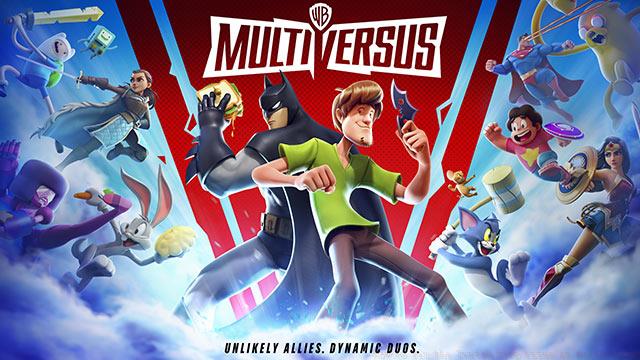
Twitch Drops represent a strategic engagement tool gaming companies employ to boost viewership and player participation through reward incentives. This system allows viewers to earn in-game items simply by watching designated streams on the Twitch platform. For Multiversus specifically, the implementation follows industry standards but requires precise account configuration to function correctly.
The standard setup process for Multiversus Twitch Drops involves several critical steps:
- Navigate to the official Warner Bros. Games portal and establish account access
- Either register a new account or authenticate with existing credentials
- Locate and activate the CONNECT function within the Warner Bros. Games interface
- Complete the Twitch authentication process in the newly opened window
- View qualified Multiversus live broadcasts on Twitch for specified durations
- Retrieve earned rewards through Twitch Inventory before in-game distribution
Many players overlook the crucial account synchronization step, which remains the most common point of failure. The connection between Warner Bros. Games accounts and Twitch profiles must be established before viewing begins, not during or after stream watching. Additionally, rewards sometimes experience delayed distribution up to 24 hours, though most appear within several minutes of claim completion.
When Twitch Drops malfunction in Multiversus, systematic troubleshooting typically resolves most issues. Begin with basic solutions before progressing to more advanced techniques. First, completely exit both the game client and Twitch application, then restart them to refresh connection states. Verify your viewing time meets minimum requirements—most Multiversus Drops need 1-2 hours of continuous watching.
Account verification represents the most critical troubleshooting phase. Confirm your Warner Bros. Games account properly links to your Twitch profile by visiting the connections page in your account settings. If the connection appears broken, disconnect and reestablish the linkage, ensuring you grant all necessary permissions. Check that you’re watching eligible streams—only channels with Drops enabled will contribute toward reward progress.
For persistent problems, advanced solutions may be necessary. Clear your browser cache and cookies, then reattempt the connection process. Try using different browsers or devices to isolate the issue. If rewards show as claimed in Twitch but don’t appear in-game, wait 24 hours before contacting support, as delays sometimes occur during high-traffic periods. Document each step with screenshots for reference if you need to escalate to customer support.
Proactive measures significantly reduce Twitch Drops complications in Multiversus. Establish account connections well before planned viewing sessions to avoid last-minute technical problems. Regularly verify that your Warner Bros. Games and Twitch accounts remain properly linked, as updates sometimes reset permissions. Bookmark the official Multiversus Twitch Drops page for quick access during future events.
Common mistakes include starting streams before confirming Drop eligibility, failing to claim rewards from Twitch Inventory, and using multiple accounts simultaneously. Always check that the stream displays “Drops Enabled” before committing viewing time. Set reminders to claim rewards promptly, as unclaimed Drops expire after certain periods. Avoid account switching during viewing sessions, as this can reset progress tracking.
For players interested in broader gaming strategies beyond Twitch Drops, our Complete Guide offers comprehensive gameplay insights. Those focused on equipment progression should consult the Weapons Unlock guide for optimal loadout development. Understanding character capabilities through our Class Guide can enhance overall gaming performance across multiple titles.
Action Checklist
- Refresh Twitch Drops page and verify reward visibility
- Confirm Warner Bros. Games and Twitch account connection
- Restart game client and Twitch application completely
- Verify stream eligibility and minimum watch time requirements
- Clear browser cache/cookies if connection issues persist
No reproduction without permission:GameCDjnh » How to fix the Twitch Drop issue in Multiversus Complete guide to fixing Multiversus Twitch Drops issues with troubleshooting steps and prevention strategies