
TL;DR
- Valorant Patch 8.08 introduced a widespread crosshair disappearance bug affecting gameplay
- Backup your current crosshair profile immediately using the export feature before it’s lost
- Riot Games acknowledges the issue but official fix timeline remains uncertain
- Multiple troubleshooting methods can restore visibility while waiting for permanent solution
- Regular crosshair backups prevent permanent loss of customized aiming preferences
For competitive Valorant enthusiasts, the crosshair serves as your primary aiming reference point—its sudden vanishing creates significant gameplay disadvantages. Following the deployment of Patch 8.08, multiple gamers encountered this frustrating glitch where their carefully calibrated crosshairs disappeared immediately upon match initiation. The gaming community quickly mobilized on platforms like Reddit, sharing experiences of being unable to restore their preferred aiming reticles despite numerous game restarts and setting adjustments.
The development team at Riot Games has officially recognized this technical problem, confirming active investigation and solution development. However, the absence of an immediate official patch means players must implement protective measures. When the eventual fix releases, existing crosshair configurations may not automatically restore, making proactive backup procedures essential for preserving your customized aiming preferences.
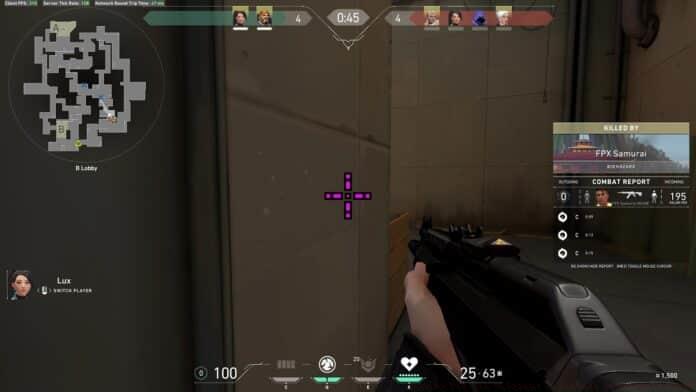
Securing your current crosshair configuration should be your immediate priority. Begin by launching Valorant and navigating directly to the Settings menu—this serves as your configuration control center. Access the Crosshair section specifically, then proceed to Crosshair Profile management where your active settings reside.
Locate and activate the Export function—this critical action copies your unique crosshair code directly to system clipboard. This alphanumeric string contains every detail of your crosshair customization, from color and opacity to dot size and outline thickness. Immediately paste this valuable code into a secure digital location like a text document, notes application, or cloud storage service.
Consider creating multiple backup copies across different platforms to ensure redundancy. Many experienced players maintain dedicated crosshair libraries, documenting various configurations for different maps or agents. This systematic approach prevents total loss and facilitates quick restoration when solutions become available.
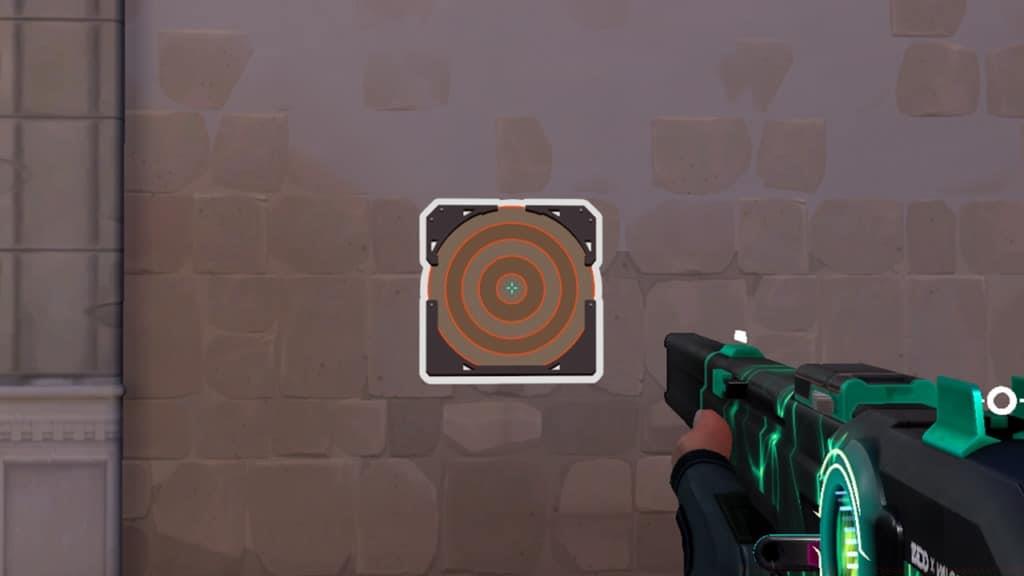
When facing persistent crosshair visibility issues, implement these advanced restoration techniques. First, completely reset your game settings to default—this often resolves configuration conflicts causing the disappearance. Navigate to Settings > General and select ‘Reset All Settings’ to restore baseline configurations.
For technical users, manually inspecting configuration files provides deeper troubleshooting. Locate Valorant’s config files (typically in AppData folders) and create backups before making changes. Deleting corrupted config files forces game regeneration—often resolving persistent graphical glitches. Remember to restore your crosshair code after this process completes.
Graphics driver updates frequently resolve rendering issues affecting UI elements. Ensure your GPU drivers are current, and consider temporarily lowering graphical settings to minimize potential conflicts. Some players report success with switching between fullscreen and windowed modes, which can reset UI rendering pipelines.
Establishing robust crosshair management habits prevents future frustration. Schedule monthly crosshair exports regardless of whether issues exist—this creates restoration points for various scenarios. Consider maintaining a digital notebook specifically for Valorant configurations, including crosshair codes, sensitivity settings, and keybind preferences.
Before installing any game update, perform fresh crosshair backups. Major patches often introduce configuration changes that can affect custom settings. The Weapons Unlock guide demonstrates similar precautionary approaches for preserving gameplay preferences across updates.
Engage with the Valorant community through official forums and subreddits to stay informed about emerging issues and solutions. Collective troubleshooting often produces effective workarounds before official patches release. Like strategic planning in our Complete Guide to Battlefield 6, proactive configuration management ensures uninterrupted gameplay enjoyment.
Are you experiencing the Valorant crosshair disappearance glitch? Share your specific situation and attempted solutions in our comments section—community knowledge sharing helps everyone resolve technical challenges faster.
Action Checklist
- Immediately export current crosshair profile from Settings > Crosshair > Crosshair Profile
- Store crosshair code in multiple secure locations (text files, cloud storage, notes app)
- Reset game settings to default and gradually restore preferences if crosshair remains missing
- Update graphics drivers and verify game file integrity through client
- Establish monthly crosshair backup routine and pre-update export habit
No reproduction without permission:GameCDjnh » How to Fix the Valorant Crosshair Disappeared Bug? Complete guide to fix Valorant crosshair disappearance bug with backup strategies and troubleshooting tips