
TL;DR
- Outdated graphics drivers are the primary cause of DirectX runtime errors in Valorant
- Always update Windows and DirectX before addressing graphics driver issues
- NVIDIA and AMD require different driver update approaches through their respective platforms
- System restart is mandatory after driver updates for changes to take effect
- Regular maintenance prevents recurring DirectX compatibility problems
The DirectX Runtime Error represents one of the most frequent technical obstacles Valorant players encounter when launching the competitive tactical shooter. When this error appears, it completely prevents gameplay until properly resolved through systematic troubleshooting. Fortunately, most instances can be resolved through straightforward procedures that address the root causes.
This comprehensive guide examines all essential knowledge required to permanently eliminate DirectX Runtime Error occurrences in Valorant, including advanced prevention strategies.
Valorant’s DirectX Runtime Error primarily stems from obsolete graphics drivers that lack compatibility with the game’s rendering requirements. Both NVIDIA and AMD graphics card users frequently encounter this issue when their driver versions fall behind current game compatibility standards. The error indicates a fundamental communication breakdown between the game engine and your graphics hardware.
Let’s explore the complete resolution process for Valorant’s DirectX Runtime Error through methodical troubleshooting steps.


Begin the resolution process by verifying your Windows operating system and DirectX framework versions are current. Microsoft regularly releases updates that contain critical compatibility fixes for gaming applications.
To perform this check, press the Windows key on your keyboard and type ‘Settings’ to access system configuration. Navigate to the Windows Update section and select ‘Check for Updates’ to scan for available system improvements. Allow the download and installation process to complete fully before proceeding to graphics driver updates.
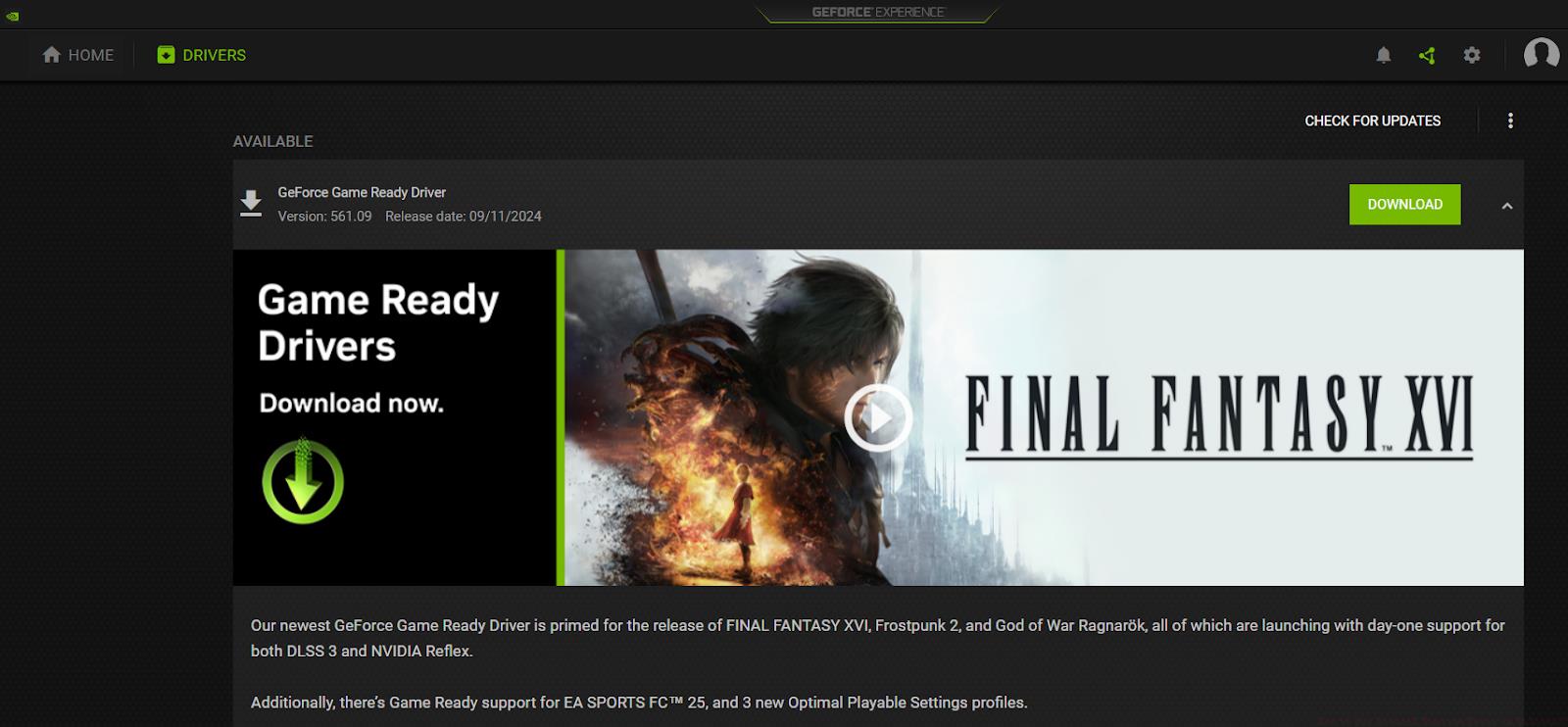
Following Windows updates, address your graphics drivers systematically. NVIDIA graphics card owners should launch the GeForce Experience application, access the ‘Drivers’ tab, and select ‘Check for Updates’ to obtain the latest compatible drivers. For optimal performance, choose ‘Custom Installation’ and select ‘Perform Clean Installation’ to remove previous driver remnants.
AMD graphics card users need to visit the official AMD Driver and Support website, where they can automatically detect their hardware or manually select their graphics card model to download appropriate drivers. The AMD Adrenalin software provides additional optimization settings specifically for gaming performance.
After completing driver installations, restart your computer completely before attempting to launch Valorant. This critical step ensures all driver changes integrate properly with your operating system. For persistent issues, consider using Display Driver Uninstaller (DDU) to completely remove existing drivers before installing fresh versions.
Preventing future DirectX Runtime Errors requires establishing regular maintenance habits. Enable automatic driver updates through your graphics card manufacturer’s application to ensure continuous compatibility. Schedule monthly checks for Windows updates, as these often include DirectX framework improvements that enhance game stability.
For advanced optimization, consider adjusting Valorant’s graphics settings to better match your hardware capabilities. Lowering shadow details and post-processing effects can reduce DirectX workload while maintaining competitive visual clarity. Monitor your system temperatures during gameplay, as overheating can trigger runtime errors during extended sessions.
If you enjoy tactical shooters like Valorant, you might appreciate our Complete Guide to understanding similar technical requirements in other competitive games. Proper system maintenance ensures optimal performance across your entire gaming library.
For players interested in weapon systems, our Weapons Unlock guide provides insights into optimizing your arsenal in various shooters. Understanding how different games handle graphics rendering can help troubleshoot cross-title technical issues.
Additionally, exploring different playstyles through our Class Guide can enhance your understanding of how game engines manage character rendering and effects, which connects directly to DirectX performance considerations.
Action Checklist
- Update Windows operating system through Settings > Update & Security
- Update graphics drivers via GeForce Experience (NVIDIA) or AMD Adrenalin (AMD)
- Perform complete system restart to initialize driver changes
- Verify Valorant launches without errors and test in practice range
- Adjust in-game graphics settings for optimal performance if needed
No reproduction without permission:GameCDjnh » How to Fix DirectX Runtime Error in Valorant? Comprehensive guide to fixing Valorant DirectX errors with driver updates and system optimization techniques