
TL;DR
- Angle smoothing filters unintended mouse movements for cleaner aim trajectories
- Modern gaming mice often exclude this feature due to advanced sensor technology
- Benefits include stability for high-sensitivity users but may limit micro-adjustments
- Configuration requires specialized software or third-party applications like Raw Accel
- Optimal usage depends on individual aiming style and sensitivity preferences
If you’re serious about competitive gaming in Valorant, you’ve likely encountered discussions about mouse optimization features. Angle smoothing represents a specialized function embedded within certain gaming peripherals that directly impacts your aiming precision and movement fluidity.
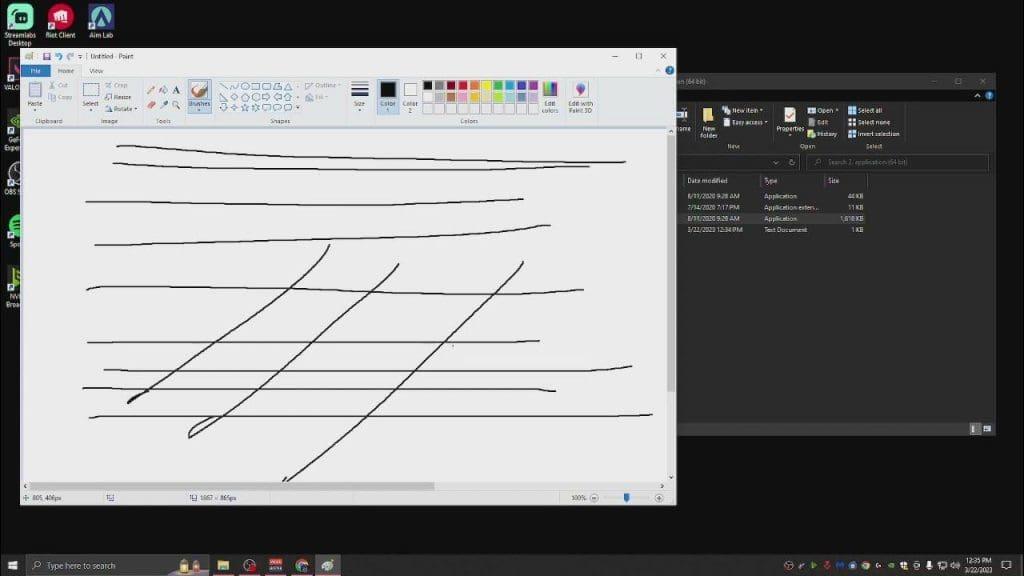
This technology operates as an intelligent filtering system that processes your mouse’s raw input data. When executing horizontal aiming motions, even the steadiest hands produce minor vertical deviations. The algorithm identifies these unintended directional changes and applies corrective smoothing to maintain cleaner movement trajectories. Think of it as having a digital assistant that helps straighten your aim paths during intense firefights.
While previously standard in gaming mouse firmware, contemporary high-performance sensors have largely rendered this feature obsolete. Modern optical and laser sensors achieve such exceptional tracking accuracy that artificial correction becomes unnecessary—and sometimes counterproductive. Many professional-grade mice now prioritize raw input processing over algorithmic assistance.

Understanding the trade-offs of angle correction helps determine if it aligns with your gameplay requirements. This feature isn’t universally beneficial—its value depends heavily on individual aiming styles, sensitivity preferences, and skill levels.
- Enhances movement precision by eliminating unintended directional fluctuations during rapid target acquisition
- Facilitates smoother, more consistent crosshair placement for players with naturally unsteady hands or high sensitivity configurations
- Provides additional stability layers when transitioning to unfamiliar DPI settings or experimenting with new aiming techniques
- Restricts natural movement freedom by imposing algorithmic constraints on mouse input interpretation
- Interferes with muscle memory development by altering the relationship between physical movement and in-game response
- Can prevent critical micro-adjustments during precision shooting scenarios, potentially causing missed opportunities
For novice players still developing fundamental aiming skills, the stabilization benefits might outweigh the limitations. However, experienced competitors typically prefer unfiltered input for maximum control and predictability. The decision ultimately hinges on whether you prioritize consistency over absolute control in your aiming methodology.
Configuring angle smoothing requires accessing your mouse’s configuration software or utilizing specialized third-party applications. The process varies significantly depending on your hardware manufacturer and software availability.
Begin by installing your mouse’s official configuration utility—most major brands like Logitech, Razer, and SteelSeries provide dedicated software with advanced customization options. Navigate to the sensitivity or performance settings section and locate the angle snapping or prediction toggle. Enable the feature and test its impact in Valorant’s practice range before competitive matches.
For mice lacking native support, third-party solutions like Raw Accel offer alternative implementation methods. These applications intercept mouse input at the driver level, applying similar smoothing algorithms regardless of your hardware’s capabilities. Configuration typically involves adjusting smoothing intensity levels and activation thresholds to match your responsiveness preferences.
Remember that Valorant’s native raw input setting should remain enabled regardless of your angle snapping configuration. This ensures the game processes mouse data directly from the hardware rather than through Windows’ input system, maintaining optimal responsiveness alongside any smoothing features.
Maximizing the benefits of angle correction requires thoughtful integration with your overall setup. The feature shouldn’t operate in isolation—it needs synchronization with your sensitivity settings, crosshair placement techniques, and gameplay habits.
Start by analyzing your current aiming patterns in the practice range. If you consistently over-flick or struggle with minute adjustments, moderate smoothing might improve your shot consistency. Conversely, if you rely heavily on micro-adjustments for headshot precision, disabling the feature entirely likely serves you better.
Consider your mouse sensitivity configuration carefully. Higher DPI settings typically benefit more from smoothing assistance, as they amplify even the slightest hand tremors. Lower sensitivities generally provide natural stability, reducing the need for algorithmic intervention. Experiment with different combinations during unranked matches to identify your optimal configuration.
For comprehensive gaming optimization beyond mouse settings, explore our Complete Guide to advanced FPS techniques. Weapon mastery represents another critical component—check our Weapons Unlock guide for progression strategies. Additionally, proper Class Guide selection can significantly impact your overall combat effectiveness in tactical shooters.
Action Checklist
- Install your mouse manufacturer’s configuration software
- Test angle snapping in Valorant practice range with various weapons
- Compare performance with feature enabled vs disabled in deathmatch
- Fine-tune smoothing intensity based on your sensitivity settings
- Monitor long-term accuracy statistics to validate configuration effectiveness
No reproduction without permission:GameCDjnh » How to Enable Angle Snapping in Valorant? Master mouse precision in Valorant with angle snapping - complete setup guide and optimization strategies