
Master Battlefield 6 performance monitoring with advanced FPS and ping optimization techniques
Why Performance Monitoring Matters in Battlefield 6
Real-time performance tracking in Battlefield 6 provides critical insights that directly impact your gameplay effectiveness. Monitoring FPS (frames per second) and ping (latency) allows you to identify performance bottlenecks before they compromise your competitive edge. When these metrics fluctuate unexpectedly, you’ll experience visual stuttering, input lag, or delayed hit registration that can turn the tide of battle against you.
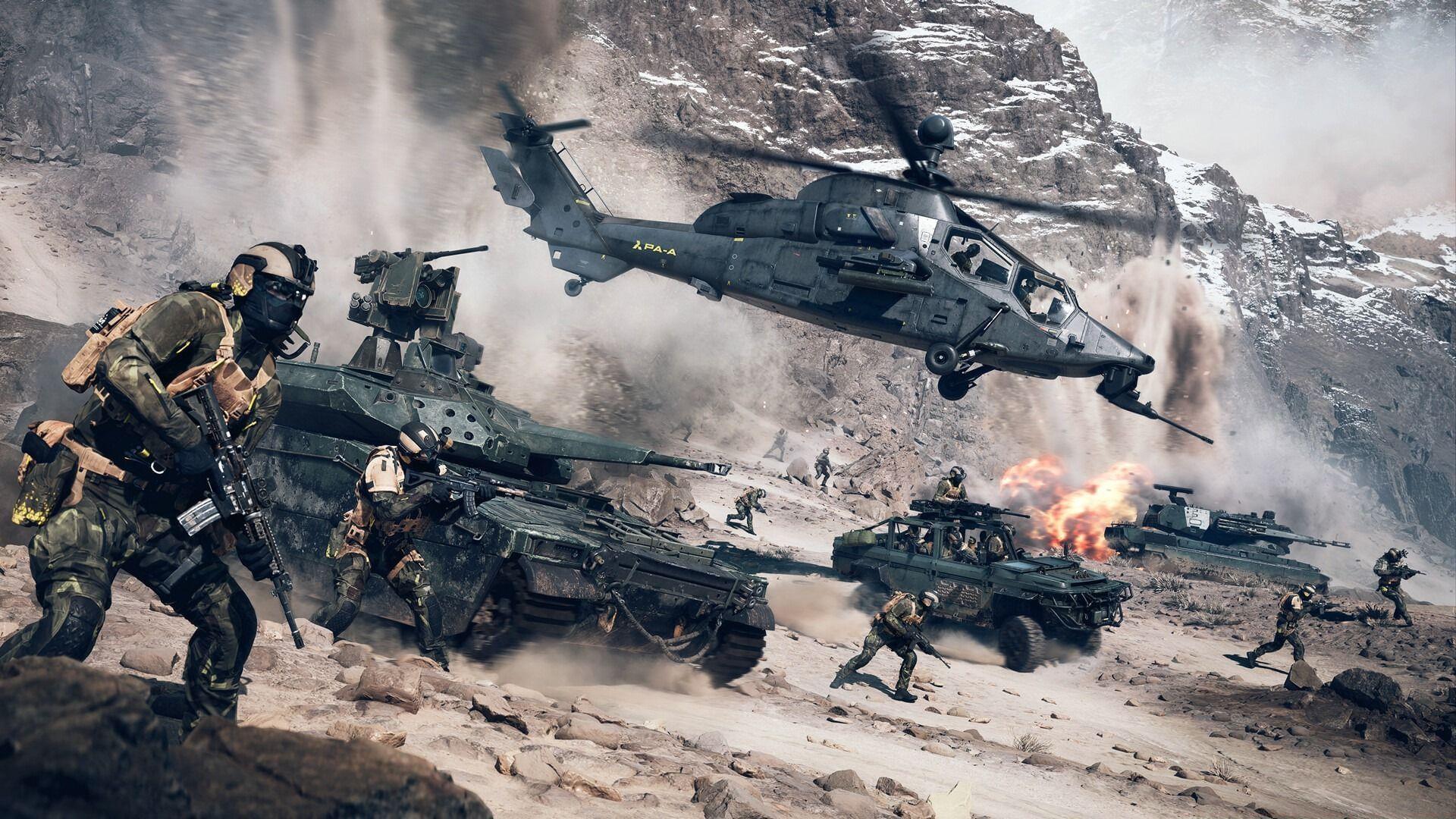
Professional gamers consistently emphasize that maintaining stable performance metrics is as crucial as mastering weapon mechanics. A sudden ping spike during a firefight or FPS drop in intense explosions can mean the difference between victory and defeat. By activating these displays, you gain the ability to troubleshoot issues immediately rather than wondering why your shots aren’t registering properly.
Accessing Network Performance Settings
Network performance configuration begins with the in-game Options menu, where you’ll find comprehensive tools for monitoring connection quality. These settings help you identify whether issues stem from your internet connection or server performance.
- During gameplay, press the Escape key to pause and select Options from the contextual menu that appears. This provides access to the full settings interface without exiting your current match.
- Navigate to the System tab and locate the Network section by scrolling down. Activate the “Scoreboard Ping” option by toggling it to the On position. This modification allows you to view latency statistics for all players, including yourself, by pressing Tab during matches to open the scoreboard display.
- Within the same Network configuration area, select the final option labeled “Network Graph” and change its setting to “Modify.” This action reveals an additional menu with advanced networking diagnostics that provide deeper insights into connection stability.
- Enable “Network Widgets” and then configure “Show Network Performance Bar” to “Always” for continuous monitoring. This places a transparent overlay at your screen’s top edge displaying crucial metrics including Latency, Packet Loss, and Server Performance. Alternatively, choose “On Problems” to only display alerts when network issues exceed normal thresholds.
Enabling FPS Display and Performance Overlay
Frame rate monitoring requires accessing the graphics configuration section, where you can enable detailed performance overlays that reveal how well your hardware handles the game’s visual demands.
- To track FPS in real-time, return to the main Options menu and select the Graphics category instead of System settings.
- Within Graphics options, locate and click on the Advanced tab to reveal additional configuration choices beyond basic visual settings.
- Scroll to the bottom of the Advanced graphics menu and activate the “Performance Overlay” feature. This provides three distinct information levels: Simple, Intermediate, and Detailed. We strongly recommend starting with Simple mode as it displays only essential CPU and GPU frame rates in the screen’s top-right corner using minimalistic formatting that won’t obstruct gameplay visibility.
- The Intermediate overlay expands data to include VRAM utilization and rendering thread statistics, while Detailed mode provides comprehensive hardware monitoring covering cores, threads, and individual component performance metrics. Reserve these advanced options for troubleshooting specific hardware issues rather than everyday use.
Advanced Performance Interpretation
Properly understanding the performance data displayed requires knowledge of how to interpret the metrics Battlefield 6 provides. The FPS counter typically shows values like 100/8.7, where the left number represents frames per second and the right indicates frame time in milliseconds.
Frame time measurement is particularly important for assessing smoothness—lower values indicate more consistent frame delivery. A 8.7ms frame time translates to approximately 115 FPS capability, so discrepancies between these numbers can reveal underlying performance issues.
When monitoring both CPU and GPU FPS readings, your actual gameplay experience is determined by whichever component shows the lower number. This bottleneck identification helps target your optimization efforts—if CPU FPS consistently trails GPU FPS, consider reducing physics or simulation-heavy settings rather than texture quality.
Network performance bars display color-coded information: green indicates optimal conditions, yellow suggests minor issues, and red flags significant problems requiring immediate attention. Packet loss above 1% typically causes noticeable gameplay disruption and warrants connection troubleshooting.
Pro Optimization Strategies
Beyond basic activation, advanced players should implement strategic performance monitoring practices that maximize gameplay effectiveness while minimizing distractions.
Avoid these common configuration mistakes: Don’t enable Detailed performance overlay during competitive matches—the information overload can distract from gameplay. Never ignore persistent ping spikes above 150ms, as they indicate connection issues affecting hit registration. Don’t misinterpret GPU/CPU FPS readings—the lower number always determines your actual performance ceiling.
Advanced optimization techniques: Use Network Performance Bar in “On Problems” mode during ranked matches to minimize screen clutter while maintaining issue awareness. Configure Performance Overlay to Simple mode but periodically switch to Detailed during respawns to check comprehensive stats without combat distraction. Monitor ping consistency rather than just averages—sporadic spikes cause more gameplay issues than consistently medium latency.
For tournament preparation, establish performance baselines during practice sessions so you can quickly identify deviations during actual competition. Consider recording sessions with performance metrics visible to review problematic encounters and correlate performance dips with gameplay outcomes.
No reproduction without permission:GameCDjnh » How to check FPS and ping in Battlefield 6 Open Beta weekend two Master Battlefield 6 performance monitoring with advanced FPS and ping optimization techniques