
TL;DR
- Google login removal requires immediate account migration to Activision or Facebook
- Linking preserves all game progress, weapons, and achievements when done correctly
- Activision accounts offer better cross-platform flexibility than Facebook
- Always verify successful linking before logging out of your original session
- Create backup login methods to prevent permanent account loss
The recent removal of Google authentication from Call of Duty Mobile has created significant changes for the gaming community. This security update means players must now migrate to either Activision accounts or Facebook integration to maintain access. Understanding why this transition occurred helps ensure you make informed decisions about your account security and gameplay continuity.
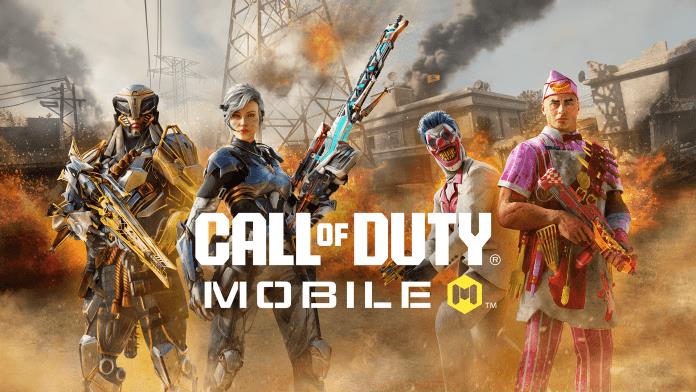
Security enhancements drove this platform shift, as Activision seeks to consolidate authentication methods across their gaming ecosystem. Similar to how Battlefield 6 Complete Guide outlines modern gaming security protocols, CoD Mobile now requires more centralized account management. This transition period creates both challenges and opportunities for optimizing your gaming experience.
Begin by launching Call of Duty Mobile and navigating to the settings menu via the gear icon in the top-right corner. This control panel serves as your gateway to account management and security configurations. Take your time exploring this interface, as it contains multiple options beyond just login management.
Within the settings interface, locate the “Link” option marked by a distinctive plus symbol ‘+’. This feature enables you to integrate additional authentication methods with your existing profile. The linking process establishes a secure bridge between your game progress and your chosen platform account.
After selecting the “Link” option, an external browser window will launch requesting your email and password credentials. This secure portal accepts either Activision or Facebook account information. Ensure you’re using valid, active accounts to prevent authentication failures that could temporarily lock your access.
Upon successful credential verification, you’ll receive immediate confirmation of the account linkage. The system will then prompt you to complete any remaining authentication steps before automatically restarting the application. This reboot ensures all new security protocols initialize correctly.
Following the application restart, you’ll encounter the updated CoD Mobile login screen presenting your new authentication options. Select the appropriate button corresponding to your linked account type—”Call of Duty” for Activision or the Facebook icon for social media integration.
When linking to an Activision account, select the “Call of Duty” button during the login process. You can either connect to an existing Activision profile or establish a new one if you lack previous credentials. Activision accounts provide superior cross-platform functionality, potentially allowing future gameplay across multiple devices and titles.
For players preferring social media integration, tapping the Facebook icon initiates that connection pathway. This method offers convenience if you already maintain an active Facebook presence, though it comes with different privacy considerations. Facebook linking typically enables easier social features and friend discovery within the game ecosystem.
The critical consideration remains that without an existing Activision account, creation becomes mandatory for continued access. Linking your CoD Mobile progression to either Activision or Facebook ensures complete preservation of your hard-earned achievements, weapon unlocks, and battle pass progress. This security measure prevents catastrophic data loss scenarios.
Similar to weapon selection strategies in our BF6 Weapons Unlock Guide, choosing your login method involves weighing long-term gaming goals against immediate convenience. Activision accounts generally provide more flexibility for competitive players, while Facebook suits casual gamers prioritizing social connectivity.
Successful login migration requires careful attention to detail and understanding of potential pitfalls. Many players encounter authentication errors when attempting to use inactive or incorrectly entered credentials. Always double-check your email and password accuracy before submitting them through the linking portal.
Network connectivity issues represent another common obstacle during account migration. Unstable internet connections can interrupt the delicate linking process, potentially creating incomplete authentication bonds. Ensure you have strong, consistent network access before beginning this procedure.
For optimal security, consider establishing both Activision and Facebook linkages as backup options. This redundancy protects against being locked out if one service experiences temporary outages or maintenance. Like having multiple class loadouts in our BF6 Class Selection Guide, backup login methods provide tactical flexibility.
If you encounter persistent linking failures, the solution often involves clearing your device’s cache or trying the process during off-peak hours. Server congestion during popular gaming times can create authentication timeouts that appear as failures. Patience and timing significantly impact success rates.
Remember that completing these steps properly ensures uninterrupted access to your complete gaming profile. Your dedication to proper account management directly correlates with seamless gameplay experiences and protected progression investments.
Action Checklist
- Launch CoD Mobile and access Settings via gear icon
- Select Link option (+) and choose account type
- Enter valid credentials in authentication portal
- Verify successful linking before game restart
- Test new login method and create backup option
No reproduction without permission:GameCDjnh » How To Change Your CoD Mobile Login (After Google Removal) Complete guide to updating your CoD Mobile login method with expert tips and troubleshooting advice