
Master Battlefield 6 sensitivity settings with professional calibration techniques and advanced aiming strategies
Understanding Sensitivity Fundamentals
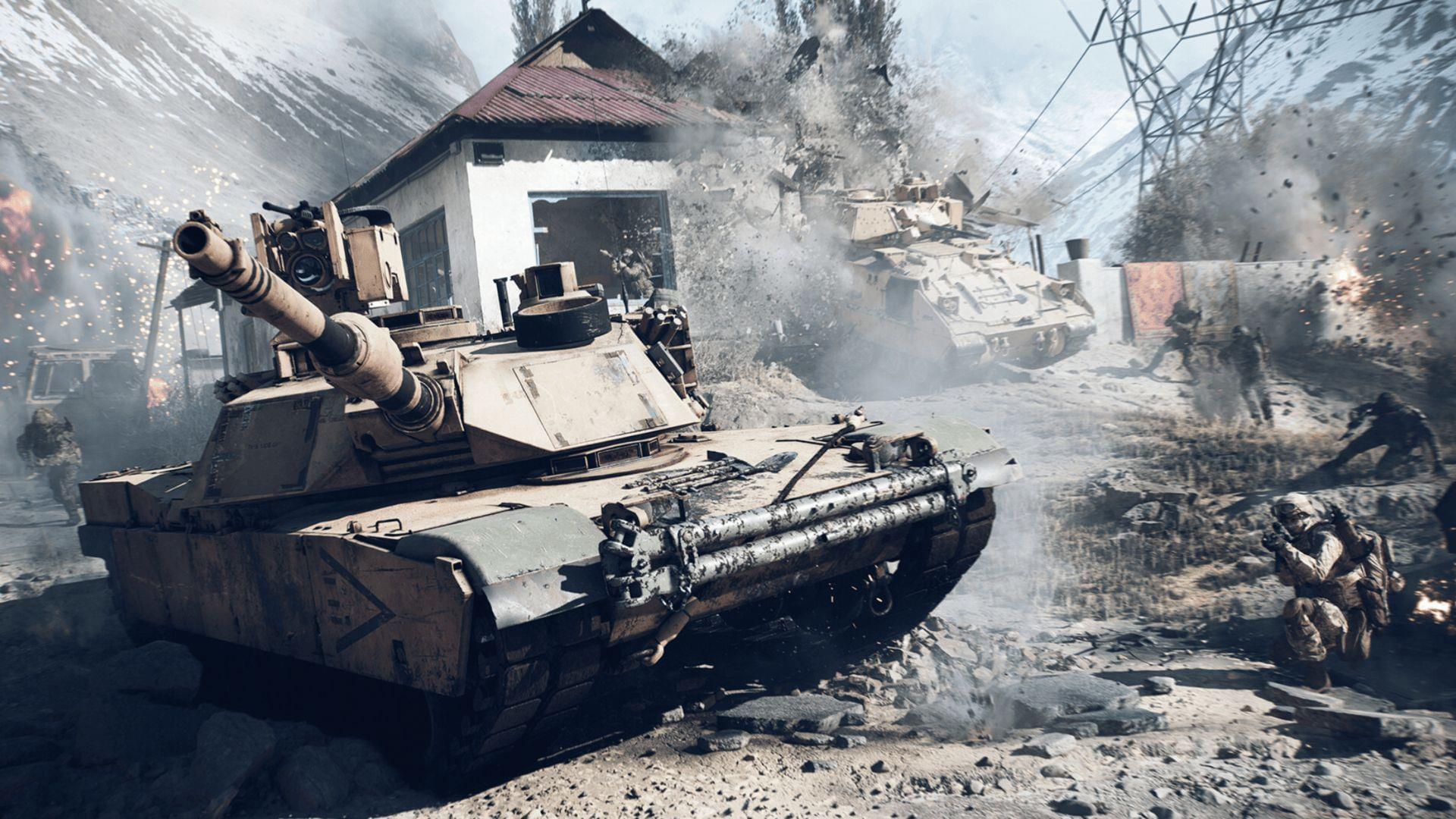
When your targeting feels inconsistent in Battlefield 6, the root cause typically traces back to improperly calibrated sensitivity configurations. Achieving peak performance in this dynamic combat environment demands a carefully tuned balance where rapid enemy acquisition meets precise shot placement across diverse engagement distances.
The game provides comprehensive customization options spanning from fundamental look speed to specialized parameters like ADS sensitivity, magnification scaling factors, and input device responsiveness thresholds. Mastering these elements transforms your combat effectiveness dramatically.
Step-by-Step Sensitivity Configuration
Access the configuration interface by selecting the cogwheel icon positioned in the upper interface corner, accessible during gameplay sessions or from the main navigation screen. This central hub manages all gameplay parameters from visual presentation to control responsiveness.
Input Method Selection: Battlefield 6 maintains distinct configuration profiles for Controller versus Mouse & Keyboard operation. These separate tuning environments account for inherent hardware differences, with numerical values carrying different practical implications across input methods.
Navigate to Infantry Settings within your selected input category by choosing Edit Settings (distinct from control scheme presets). This segment governs all foot-soldier targeting behaviors where majority of firefight encounters occur.
Locate the primary sensitivity adjustment: Controller operators should modify Soldier Stick Sensitivity while mouse users adjust Soldier Aim Sensitivity. This core parameter determines reticle movement velocity relative to physical input device manipulation.
Advanced Optimization Techniques
Make incremental sensitivity modifications by sliding the adjustment control rightward for accelerated response or leftward for enhanced precision. Minor tweaks prove most effective—even single-digit value changes produce noticeable performance variations. Mouse users must ensure stable DPI level configuration before implementing in-game sensitivity modifications.
Advanced Parameter Optimization: Beyond basic sensitivity, explore Zoom Coefficient settings that maintain consistent sensitivity across magnification levels. Controller users should fine-tune deadzone configurations to eliminate unwanted stick drift while preserving responsive input detection.
DPI Synchronization: Mouse users should calculate effective DPI (mouse DPI × in-game sensitivity) to maintain consistency across different gaming setups. Most professional players operate between 1600-3200 effective DPI for optimal precision and responsiveness balance.
Testing and Refinement Process
Validate configuration changes by exiting the menu system and proceeding to the Test Range environment. Practice engaging stationary and mobile targets while incorporating movement, transitioning between multiple adversaries, and tracking bots with unpredictable motion patterns. Return for additional adjustments if the configuration feels unnatural during testing.
Common Calibration Errors: Avoid frequently changing sensitivity settings once you establish a functional baseline. Many players undermine their muscle memory development by making daily adjustments based on temporary performance fluctuations. Instead, focus on adapting your technique to your established sensitivity.
Real-match Validation: After Test Range confirmation, engage in actual multiplayer matches to assess performance under combat pressure. Note situations where your sensitivity feels either too sluggish or overly responsive for specific engagement scenarios.
Pro-Level Sensitivity Strategies
Ideal targeting speed balances rapid threat response with steady accuracy maintenance. Upon discovering your optimal configuration sweet spot, maintain consistency rather than frequently experimenting with alternatives. Within Battlefield 6‘s competitive landscape, configuration stability often separates competent aim from exceptional marksmanship, as repeated sensitivity alterations disrupt developed muscle memory patterns.
Weapon-Specific Considerations: Different weapon categories benefit from slight sensitivity variations. Precision rifles typically perform better with slightly lower sensitivity for stable long-range tracking, while shotguns and SMGs benefit from higher sensitivity for close-quarters target acquisition.
Environmental Adaptation: Consider creating separate sensitivity profiles for different map types. Large, open environments favor lower sensitivity for precision engagements, while close-quarters maps benefit from higher sensitivity for rapid response situations.
No reproduction without permission:GameCDjnh » How to change sensitivity in Battlefield 6 Master Battlefield 6 sensitivity settings with professional calibration techniques and advanced aiming strategies