
Comprehensive guide to fixing Helldivers 2 audio crackling with advanced troubleshooting and optimization strategies
Understanding Helldivers 2 Sound Problems
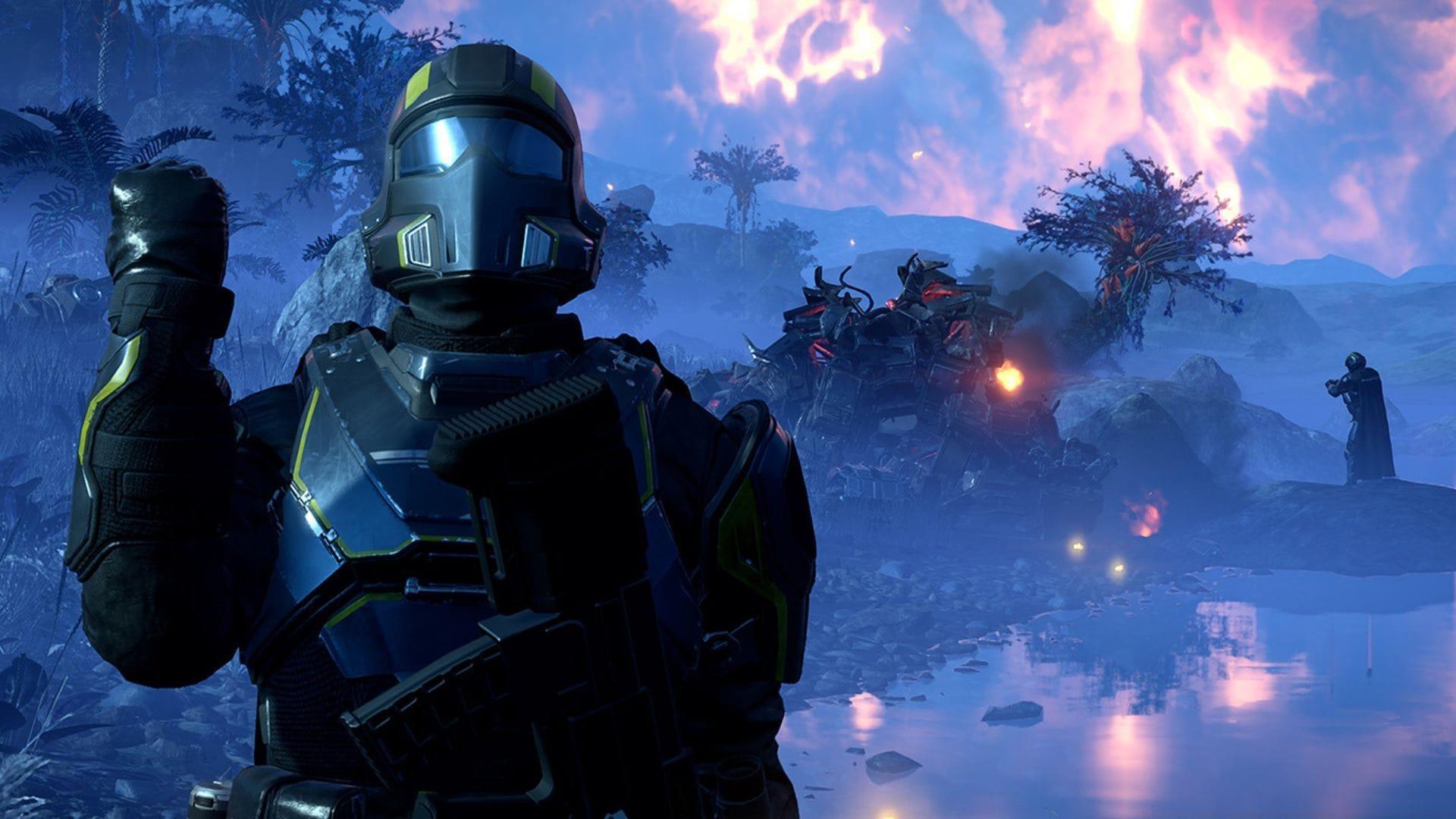
Dealing with Helldivers 2 audio crackling and sound issues can significantly diminish your gaming experience. These persistent audio problems have troubled players since the game’s PC launch, manifesting as intermittent crackling sounds, sudden static bursts, volume fluctuations, and complete audio dropouts. The immersion-breaking nature of these issues affects both atmospheric enjoyment and tactical awareness during intense combat scenarios.
Many players underestimate how crucial clear audio is for detecting enemy positions and coordinating team strategies. The spontaneous nature of these audio artifacts means they can strike at the worst possible moments, potentially costing you critical missions. Understanding the root causes is your first step toward achieving crystal-clear battlefield communications and immersive soundscapes.
Bluetooth Audio Profile Configuration
A common culprit behind Helldivers 2 audio crackling involves Windows automatically selecting inferior Bluetooth audio profiles. The system often defaults to hands-free profiles designed for calls rather than gaming, resulting in compressed audio quality and distortion. Switching to high-fidelity stereo profiles dramatically improves sound clarity and eliminates most crackling issues.
Here’s the comprehensive process for optimizing your Bluetooth configuration on Windows 11:
- Press Windows key + R simultaneously to launch the Run dialog box
- Enter this specialized code: shell:::{A8A91A66-3A7D-4424-8D24-04E180695C7A}
- Locate and select your active Bluetooth headset from the device list
- Right-click the device and choose Properties, then navigate to Services tab
- Deselect the Hands-free telephony option to enforce stereo-only mode
Pro tip: After making this change, completely disconnect and reconnect your Bluetooth device to ensure the new profile activates properly. Many players report immediate improvement in audio quality and complete elimination of background static.
Driver Management and Updates
Outdated or corrupted audio drivers represent another frequent source of Helldivers 2 sound issues. Modern games demand current driver support for optimal audio processing, and using obsolete drivers can introduce various audio artifacts including crackling, popping, and synchronization problems.
You have multiple approaches for updating your audio drivers effectively:
- Use Windows Update for automatic driver detection and installation
- Visit your motherboard or sound card manufacturer’s website for latest drivers
- Utilize Device Manager for manual driver updates and rollbacks if needed
Advanced troubleshooting: If updating doesn’t resolve the issue, try completely uninstalling your current audio drivers before installing fresh versions. This eliminates potential driver conflicts and corrupted configurations. For Realtek and Creative sound card users, specifically check for gaming-optimized driver packages that often include enhanced audio processing for gaming applications.
System Services Optimization
The Bluetooth Audio Gateway Service frequently interferes with gaming audio by prioritizing communication features over sound quality. Disabling this service prevents Windows from automatically switching audio profiles and maintains consistent high-quality output throughout your gaming sessions.
Follow this systematic approach to manage Bluetooth services:
- Restart your computer to ensure clean system state
- Search for ‘Services’ in Windows search and open the Services management console
- Scroll through the service list to locate Bluetooth Audio Gateway
- Right-click the service and select Stop to immediately halt its operation
- Access Properties through right-click menu and set Startup type to Disabled
Additional service optimization: Consider disabling Windows Audio Enhancements if crackling persists. These processing features sometimes conflict with game audio engines. Navigate to Sound Settings > Device Properties > Additional Device Properties > Enhancements tab to disable all sound effects temporarily for testing purposes.
Game File Integrity Verification
Corrupted or missing game files can create various technical issues including sound problems. Steam’s built-in verification tool efficiently scans and repairs game installations without requiring complete reinstallation, saving significant time and bandwidth.
Execute file verification through this straightforward process:
- Access your Steam library and right-click on Helldivers 2
- Select Properties from the context menu that appears
- Navigate to Installed Files section within Properties
- Click ‘Verify integrity of game files’ to initiate scanning
- Allow the process to complete before relaunching the game
Alternative verification method: For persistent issues, consider using third-party tools like CCleaner to clean registry entries before file verification. Some players report better results when combining Steam verification with system cleaning utilities. Additionally, checking game file integrity after major updates can prevent sound issues from developing.
Advanced Troubleshooting Techniques
When standard solutions fail to resolve Helldivers 2 audio crackling, advanced system-wide optimizations often provide the missing piece. These techniques address deeper system configuration issues that commonly affect gaming audio performance.
Essential advanced optimizations include:
- Configure exclusive mode audio settings in Windows Sound control panel
- Adjust sample rate and bit depth to match your audio device capabilities
- Disable all audio enhancements in Communications tab of Sound settings
- Set Helldivers 2 process priority to High in Task Manager
- Ensure Windows Game Mode is enabled for optimal resource allocation
Pro-level configuration: Experienced users can experiment with LatencyMon to identify system latency issues affecting audio performance. Additionally, BIOS updates sometimes resolve underlying hardware communication problems that manifest as audio crackling. For USB audio devices, try different USB ports and consider powered USB hubs to ensure stable power delivery.
No reproduction without permission:GameCDjnh » Helldivers 2 audio crackling and sound issues: Possible fixes and reasons Comprehensive guide to fixing Helldivers 2 audio crackling with advanced troubleshooting and optimization strategies