
TL;DR
- Fallout 3 requires specific compatibility settings due to outdated Windows API dependencies
- Windows XP Service Pack 3 compatibility mode resolves most launch failures
- Running as administrator and disabling fullscreen optimizations provides additional stability
- Game file verification and community patches offer alternative solutions
- Windows 10 rollback remains the nuclear option for persistent issues
When attempting to run Fallout 3 on modern Windows 11 systems, many gamers encounter frustrating launch failures where the game window appears briefly before vanishing completely. This compatibility gap stems from the game’s original development for older Windows XP and Vista architectures that utilized different system APIs and memory management protocols.
The core technical issue involves Fallout 3’s reliance on deprecated DirectX components and outdated graphics libraries that conflict with Windows 11’s enhanced security framework and modern display subsystems. These architectural differences create execution barriers that prevent proper initialization sequences.
Common symptoms include the game executable launching without displaying any interface, immediate crashes to desktop without error messages, or perpetual loading screens that never progress to actual gameplay. Understanding these patterns helps diagnose the specific compatibility hurdle affecting your installation.

The most reliable initial approach involves configuring Windows compatibility settings to emulate older operating system environments. Navigate to your Fallout 3 installation directory, typically located at C:Program Files (x86)SteamsteamappscommonFallout 3 goty, and right-click the Fallout3.exe executable file.
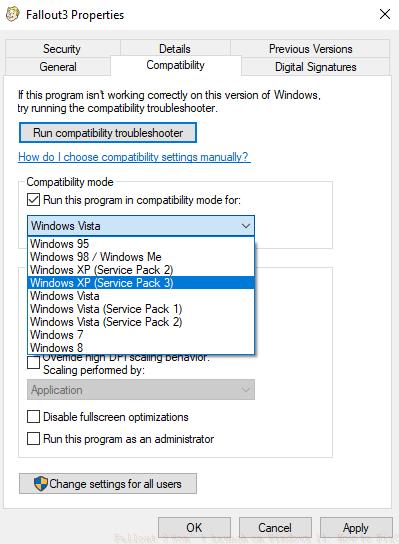
Select Properties and access the Compatibility tab, where you should enable ‘Run this program in compatibility mode’ and choose Windows XP (Service Pack 3) from the dropdown menu. This setting forces the game to utilize legacy API calls and memory allocation methods compatible with its original programming.
For enhanced stability, simultaneously check the ‘Run this program as an administrator’ option to bypass User Account Control restrictions that may interfere with game file access and registry modifications. Administrator privileges ensure the executable has sufficient system permissions to modify necessary configuration files during runtime.
Advanced users should also disable fullscreen optimizations and override high DPI scaling behavior, as these modern display features frequently conflict with Fallout 3’s rendering engine. These additional compatibility layers address resolution scaling issues that can cause crashes during the transition from menu to gameplay.
When basic compatibility settings prove insufficient, advanced system modifications may resolve persistent launch issues. Begin by verifying game file integrity through Steam’s validation feature, which identifies and replaces corrupted or missing game assets that disrupt initialization sequences.
Registry modifications represent another powerful troubleshooting avenue, specifically addressing Windows Live Games for Windows dependencies that no longer function properly on modern systems. Community-developed patches like the ‘GFWL Disabler’ automatically implement these registry changes while removing obsolete DRM checks that cause authentication failures.
Multi-core processor compatibility represents another common stumbling block, as Fallout 3’s engine struggles with modern CPU architectures containing more than two cores. Third-party utilities like the ‘Fallout 3 Multicore Fix’ modify executable memory to properly distribute processing loads across available cores, preventing thread synchronization crashes.
For technical enthusiasts comfortable with deeper system modifications, manual .ini file edits can override hardcoded engine limitations regarding memory allocation and rendering parameters. These configuration tweaks expand available resources beyond the game’s original design constraints, accommodating modern hardware capabilities.
If all software-based solutions fail to produce stable gameplay, consider reverting to Windows 10 as a definitive resolution. Microsoft’s previous operating version maintains superior backward compatibility with legacy games while offering modern security features and performance enhancements absent from earlier Windows iterations.
Virtual machine installations provide an intermediate solution, allowing Windows 11 users to run Fallout 3 within a contained Windows XP or Windows 7 environment. This approach preserves system stability while delivering authentic period-correct compatibility, though it may introduce minor performance overhead depending on hardware specifications.
When exploring these gaming compatibility challenges, understanding proper class selection in modern titles becomes increasingly valuable. Our comprehensive Class Guide demonstrates how strategic role assignment enhances gameplay effectiveness in contemporary shooters.
Official support channels remain available for persistent issues, though response times may vary for older game titles. Before contacting support, document your troubleshooting steps thoroughly, including compatibility settings attempted, system specifications, and exact error messages received during launch attempts.
Action Checklist
- Apply Windows XP Service Pack 3 compatibility mode to Fallout3.exe
- Enable administrator privileges and disable fullscreen optimizations
- Verify game file integrity through Steam client
- Apply community patch for Games for Windows Live removal
- Implement multi-core processor fix for modern CPUs
No reproduction without permission:GameCDjnh » Fallout 3 Won’t Launch on Windows 11: How to Fix? Complete troubleshooting guide to resolve Fallout 3 launch issues on Windows 11 with proven solutions