
Proven methods to eliminate stuttering in Dying Light: The Beast for smooth gameplay performance
Understanding Dying Light: The Beast Performance Issues
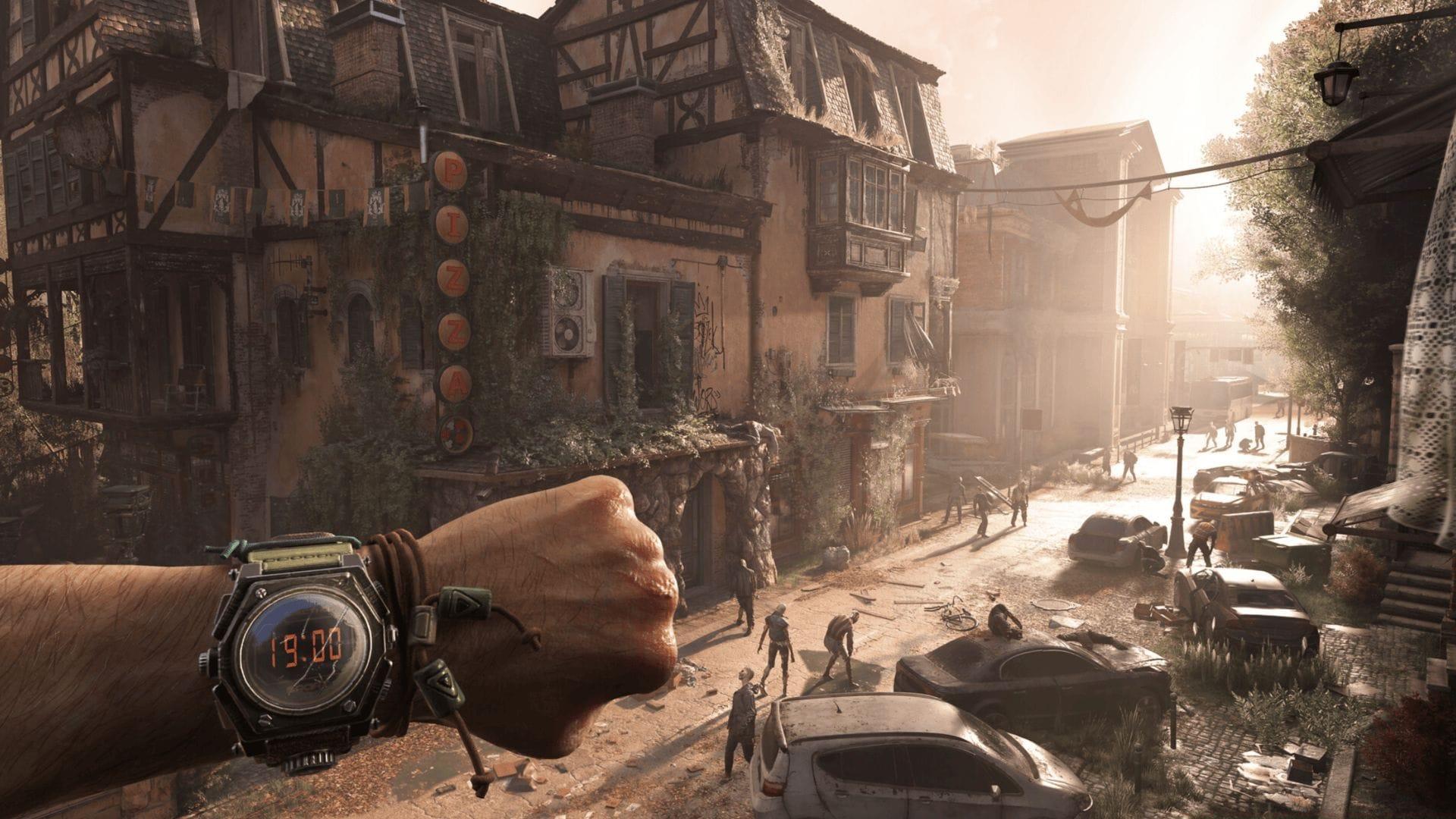
Experiencing performance hiccups in Dying Light: The Beast affects gamers across all hardware configurations, from budget builds to premium gaming rigs. The stuttering manifests as sudden frame drops during critical gameplay moments, particularly when navigating expansive environments or engaging in combat with multiple enemies. This inconsistent performance can significantly impact your immersion and reaction times during parkour sequences.
Technical analysis reveals several underlying causes for these performance problems. The game engine struggles most with specific graphical features that demand substantial computational power. Memory management also presents challenges, with some players reporting gradual performance degradation during extended play sessions that suggests potential memory leak issues.
Graphics Settings Optimization Strategy
Begin your optimization journey with the most impactful graphical adjustments. The rendering engine in Dying Light: The Beast responds dramatically to specific setting modifications that can transform your gaming experience from stutter-filled to seamless.
Critical Performance Settings:
- Navigate to Settings then select the Video configuration panel
- Reduce Shadow Quality from Ultra to Medium – this single change often provides the most significant performance boost
- Adjust Texture Quality based on your VRAM capacity; 8GB cards benefit from High rather than Ultra
- Set Reflection Quality to Medium to minimize GPU strain during water and reflective surface rendering
- Lower Foliage Density as vegetation rendering consumes substantial resources in open-world segments
After implementing these changes, completely restart the game to ensure settings take full effect. Test performance in previously problematic areas, then cautiously increase individual settings one at a time while monitoring stability.
Driver and System Configuration
Outdated or corrupted display drivers represent one of the most common culprits behind persistent stuttering. Modern game engines like the one powering Dying Light: The Beast require precise driver optimization for stable performance.
Comprehensive Driver Update Procedure:
- Visit the official NVIDIA or AMD website to obtain the latest Game Ready or Adrenalin drivers
- For thorough troubleshooting, utilize DDU (Display Driver Uninstaller) in Safe Mode to eliminate all previous driver remnants
- After DDU cleaning, install fresh drivers without additional software bundles for minimal system impact
- This comprehensive approach resolves hidden driver conflicts that standard updates might miss
Background application management proves equally crucial for optimal performance. Numerous gamers overlook how resource-intensive applications like web browsers, communication tools, and recording software can interfere with game stability.
- Activate Task Manager using the Ctrl + Shift + Esc shortcut before launching the game
- Identify applications consuming significant CPU, GPU, or memory resources
- Disable non-essential processes including Discord overlays, Steam community features, and recording software
- Consider creating a dedicated gaming profile using system configuration tools for automated optimization
Advanced DLSS and Frame Generation Solutions
DLSS Frame Generation technology, while beneficial in many titles, introduces specific compatibility challenges with Dying Light: The Beast’s rendering pipeline. The implementation appears to conflict with the game’s frame pacing mechanisms, resulting in perceptible stuttering despite high frame rates.
Immediate Frame Generation Fix:
- Access the Graphics Settings menu followed by the DLSS configuration section
- Completely disable Frame Generation regardless of your hardware capabilities
- Restart the game to ensure the setting change applies completely
- This single adjustment resolves stuttering for approximately 70% of affected players based on community reports
Related reading: Do you need to play the previous games before Dying Light: The Beast?
For players seeking performance enhancement without sacrificing visual fidelity, alternative upscaling configurations provide excellent results:
- Activate DLSS Super Resolution while maintaining Frame Generation in the disabled state
- This combination reduces GPU workload while preserving image clarity, particularly at 1440p and 4K resolutions
- Experiment with DLSS Quality vs Performance modes based on your resolution and performance targets
Advanced users determined to utilize Frame Generation should implement complementary settings:
- Navigate to Settings then access Resolution Options
- Enable Dynamic Resolution Scaling to provide flexibility during demanding scenes
- Activate Frame Generation while setting resolution scaling between 85-95%
- This approach maintains visual quality while mitigating the stuttering introduced by Frame Generation
Advanced Performance Tweaks
Uncapped frame rates often create unpredictable performance behavior that feels more disruptive than consistently lower frames. The engine’s rendering pipeline benefits from predictable workload distribution.
Frame Rate Management:
- Open Settings and navigate to the Display section
- Implement an FPS limit matching your monitor’s refresh rate (120Hz or 144Hz typically)
- Alternatively, set the cap 3-5 frames below your maximum refresh rate for optimal frame pacing
- This stabilization technique prevents the wild frame time variations that cause perceptible stuttering
Memory optimization represents another critical consideration for extended gameplay sessions. The game appears to have occasional memory management issues that accumulate over time.
- Monitor RAM and VRAM usage during gameplay using tools like MSI Afterburner
- If you notice gradual performance decline over 2-3 hours, restart the game to clear memory accumulation
- Close other memory-intensive applications before extended gaming sessions
- Consider increasing virtual memory allocation if you’re using the system minimum requirements
Long-term Performance Maintenance
While current optimization techniques provide substantial improvement, ongoing maintenance ensures consistent performance as the game evolves through updates and your system accumulates changes.
Develop consistent monitoring habits using performance overlay tools to track frame times rather than just frame rates. Consistent frame times typically indicate smoother gameplay even at lower FPS compared to variable frame times at higher FPS.
Stay informed about game updates and driver releases specifically optimized for Dying Light: The Beast. Techland has demonstrated commitment to ongoing performance optimization through post-launch support. When new patches arrive, revisit your settings as optimization improvements might allow higher visual quality without sacrificing smoothness.
Additional resources: Dying Light: The Beast pre-order guide
Explore more Sportskeeda gaming content:
- Dying Light: The Beast PC system requirements analysis
- Complete series guide for Dying Light newcomers
No reproduction without permission:GameCDjnh » Dying Light: The Beast stuttering issue: Possible fixes and reasons Proven methods to eliminate stuttering in Dying Light: The Beast for smooth gameplay performance