
Master Death Stranding 2’s customization system with expert settings optimization and gameplay strategies
Accessing the Settings Menu
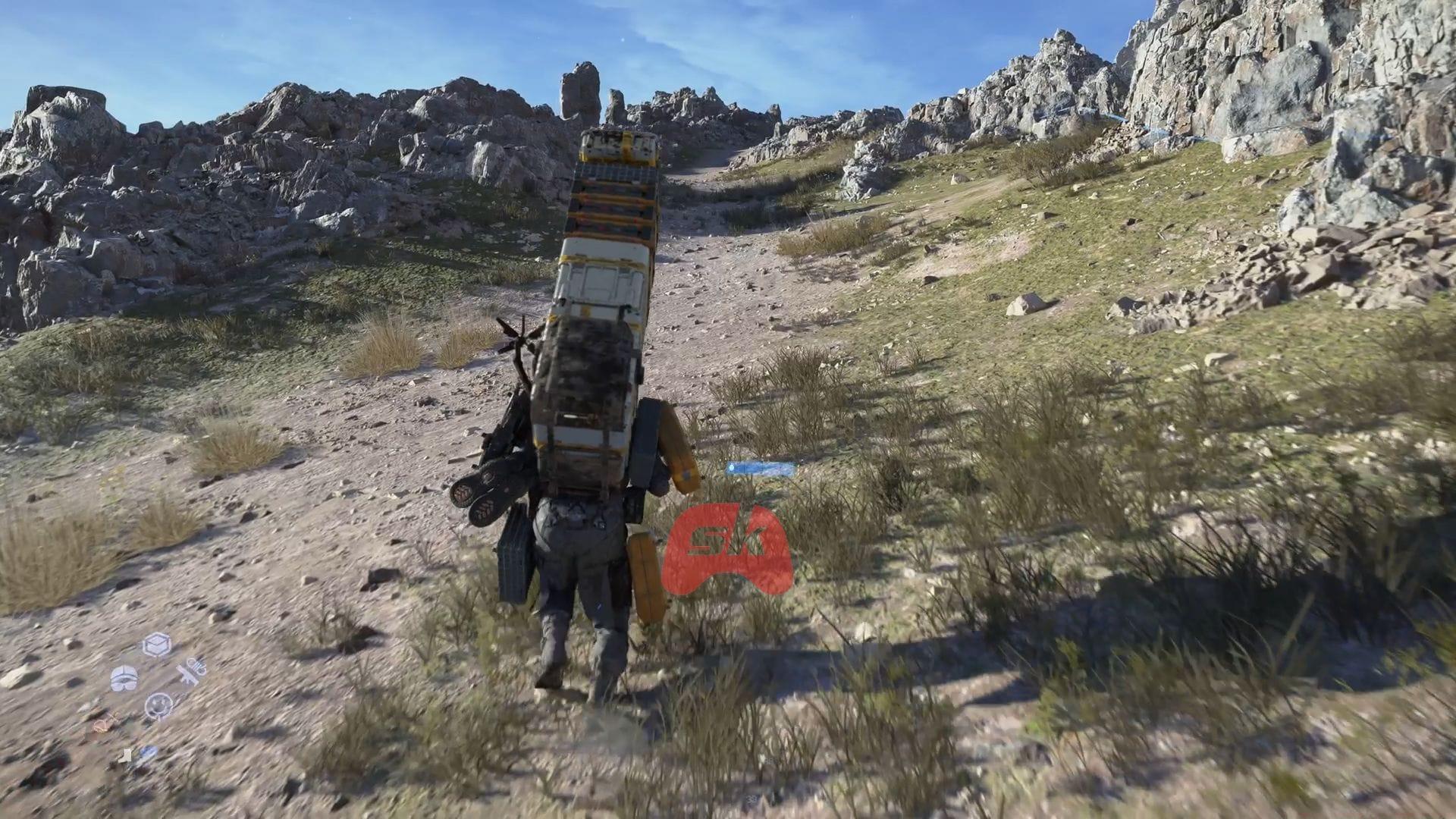
Death Stranding 2 offers comprehensive customization options that significantly impact your gameplay journey. You can access these settings from two primary locations: directly from the title screen before loading your save, or during gameplay through the Ring Menu navigation system under the System category. This dual-access approach ensures you’re never locked out of making crucial adjustments, whether you’re preparing for a new session or need mid-game tweaks.
Understanding the settings architecture is essential for maximizing your experience. The menu system organizes options logically into gameplay, controls, visual, and audio categories, making navigation intuitive even for newcomers to the series. Each adjustment provides immediate feedback, allowing you to test changes without committing permanently until you find your ideal configuration.
Gameplay and Difficulty Settings
The multiplayer integration in Death Stranding 2 allows for nuanced control over your social gameplay experience. The “Log In at Launch” toggle determines whether you automatically connect to the shared world infrastructure when starting your session. For players seeking a completely solitary journey, disabling this option creates an isolated experience, while enabling it opens the door to community interactions and shared resources.
- Structure Sharing Options:
- Everything – Share structures, signs, vehicles, cargo, tools, and fieldwear with other players globally
- Only Some – Share cargo, tools, and fieldwear only, maintaining more personal control over infrastructure
Enemy Encounter Animations: This setting controls how the game handles BT (Beached Thing) confrontation sequences, which can significantly impact pacing and tension:
- First Time Only – Full alert sequence plays once per enemy type, reducing repetition
- For Each BT Area – Full alert triggers for each new BT territory you discover
- Every Time – Maximum immersion with alert sequences playing during every single encounter
Quality of life features include Command Prompts (On/Off) for gameplay guidance and the crucial “Hide Signs Containing Spoilers” option to protect your narrative experience from community spoilers. New players should consider enabling spoiler protection during their first playthrough to avoid story revelations.
Also read: How to take photos in Death Stranding 2? All settings explored
Control Configuration Mastery
Death Stranding 2 introduces sophisticated control customization that can dramatically improve your handling of Sam’s movements and interactions. The control scheme accommodates various playstyles through extensive remapping and sensitivity options.
- Controls for Soothing Lou: Motion Sensor / Left Stick – Motion controls provide immersive interaction while stick controls offer precision
- Controls for Readying Weapons or Structures: Hold / Toggle – Hold for temporary readiness, toggle for sustained preparation
- Controls for Sprinting: Hold / Toggle – Choose based on your preferred movement rhythm and stamina management
- Switch Camera Left/Right: On/Off – Particularly useful for left-handed players or alternative perspective preferences
- Aim Assist: Off / Weak / Medium / Strong – Adjust based on your shooting proficiency and preferred challenge level
Advanced Sensitivity Settings: The dead zone configurations (Left Stick Dead Zone, Right Stick Dead Zone) help eliminate controller drift while maintaining responsiveness. Lower values provide quicker response but may amplify minor stick movements. Vibration Intensity and Trigger Effect Intensity (Auto / Off / Weak / Medium / Strong) enhance immersion through haptic feedback – consider stronger settings for more dramatic environmental interactions.
Camera control customization spans multiple contexts with separate adjustments for normal movement, aiming, driving, and map navigation. The [Aiming] section includes specialized options like Camera Acceleration, Camera Deceleration, and Response Curve Type that professional players can fine-tune for competitive edge during combat sequences.
Visual and Audio Customization
The visual presentation options allow you to balance aesthetic quality with performance based on your hardware capabilities and personal preferences. Screen Brightness adjustment should be calibrated to match your playing environment – darker rooms typically benefit from lower settings to prevent eye strain, while brighter environments may require increased visibility.
Graphics Mode presents the crucial choice between Prioritize Quality and Prioritize Performance. Quality mode maximizes visual fidelity with higher resolution textures, improved lighting effects, and enhanced environmental details, ideal for players focused on immersion and exploration. Performance mode prioritizes smoother frame rates, essential for precise control during combat and traversal sequences.
Audio customization extends beyond simple volume controls with specialized options for Shared Structure Audio, Controller Dialogue Audio, and Controller Sound Effect Output. The Sound Output Optimization setting (Auto / For Speakers / For Headphones) tailors the audio mix to your specific output device, ensuring optimal spatial awareness and dialogue clarity. Headphone users should select the dedicated option for enhanced 3D audio positioning, crucial for detecting nearby BTs through auditory cues.
Advanced Optimization Strategies
Experienced players can leverage Death Stranding 2’s settings for significant gameplay advantages. For combat-focused approaches, combine Strong Aim Assist with customized [Aiming] sensitivity settings to maintain target acquisition during chaotic encounters. Balance enthusiasts should increase Control Sensitivity for Keeping Balance to make terrain navigation more manageable, especially when carrying heavy cargo across uneven landscapes.
Avoid These Common Mistakes: Many players overlook the Minimum Button Hold Duration setting, which can cause frustration during time-sensitive interactions if set too high. Similarly, neglecting to configure [While Driving] Auto-Center can make vehicle control unnecessarily difficult. Newcomers often disable Enemy Encounter Animations completely, missing atmospheric moments that define the Death Stranding experience.
Platform-specific considerations: PlayStation 5 users should experiment with Trigger Effect Intensity to fully utilize the DualSense controller’s adaptive triggers, which provide remarkable feedback during weapon usage and environmental interactions. PC players awaiting the eventual release should prepare for additional graphics options including resolution scaling, field of view adjustment, and advanced anti-aliasing methods.
That’s all on Death Stranding 2 settings customization. Be that tweaking difficulty or turning off spoiler signs, there’s plenty here to customize the experience to how you like the game.
Check out: How long to beat Death Stranding 2? Runtime explored
No reproduction without permission:GameCDjnh » All Death Stranding 2 settings explored Master Death Stranding 2's customization system with expert settings optimization and gameplay strategies