
Complete guide to fix Powerwash Simulator 2 item display issues on PS5 with proven troubleshooting methods
Understanding the PS5 Item Display Bug
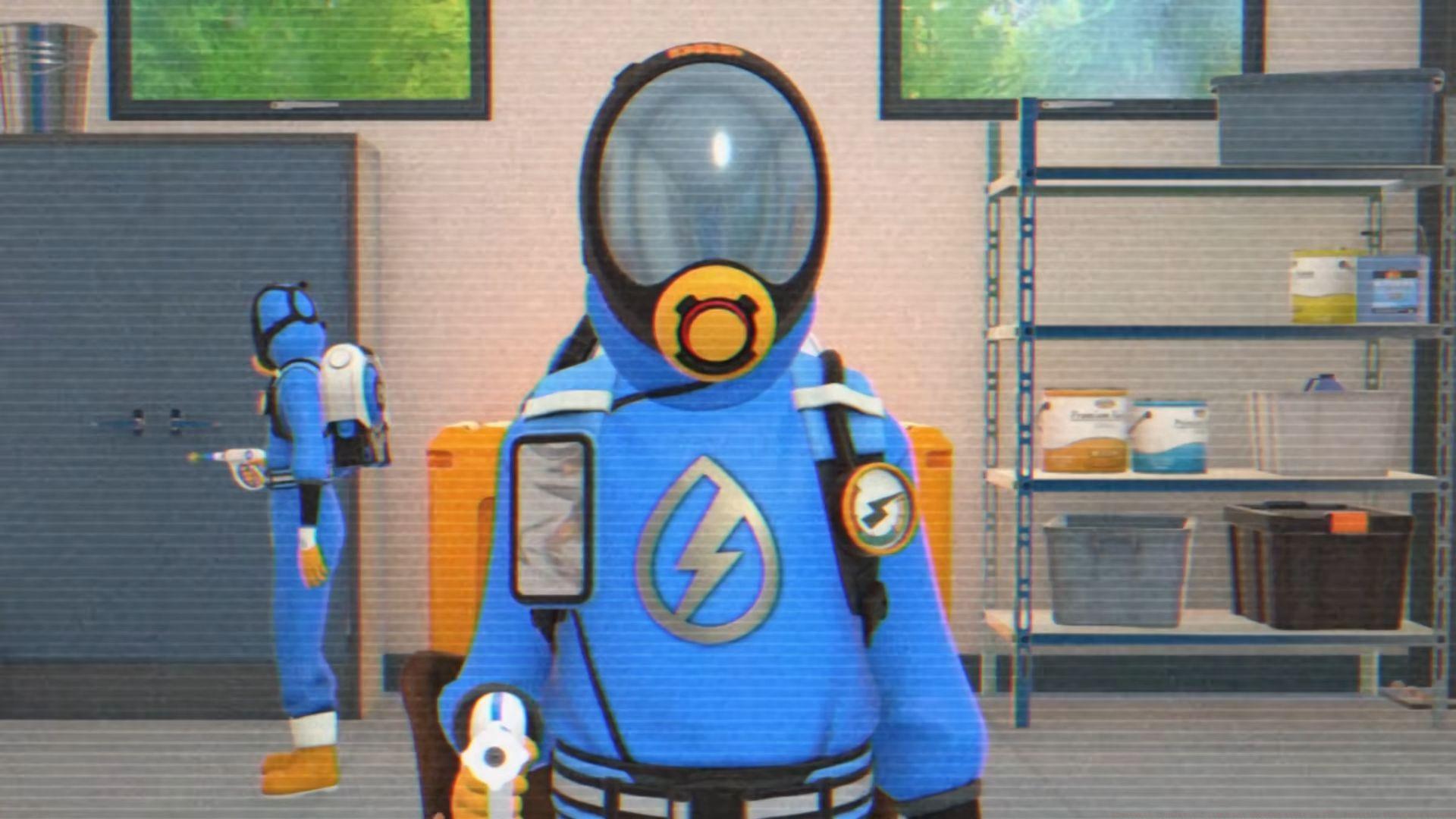
The Powerwash Simulator 2 items not showing error on PS5 represents one of the most disruptive technical problems affecting console gamers since the title’s October 23, 2025 release. This persistent bug manifests as missing inventory items, unavailable store content, and incomplete equipment displays that severely hinder gameplay progression. FuturLab development team has officially recognized the widespread reports from PlayStation 5 users, though they continue investigating the underlying technical triggers.
Also read: Is Powerwash Simulator 2 crossplay and cross-platform?
Technical analysis indicates the core problem stems from localization asset management conflicts within the game engine architecture. When language-specific textures and item data fail to synchronize properly with system settings, the rendering pipeline skips crucial visual elements. This asset loading failure creates the appearance of missing content despite the items being technically present in game data. The developers confirmed this diagnosis through their official @PowerWashSim social media communications detailing the temporary solution.
Official Language Workaround Solution
Here’s the comprehensive procedure to potentially resolve Powerwash Simulator 2’s item visibility problems through language configuration adjustments:
- Completely exit the game application ensuring no background processes remain active
- Access PS5 system settings and modify the console language to English
- Perform a full console restart to clear temporary system caches
- Launch Powerwash Simulator 2 and navigate to language options
- Select any alternative language preference (Japanese, Swedish, or other available options)
- Close the game completely and revert system language to original setting
- Restart the game and reconfigure in-game language to preferred choice
This technique forces the game engine to reload all localization assets from scratch, effectively refreshing the item database and texture libraries. The sequential language switching triggers a cascade of system checks that often resolves the underlying synchronization conflicts. Many users report immediate restoration of missing equipment and store items following this precise sequence.
Also read – Escape The Backrooms mic not working: Possible fixes and reasons
Advanced Troubleshooting Methods
When the primary language solution proves insufficient, implement these comprehensive system-level corrections to address Powerwash Simulator 2’s persistent item display problems:
Begin by verifying game update status through the title screen options menu. Select “Check for update” to ensure you’re running the most recent version containing critical stability patches. While general updates may not specifically mention the items bug, they often include underlying engine fixes that indirectly resolve related technical issues through improved system optimization.
For deeper system conflicts, execute PlayStation 5’s built-in maintenance protocol. Power down the console completely, then press and hold the power button until hearing the distinctive double-beep signal. Navigate to “Clear Cache and Rebuild Database” from the recovery menu options. This diagnostic procedure scans for corrupted game files and system data conflicts while preserving your save data and user profile information. Additionally, select “Clear System Software Cache” to purge temporary system files that might interfere with game performance.
Also read – All Escape From Duckov difficulty settings explored
If all previous methods fail to restore missing items, the nuclear option involves complete game reinstallation. Delete Powerwash Simulator 2 from your system, redownload the fresh installation package, and verify item availability upon relaunch. Should the problem persist despite these exhaustive troubleshooting steps, submit detailed bug reports through FuturLab’s official support portal with specific information about missing item types and error patterns.
Proactive Prevention Strategies
Also read: Powerwash Simulator 2 Multiplayer Not Working: Fixes and possible reasons
Implement these preventative maintenance practices to minimize recurrence of item display issues in Powerwash Simulator 2. Regularly enable automatic updates for both system software and game applications to ensure continuous compatibility. Maintain adequate storage space on your PS5 to prevent asset loading conflicts during gameplay sessions. Periodically clear system cache through safe mode menu as part of routine console maintenance rather than waiting for problems to emerge.
Monitor official FuturLab communication channels for patch announcements and community-reported workarounds. The development team typically addresses widespread technical issues within subsequent updates following sufficient user feedback. Consider joining dedicated gaming communities where players share real-time solutions and temporary fixes for emerging technical problems.
These comprehensive strategies provide multiple resolution pathways for addressing Powerwash Simulator 2’s item visibility problems on PlayStation 5. Continue following Sportskeeda’s Esports and Gaming section for additional technical guides and gameplay optimization content.
No reproduction without permission:GameCDjnh » Powerwash Simulator 2 items not showing error on PS5: Possible fixes and reasons Complete guide to fix Powerwash Simulator 2 item display issues on PS5 with proven troubleshooting methods