
Comprehensive troubleshooting guide to fix microphone issues in RV There Yet with advanced optimization strategies
Understanding Microphone Issues in RV There Yet
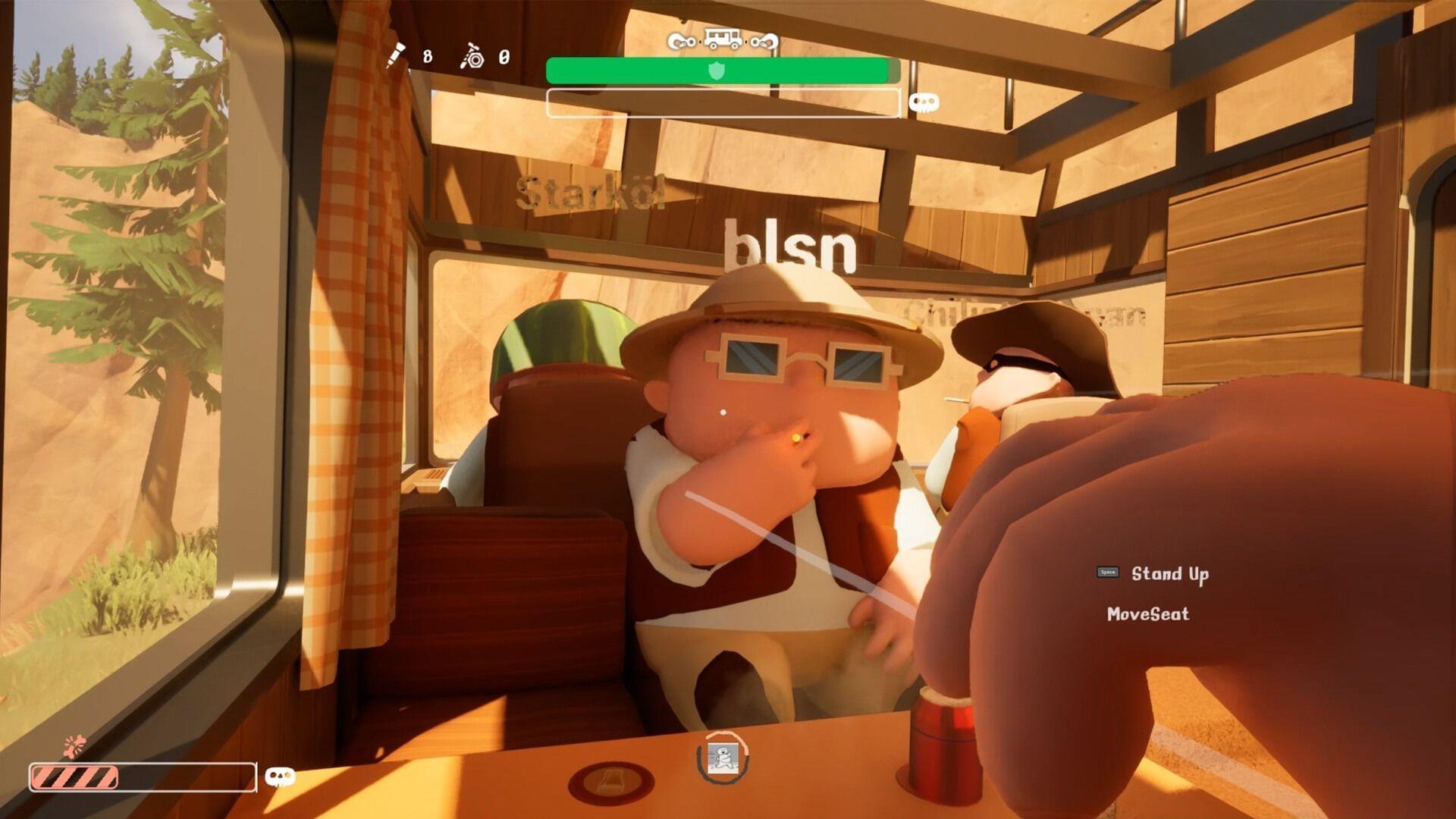
Microphone malfunctions in RV There Yet can significantly impact your multiplayer experience, potentially disrupting team coordination during critical gameplay moments. These audio problems typically originate from multiple sources, ranging from basic configuration oversights to complex system compatibility challenges.
The most prevalent cause involves incorrect input device selection within either Steam’s platform settings or the game’s internal audio configuration. Players frequently overlook these settings during initial setup, leading to persistent communication issues throughout their gaming sessions. Additionally, outdated or improperly configured audio drivers create substantial obstacles, affecting not just microphone functionality but overall audio performance in the game environment.
RV There Yet’s recent October 21, 2025 release means the game may contain unresolved audio bugs that require developer patches. The checkpoint proximity voice chat glitch represents one such documented issue that affects microphone performance during crucial gameplay segments.
Driver and System-Level Solutions
Beginning with driver maintenance provides the foundation for stable microphone operation. Navigate to Windows Device Manager through the search function, then expand the ‘Sound, video, and game controllers’ section to access your audio hardware.
Proper Windows audio configuration ensures your microphone receives system-level recognition. Access sound settings by right-clicking the speaker icon in your system tray, then navigate to the input section to designate your preferred communication device.
Pro Tip: Always test your microphone through Windows sound settings before launching the game. This preemptive check helps isolate whether issues stem from system configuration or game-specific problems.
Steam and In-Game Settings Optimization
Steam’s voice chat configuration requires precise alignment with your Windows settings to ensure seamless microphone operation. Access the ‘Friends and Chat’ interface from Steam’s bottom-right corner, then navigate to the voice settings tab for comprehensive configuration.
Within RV There Yet’s game environment, access the sound settings menu to configure Voice over Internet Protocol (VOIP) parameters. Setting your VOIP level to 1 often resolves microphone detection issues, while adjusting voice chat volume sliders can improve communication clarity.
Common Mistake: Players frequently forget that Steam settings override in-game configurations. Always configure Steam voice settings first, then adjust in-game options as secondary modifications.
Advanced Troubleshooting Techniques
When basic solutions prove insufficient, advanced diagnostic procedures help identify underlying issues. Corrupted game files represent a common culprit for persistent microphone malfunctions, easily addressed through Steam’s verification system.
System-level troubleshooting includes performing complete restarts when encountering the checkpoint voice chat bug. Exit the game completely, restart your computer, then relaunch RV There Yet to test microphone functionality. This simple process often resolves temporary software conflicts that affect audio performance.
Performance Insight: RV There Yet’s audio system may conflict with other voice communication software. Close applications like Discord or TeamSpeak before launching the game to eliminate potential software conflicts.
Preventive Measures and Best Practices
Implementing proactive maintenance strategies minimizes future microphone complications in RV There Yet. Regularly update your audio drivers, particularly after major Windows updates that can reset or conflict with existing configurations.
Establish a pre-game audio checklist: verify Windows microphone settings, confirm Steam voice configuration, and test input detection before joining multiplayer sessions. This routine prevents most common microphone issues and ensures uninterrupted communication during gameplay.
Monitor game updates and developer patches addressing audio issues. As a recently released title, RV There Yet will likely receive numerous updates resolving known microphone and voice chat problems reported by the player community.
Related Content: How to use antidote in RV There Yet
Game Strategy: How to get away from bears in RV TY
No reproduction without permission:GameCDjnh » Microphone not working error in RV There Yet: Possible reasons and fixes Comprehensive troubleshooting guide to fix microphone issues in RV There Yet with advanced optimization strategies