
A comprehensive troubleshooting guide with actionable solutions to fix Broken Arrow’s Unity crash error and optimize gameplay performance
Understanding Broken Arrow’s Unity Crash Error
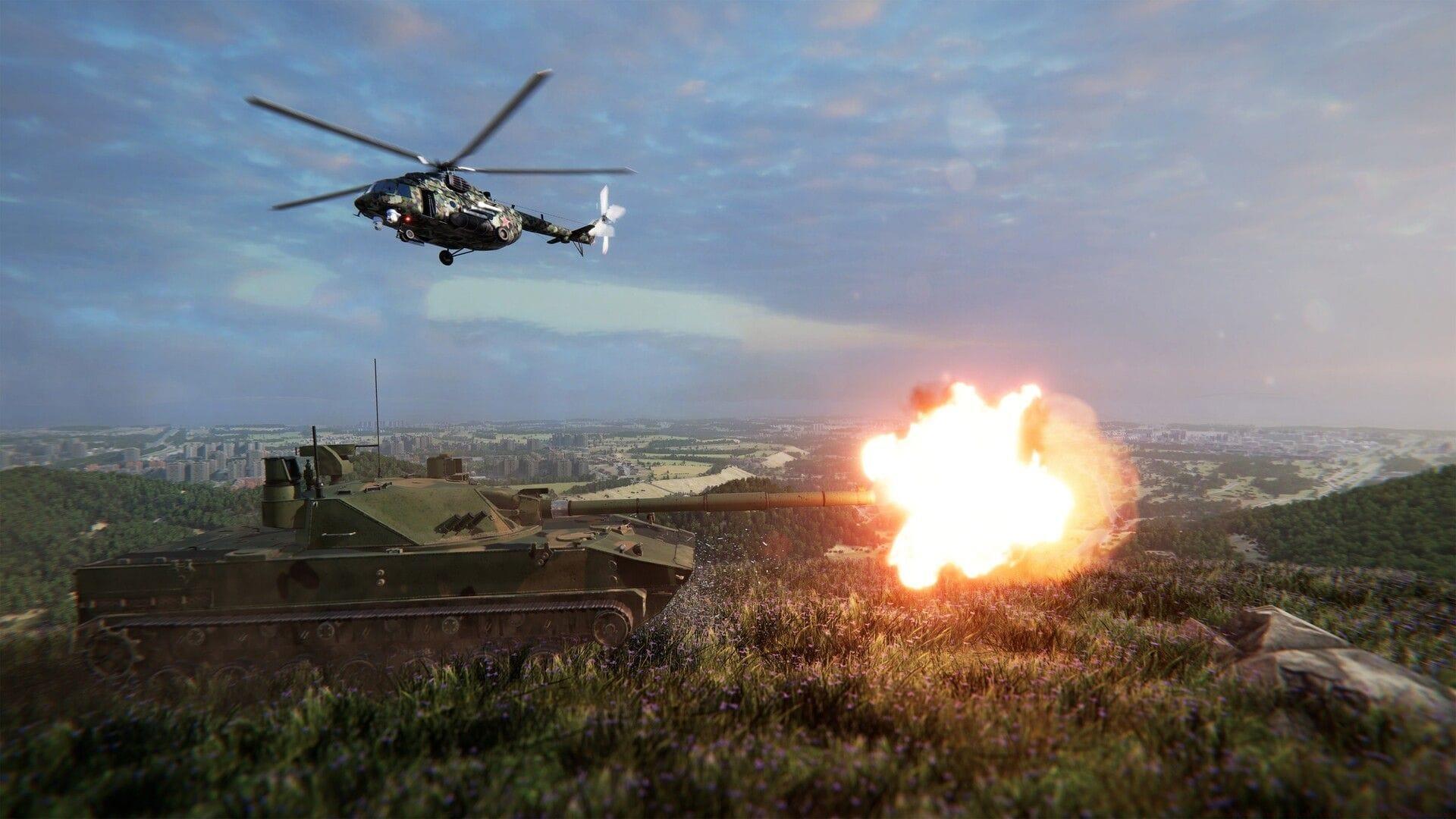
Many players diving into Broken Arrow’s intense military strategy battles encounter the frustrating Unity crash error that abruptly terminates gameplay without warning. This common issue affects strategy enthusiasts who find their tactical sessions interrupted by sudden closures, often lacking detailed error messages that would help pinpoint the exact cause.
The Unity engine crash can originate from multiple sources: corrupted installation files, conflicts with background applications, memory allocation failures during resource-intensive moments, or hardware compatibility issues. Players who overclock their systems or run incompatible software alongside the game frequently experience these stability problems, particularly during large-scale battles with numerous units on screen.
Systematic Troubleshooting Methodology
Approaching the Unity crash requires a structured methodology rather than random fixes. Begin with the simplest solutions—these resolve approximately 60% of cases—before progressing to more complex troubleshooting. Document each step you attempt; this creates a valuable reference if you need to seek community help later.
Common mistakes to avoid: Don’t immediately tweak advanced system settings without first verifying basic game files. Avoid disabling essential Windows services in hopes of improving performance—this often creates more problems. Never modify Unity engine files directly; let the game’s own verification systems handle file integrity.
Step 1: Verify Game File Integrity Through Steam
Corrupted or missing game files represent the most frequent cause of Unity crashes. Steam’s built-in verification system efficiently identifies and replaces problematic files without requiring technical expertise.
This scanning process typically takes 5-15 minutes depending on your storage speed. Steam will automatically download any missing or corrupted files it identifies. Pro tip: Ensure you have sufficient disk space (at least 5GB free) before running verification, as insufficient space can cause the process to fail or create additional file corruption.
Step 2: Resolve Software Conflicts and Overlays
Real-time overlays and monitoring applications frequently interfere with Unity’s rendering pipeline. These conflicts manifest as crashes during scene transitions or when multiple applications attempt to hook into the game’s display output simultaneously.
Advanced strategy: Create a dedicated gaming profile in your antivirus software that excludes Broken Arrow’s installation folder and executable. For Discord, consider using the web version during gaming sessions if the overlay continues causing issues. Hardware monitoring tools should be completely closed, not just minimized, as background services can still interfere.
Step III: Update Graphics Drivers and Windows
Outdated GPU drivers represent the second most common crash culprit after corrupted files. Both NVIDIA and AMD release game-ready drivers specifically optimized for new titles like Broken Arrow—these often contain crucial stability fixes.
Concurrently update Windows through Settings → Update & Security → Windows Update. Microsoft regularly releases system-level fixes that improve game compatibility. Critical note: Avoid using third-party driver update utilities; these often install incorrect or modified drivers that can worsen stability issues.
Performance Optimization for Demanding Scenes
Even systems meeting minimum specifications can crash during Broken Arrow’s most demanding moments—large-scale battles with multiple units, explosions, and complex physics calculations. Strategic settings adjustments can prevent these overload scenarios.
First, verify your system actually meets the requirements: Broken Arrow needs at least 8GB RAM (16GB recommended), a DirectX 11 compatible GPU with 4GB VRAM, and substantial CPU resources for unit AI calculations. If operating near these limits, implement these optimizations:
Expert technique: Use Windows Game Mode (Windows+G) to allocate maximum resources to Broken Arrow. Monitor your system’s resource usage during gameplay with Task Manager to identify bottlenecks—if CPU hits 100% during battles, reduce unit count or AI quality settings.
Prevention and Long-Term Stability
Once resolved, implement practices to prevent future Unity crashes. Regular maintenance beats reactive troubleshooting every time.
Schedule monthly driver updates rather than waiting for problems. Create a system restore point before making any significant changes to your gaming setup. Consider dedicating specific storage space for game installations—fragmented drives contribute to file corruption over time.
The Unity crash in Broken Arrow, while frustrating, typically yields to systematic troubleshooting. Most players resume commanding their forces within an hour of following these steps. Remember that some crashes during major updates are normal—developer patches often follow initial stability issues as the community identifies patterns.
Related Gaming Content
Read more: 7 best action RPGs to play in 2025
Also read: Honkai Star Rail 3.4 banners order and schedule
For more articles on Broken Arrow, follow Sportskeeda:
No reproduction without permission:GameCDjnh » Broken Arrow ‘Unity crash’ error: Possible fixes and reason A comprehensive troubleshooting guide with actionable solutions to fix Broken Arrow's Unity crash error and optimize gameplay performance