
Comprehensive troubleshooting guide for Killing Floor 3 matchmaking issues with practical fixes and prevention strategies
Understanding the Matchmaking Problem
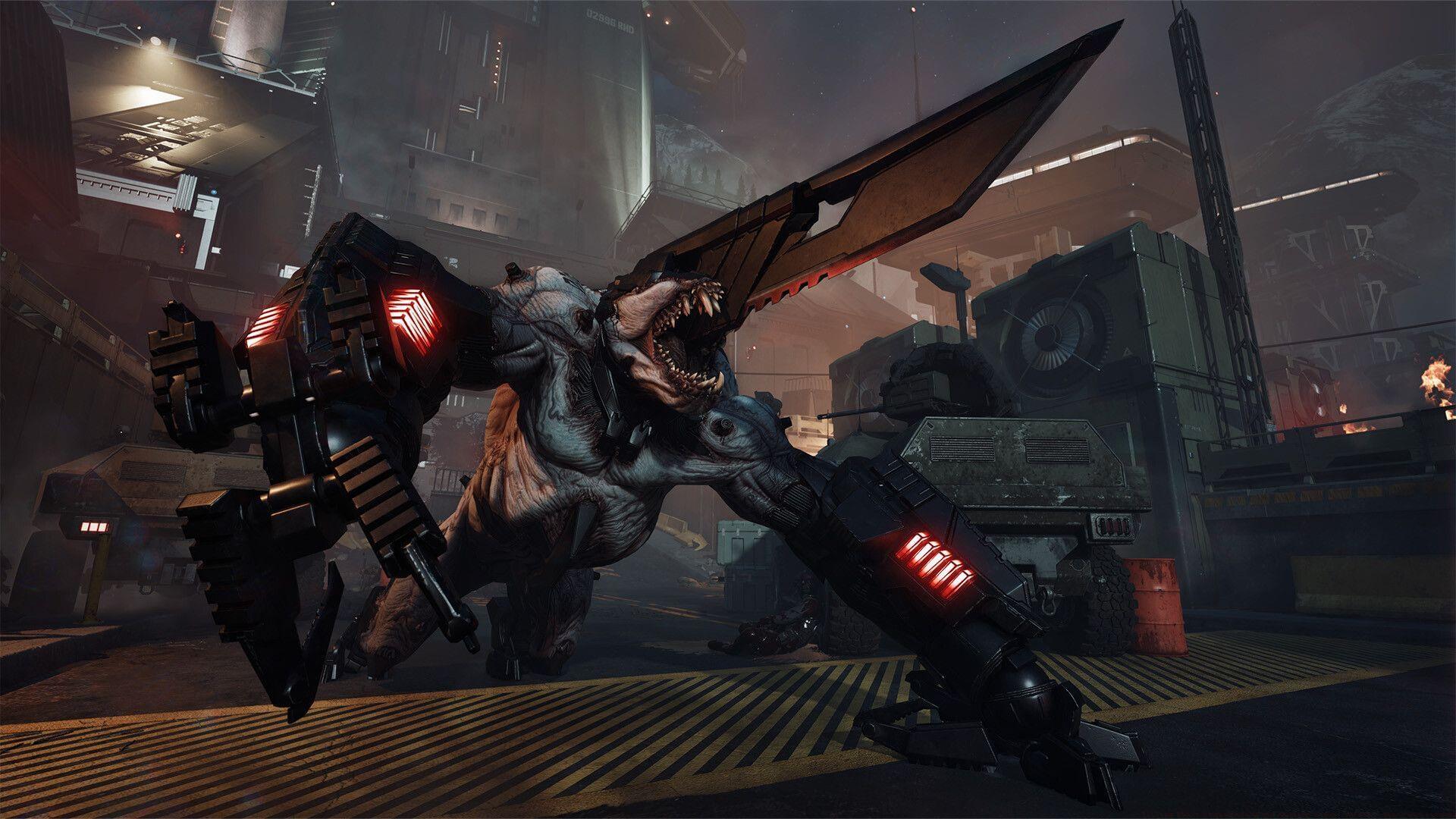
The Killing Floor 3 matchmaking not working error represents a persistent technical challenge currently impacting numerous players attempting to access multiplayer sessions. This connectivity barrier prevents gamers globally from successfully joining cooperative matches, frequently resulting in automatic removal from server queues despite successful initial connection attempts. Community reporting platforms including Steam discussion boards and dedicated KF3 subreddits indicate widespread occurrence of this technical limitation, though official developer resolution remains pending at this time.
Beyond the immediate connection failures, players often encounter specific error codes that provide clues about the underlying issues. Common patterns include timeout errors, authentication failures, and server capacity messages that help identify whether the problem originates from local systems or broader infrastructure challenges.
Network Connection Solutions
Unstable internet connectivity frequently serves as the primary culprit behind matchmaking disruptions in Killing Floor 3. The game’s multiplayer infrastructure demands consistent network performance with minimal packet loss and latency fluctuations. Wireless connections particularly suffer from environmental interference that can abruptly disconnect players from matchmaking services. For optimal performance, consider upgrading wireless drivers regularly and conducting speed tests to verify minimum requirements of 5 Mbps upload speed.
Ethernet-connected users should physically inspect cable integrity and perform modem resets using the 30-second power cycle method. Advanced network configuration involves accessing your router’s admin panel to enable Quality of Service (QoS) settings, prioritizing gaming traffic over other household internet usage. Additionally, port forwarding for Killing Floor 3 specific ports (typically 27015-27030) can dramatically improve connection stability and reduce matchmaking failures.
Also read: Killing Floor 3 EOS authentication failed error: Possible fixes and reasons
Game File Verification Process
Corrupted or incomplete game installations frequently trigger the Killing Floor 3 matchmaking malfunction. The Steam platform provides built-in validation tools to identify and replace damaged game components. Beyond basic verification, consider monitoring your storage drive health, as failing SSDs or HDDs can cause progressive file corruption that standard validation might not immediately detect.
Here’s the comprehensive file verification procedure for PC users:
For persistent issues, consider completely reinstalling the game after backing up configuration files and save data. This nuclear option resolves deeper file system conflicts that basic verification might miss.
Also read: Best Killing Floor 3 Firebug build
Security Software Configuration
Overly aggressive security applications often mistakenly identify legitimate game processes as potential threats, resulting in blocked connections and matchmaking failures. Modern anti-virus suites and firewall systems require explicit permission grants for Killing Floor 3 executable files and associated processes. When creating exceptions, ensure you include both the main game executable and any secondary processes like anti-cheat software.
The most effective approach involves accessing your security software’s settings menu and adding Killing Floor 3 to the approved applications list or exclusion zone. If temporary disablement becomes necessary for testing purposes, ensure you disconnect from the internet during this period for security. Windows Defender users should navigate to Virus & Threat Protection settings and add folder-level exceptions for the entire KF3 installation directory.
Advanced users can monitor Windows Firewall logs to identify specific blocking events, then create precise rules that permit essential gaming traffic while maintaining overall system security.
Also read: All Killing Floor 3 damage types explained
Advanced Troubleshooting Techniques
When standard solutions prove ineffective, advanced network manipulation often resolves persistent matchmaking obstacles. DNS configuration changes represent one of the most impactful adjustments—switching from your ISP’s default servers to public alternatives like Google DNS (8.8.8.8) or Cloudflare (1.1.1.1) can bypass regional routing issues affecting game servers.
Network adapter driver updates represent another frequently overlooked solution. Outdated network drivers, particularly on Windows systems, can create compatibility conflicts with modern game networking protocols. Visit your motherboard or network card manufacturer’s website to download the latest drivers rather than relying on Windows Update.
Performance monitoring during matchmaking attempts provides valuable diagnostic data. Use resource monitors to track network usage, packet loss rates, and any background applications that might be interfering with gaming connectivity. Additionally, monitor official Killing Floor 3 server status through community Discord channels and developer social media for widespread outage announcements that might explain connection problems.
For more information on the game, follow Sportskeeda:
No reproduction without permission:GameCDjnh » Killing Floor 3 matchmaking not working error: Possible fixes and reasons Comprehensive troubleshooting guide for Killing Floor 3 matchmaking issues with practical fixes and prevention strategies