
TL;DR
- Access Schedule 1 beta through Steam Properties > Betas tab with simple dropdown selection
- Beta versions offer early access to new features, weapons, and gameplay mechanics before public release
- Monitor performance impact and backup saves when testing unstable beta builds
- Participate in official forums to report bugs and influence final game development
- Choose between stable experimental builds or cutting-edge development branches based on your risk tolerance
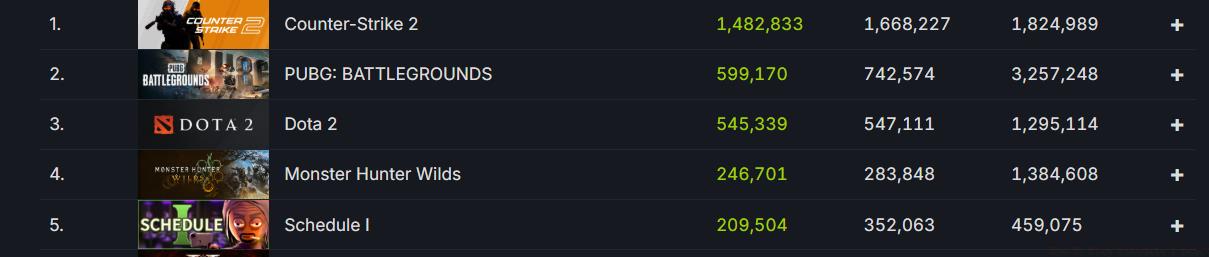
Schedule 1 has rapidly emerged as one of the most discussed gaming experiences recently, capturing significant attention across streaming platforms and community forums. This innovative drug dealer simulation title has achieved remarkable chart performance on Steam, consistently ranking alongside major releases such as Monster Hunter Wilds and Path of Exile 2 during its launch window.
Players worldwide are diving into Schedule 1 to explore its unique criminal underworld mechanics and business management systems. For enthusiasts seeking advanced content and upcoming features, accessing the beta version provides exclusive early exposure to developmental enhancements before they reach the mainstream audience.
While the stable release delivers a polished gaming experience, dedicated players frequently opt into beta testing to gain competitive advantages through early feature familiarity. This approach allows you to master new mechanics, test unreleased content, and provide valuable feedback that shapes the game’s evolution.
Gaining entry to Schedule 1’s beta program requires minimal technical expertise and can be completed in under five minutes. The process utilizes Steam’s built-in beta access system, which securely manages multiple game versions without requiring additional downloads or external applications.
Begin by launching your Steam client and navigating to the Library section where all your purchased games are displayed. Locate Schedule 1 within your game collection—you may need to use the search function or scroll through your installed titles if you have an extensive library.
Initiate the beta access procedure by right-clicking on Schedule 1 and selecting ‘Properties’ from the contextual menu that appears. This opens the game configuration panel where you can modify various installation and update settings.
Within the Properties window, click the ‘Betas’ tab located alongside other options like General, Updates, and Local Files. This section manages experimental and prerelease versions available for testing.
Locate the ‘Beta Participation’ dropdown menu, which typically defaults to ‘None’ or ‘Opt-out’. Click the dropdown to reveal available beta branches, which may include options like ‘experimental – Public testing build’ or ‘development – Unstable features’.
Select your preferred beta version based on stability preferences and desired feature access. Experimental builds generally offer more stability, while development branches provide earliest access to cutting-edge content at the cost of potential bugs and performance issues.
Close the Properties window after selection—Steam will automatically download necessary files and update your game to the chosen beta version. The download size varies depending on changes between versions but typically ranges from 100MB to several gigabytes.
Some users encounter download failures or installation errors when switching to beta versions, often due to conflicting game files or insufficient storage space. Before initiating the beta download, ensure you have at least 10GB of free disk space and verify your game files through Steam’s integrity checker.
Performance degradation represents another frequent concern, as beta builds may lack optimization present in stable releases. Monitor your frame rates and loading times after switching versions, and consider adjusting graphical settings if experiencing significant performance drops. Lowering shadow quality and post-processing effects often provides immediate improvements.
Save file compatibility issues can emerge when moving between beta and stable versions. Always create backups of your game saves before transitioning to experimental builds, as some beta features may alter save data in ways that prevent reverting to previous versions. The game typically stores saves in your Documents folder under a Schedule 1 subdirectory.
If beta features fail to appear after updating, restart both Steam and your computer to ensure all changes propagate correctly. Some experimental content requires specific progression milestones or may be temporarily disabled by developers during stability testing periods.
For persistent issues, the official Schedule 1 community forums and Discord server provide dedicated beta support channels where developers actively address bug reports and technical problems. Include detailed system specifications and error logs when seeking assistance to facilitate faster resolution.
Seasoned beta testers maximize their experience by systematically exploring new features and documenting discoveries. Create a testing checklist for each beta session, focusing on recently added mechanics, weapons, or gameplay systems mentioned in patch notes. This structured approach ensures comprehensive coverage of new content.
Effective bug reporting significantly contributes to game development while establishing your reputation within the testing community. When encountering issues, document precise reproduction steps, include screenshots or video evidence, and note your system configuration. Quality reports often receive developer recognition and may lead to early access to additional beta features.
Monitor developer communications through official channels to anticipate upcoming beta content drops. Schedule 1’s development team frequently teases new features on social media before introducing them to beta branches, providing advance notice for testing preparation.
Consider maintaining dual installations if disk space permits—keeping both stable and beta versions allows seamless switching between testing and reliable gameplay. This approach requires careful save management but eliminates downtime when critical gameplay sessions arise.
Engage with the broader testing community through dedicated subreddits and Discord servers to exchange discoveries and strategies. Collaborative testing often reveals hidden features or optimization techniques that individual players might overlook, enhancing everyone’s beta experience.
For those interested in expanding their Battlefield 6 knowledge while testing Schedule 1, our Complete Guide offers comprehensive strategies that complement your beta testing skills with proven gameplay fundamentals.
Action Checklist
- Verify 10GB free disk space and stable internet connection
- Backup game saves from Documents/Schedule 1 folder
- Access Steam Library > Schedule 1 Properties > Betas tab
- Select preferred beta branch based on stability needs
- Download update and verify new features appear correctly
- Adjust graphics settings if experiencing performance issues
- Report bugs with detailed reproduction steps and system info
No reproduction without permission:GameCDjnh » How To Play Schedule 1 Beta? Master Schedule 1 beta access with step-by-step guide, troubleshooting tips, and advanced strategies for optimal gameplay