
TL;DR
- Restart Minecraft Launcher as immediate first-step solution
- Check for game updates through official app stores regularly
- Clear cache and temporary files to resolve version conflicts
- Reinstall Minecraft completely when persistent errors occur
- Contact Mojang Support for unresolved server-side issues
Encountering the Minecraft outdated client error can disrupt your gaming experience significantly. This technical issue typically arises when your game version doesn’t match the server requirements or when update synchronization fails between client and server components. Understanding the root causes helps implement effective solutions.
Primary Error Causes: The outdated client message primarily indicates version mismatch between your installed Minecraft and the server you’re attempting to join. This commonly occurs after game updates roll out, when automatic updates fail to install properly, or when playing on modified servers with custom version requirements. Network connectivity issues during update downloads can also create incomplete installations that trigger this error.
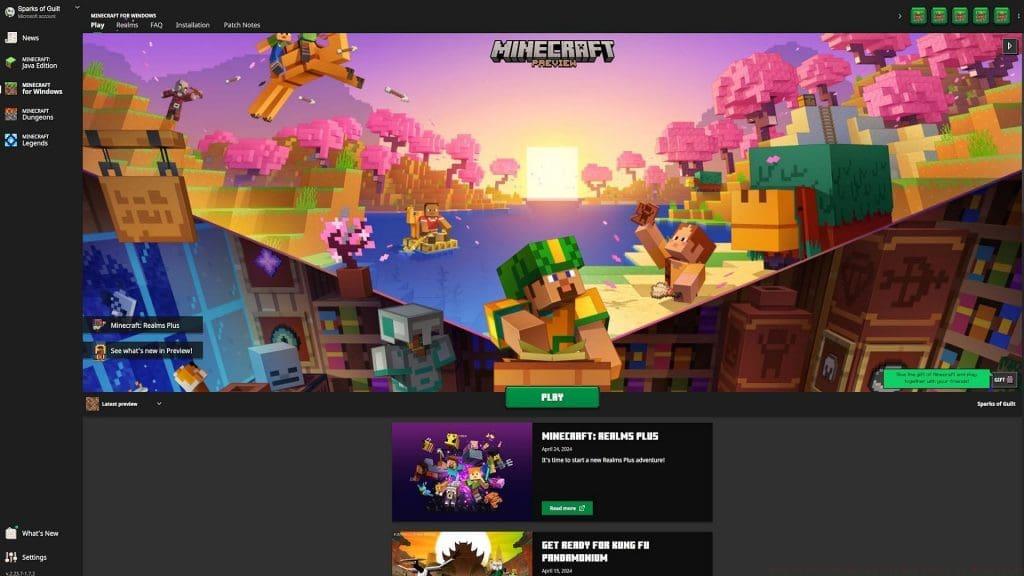
Common Scenarios and Impact: Players often encounter this error when joining multiplayer servers after missing critical update notifications. The problem prevents access to online features, blocks multiplayer participation, and may cause world synchronization issues. Early detection through regular version checks can minimize disruption to your building and exploration activities.
Launcher Restart Procedure: Begin troubleshooting with a complete Minecraft Launcher restart. Close the application entirely through your task manager, ensuring all background processes terminate. This refresh clears temporary glitches and resets connection parameters. Many players resolve version detection issues through this simple reset method without further intervention required.
Game Update Verification: Systematically check for available Minecraft updates through your platform’s official distribution channel. On Windows, verify through the Microsoft Store; Java Edition users should access the official Minecraft launcher. Mobile players must check respective app stores. Download and install all pending updates completely before attempting to reconnect to servers.
Cache and Temporary File Management: Clear cached data that might cause version conflicts. Access your system’s application settings to remove temporary Minecraft files. This process eliminates corrupted update fragments and forces fresh version verification. Regular cache maintenance prevents recurring outdated client notifications and improves overall game stability.
Complete Reinstallation Process: When basic solutions fail, perform a full Minecraft reinstallation. First, back up your worlds and resource packs through the game’s export functionality. Uninstall the application through system settings, then download a fresh copy from official sources. This comprehensive approach resolves deep-seated file corruption and registry issues that cause persistent version errors.
System Compatibility Assessment: Verify your device meets current Minecraft specifications. Check available storage space, RAM allocation, and operating system version compatibility. Insufficient system resources can interrupt update installations and create version mismatch scenarios. Adjust Java settings for the desktop edition to ensure optimal performance and update capability.
Network Configuration Review: Examine your internet connection stability and firewall settings. Unstable downloads often create incomplete updates that trigger outdated client errors. Temporarily disable security software during update processes if they interfere with file downloads. Configure router settings to prioritize game traffic and ensure consistent connection during critical update periods.
Proactive Update Management: Establish regular update checking routines to prevent outdated client situations. Enable automatic updates in your launcher settings and monitor official Minecraft channels for version release announcements. Schedule weekly verification of your game version against current release notes to maintain compatibility with your favorite servers.
Data Backup Strategies: Implement systematic world backups before applying major updates. Use Minecraft’s built-in backup functionality or third-party tools to protect your creations. Store backups in cloud services or external drives to ensure recovery capability if update processes affect world integrity. Regular backups provide security during troubleshooting procedures.
Performance Optimization Techniques: Maintain your gaming environment through regular system maintenance. Clear temporary files monthly, update device drivers, and monitor storage capacity. These practices prevent update failures and reduce outdated error frequency. For advanced guidance on game optimization, consult our Complete Guide to system performance techniques.
Mojang Support Engagement: Contact official support channels when all independent troubleshooting fails. Prepare your Minecraft version details, error messages, and troubleshooting steps attempted before contacting support. Official technicians can identify server-side issues, account-specific problems, and rare technical conflicts that require specialized resolution tools.
Community Resource Utilization: Access Minecraft forums and community support networks for additional assistance. Experienced players often share specialized solutions for unique technical scenarios. These resources provide collective knowledge beyond standard troubleshooting guides. For weapon-specific issues in other games, our Weapons Unlock guide demonstrates similar community-driven solution approaches.
Alternative Solution Pathways: Explore modified client options or version-specific servers if compatibility issues persist. Some community servers maintain multiple version support to accommodate players during transition periods. Understanding class mechanics in other games, as detailed in our Class Guide, demonstrates how specialized configurations can resolve access issues.
Action Checklist
- Restart Minecraft Launcher completely
- Check for updates in official app store
- Clear game cache and temporary files
- Perform complete Minecraft reinstallation
- Contact Mojang Support with error details
No reproduction without permission:GameCDjnh » How to Fix Outdated Client Error in Minecraft Comprehensive guide to fix Minecraft outdated client errors with troubleshooting strategies and prevention tips