
TL;DR
- FOV settings (40-68 range) significantly impact peripheral vision and target acquisition speed
- ViewModel positioning across three axes affects weapon visibility and screen space utilization
- Higher FOV values reveal more environment but can make distant targets appear smaller
- Proper ViewModel configuration reduces visual clutter while maintaining essential weapon feedback
- Custom configurations require testing in actual gameplay scenarios for optimal results
Optimizing your Field of View (FOV) and weapon positioning delivers tangible competitive advantages in CS2 by expanding your peripheral awareness and accelerating enemy identification. While these adjustments might appear minor initially, their cumulative impact on gameplay performance becomes substantial over extended play sessions.
The competitive benefits from FOV and ViewModel modifications stem from both physiological and psychological factors. The expanded visual field reduces the need for excessive mouse movement during scanning, while customized weapon positioning minimizes visual obstruction. Historically, CL_Bob adjustments provided recoil control advantages by reducing weapon sway during automatic fire, but this functionality was permanently removed with CS2’s release.
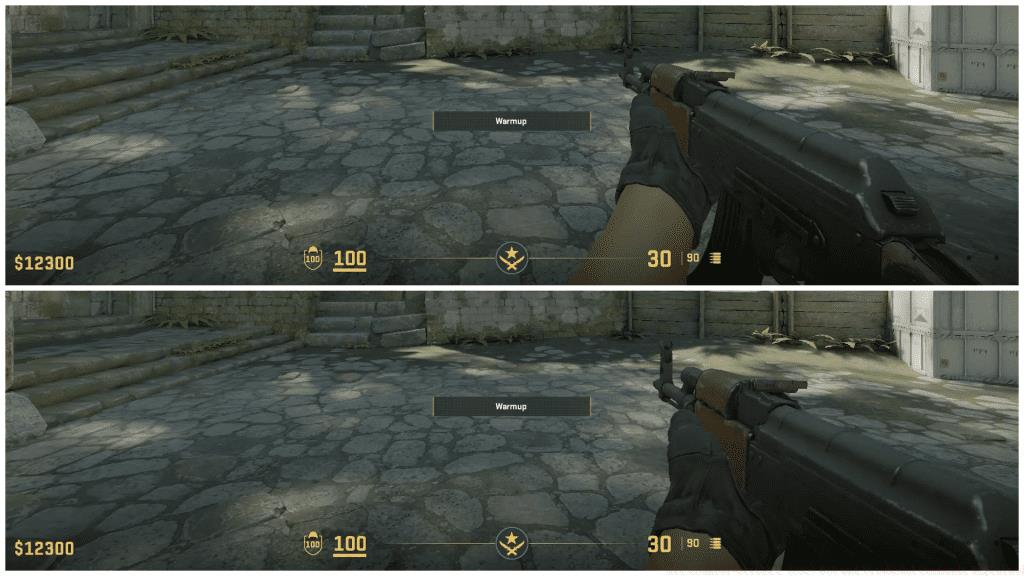
Many professional players utilize FOV values between 60-68 for optimal balance between environmental awareness and target visibility. The psychological comfort of a customized interface cannot be underestimated—when your weapon positioning feels natural, your focus shifts entirely to gameplay decisions rather than visual distractions.
The Viewmodel FOV operates within a constrained spectrum from 40 to 68 degrees, with each extreme offering distinct tactical trade-offs. Lower values provide larger, more prominent weapon models and easier distant target acquisition, while higher settings reveal significantly more environmental information at the cost of target size reduction.
viewmodel_fov X (where X is the desired FOV value)This parameter governs the apparent distance between your first-person perspective and the weapon model on your display. Increasing the value creates greater separation from your firearm, consequently unveiling additional screen areas previously obscured by your weapon model. The visual effect resembles stepping backward from your weapon while maintaining the same gameplay perspective.
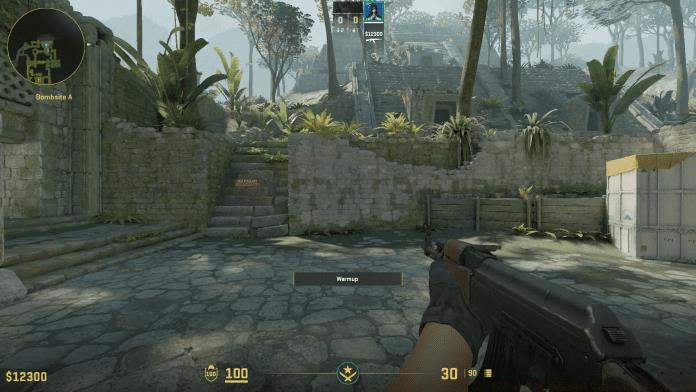
For players transitioning from other tactical shooters, CS2’s default FOV of 60 provides a balanced starting point. Competitive players typically gravitate toward 65-68 for maximum situational awareness, though this requires adjustment to smaller enemy models at distance. Consider your display size and resolution when selecting values—higher FOV benefits are more pronounced on wider screens.
ViewModel positioning commands provide three-dimensional control over your weapon’s screen placement, enabling precise customization for individual preference and playstyle. These adjustments operate along the X (horizontal), Y (vertical), and Z (depth) axes to create your ideal visual configuration.
viewmodel_offset_x Y– Adjusts the viewmodel left/right.viewmodel_offset_y Z– Adjusts the viewmodel up/down.viewmodel_offset_z W– Adjusts the viewmodel forward/backward.
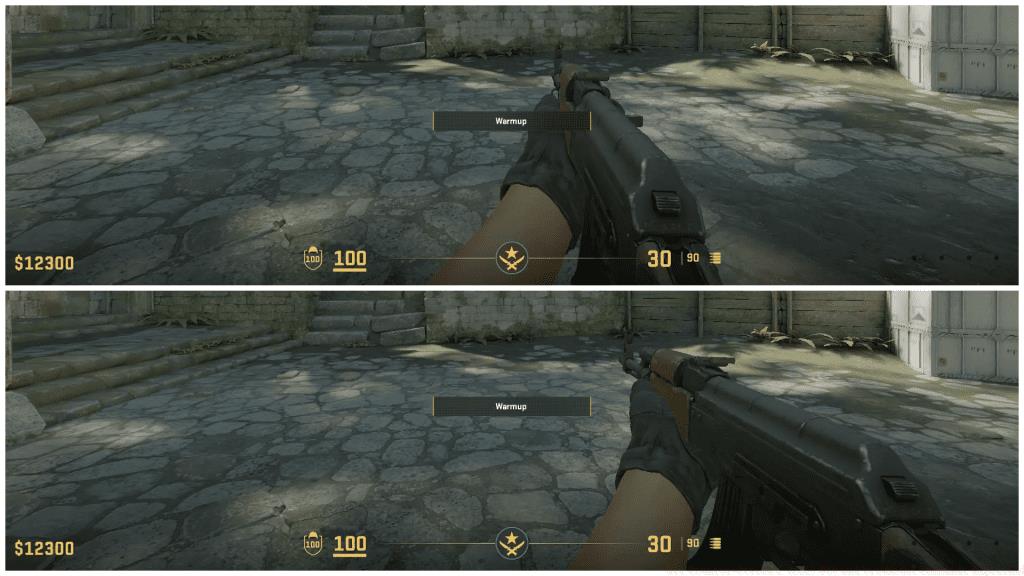
viewmodel_offset_x from 2 to -2.5. 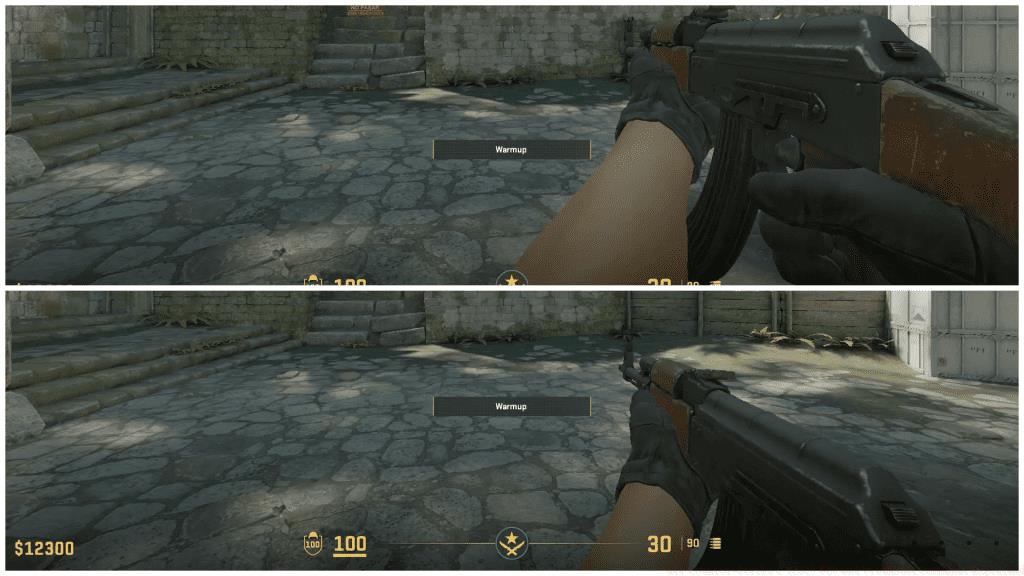
viewmodel_offset_y from 2 to -2. The horizontal adjustment (viewmodel_offset_x) moves your weapon left or right, potentially clearing the crosshair area for unobstructed aiming. Negative values shift the weapon leftward, while positive values move it right—most players prefer slight negative values to keep their dominant visual field clear.
Vertical positioning (viewmodel_offset_y) controls how high or low your weapon appears. Lower positions provide more screen space above your weapon for tracking enemies at elevation, while higher placements can improve visual feedback during recoil control.
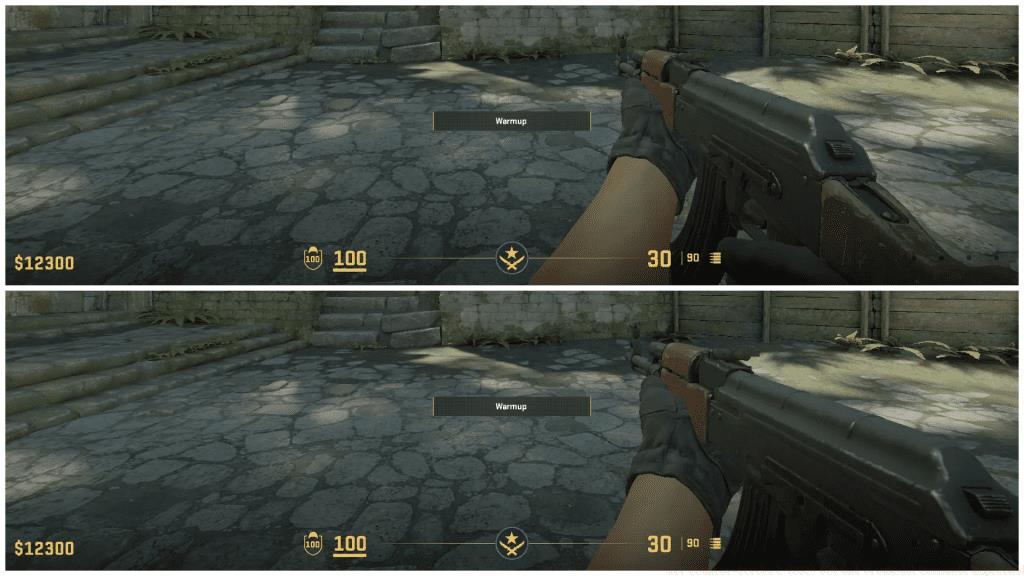
viewmodel_offset_z from 2 to -2. Depth adjustment (viewmodel_offset_z) determines how close the weapon appears to your perspective. Forward positioning creates an immersive, close-quarters feel, while backward movement maximizes your environmental visibility. Many competitive players use moderate negative values to balance immersion with practical visibility needs.
Professional CS2 configurations reveal consistent patterns in FOV and ViewModel optimization. Most elite players utilize FOV values between 64-68 combined with specific offset configurations that maximize lower-right screen visibility—the area where most engagements occur during right-handed peeking.
Avoid the common mistake of extreme positioning that completely removes your weapon from view. While this maximizes screen space, it eliminates valuable visual feedback during shooting, reloading, and weapon switching. The optimal configuration provides minimal obstruction while maintaining clear weapon state awareness.
Performance impact from these settings is negligible on modern hardware, as ViewModel adjustments are primarily client-side visual modifications rather than computationally intensive changes. However, extremely high FOV values can slightly increase GPU load when rendering additional environmental geometry.
For comprehensive gameplay improvement, complement your visual configuration with strategic knowledge from our Complete Guide to tactical decision-making. Weapon proficiency remains crucial—master your arsenal with our Weapons Unlock strategies. Different combat roles require tailored approaches, so consult our Class Guide for specialization-specific optimization.
Testing configurations should occur in actual gameplay scenarios rather than empty servers. Spend at least 3-5 competitive matches with each significant adjustment to assess its impact on target acquisition, tracking accuracy, and overall comfort. Document your preferences systematically to create reproducible configurations across installations.
Action Checklist
- Test FOV values from 60-68 in Deathmatch mode
- Adjust viewmodel_offset_x to clear crosshair area
- Optimize vertical positioning for elevation tracking
- Balance depth settings for visibility vs immersion
- Validate configuration in competitive matches
No reproduction without permission:GameCDjnh » All Counter-Strike 2 (CS2) FOV and ViewModel Commands Explained Master CS2 FOV and ViewModel settings to enhance visibility, reduce blind spots, and optimize competitive performance