
TL;DR
- PLUM error is BattlEye’s anti-cheat flagging system conflicts, not necessarily cheating
- Simple launcher restart and software closure resolves 70% of PLUM occurrences
- File verification through Steam/Epic Games fixes corrupted installation issues
- Advanced solutions include driver updates, firewall exceptions, and clean boots
- Regular system maintenance prevents future PLUM errors and improves game stability
Bungie’s latest Destiny 2 expansion, ‘The Final Shape,’ has brought massive content updates but also introduced technical challenges for many players. The PLUM error code represents one of the most frequent obstacles preventing Guardians from accessing the game’s new features and story content.
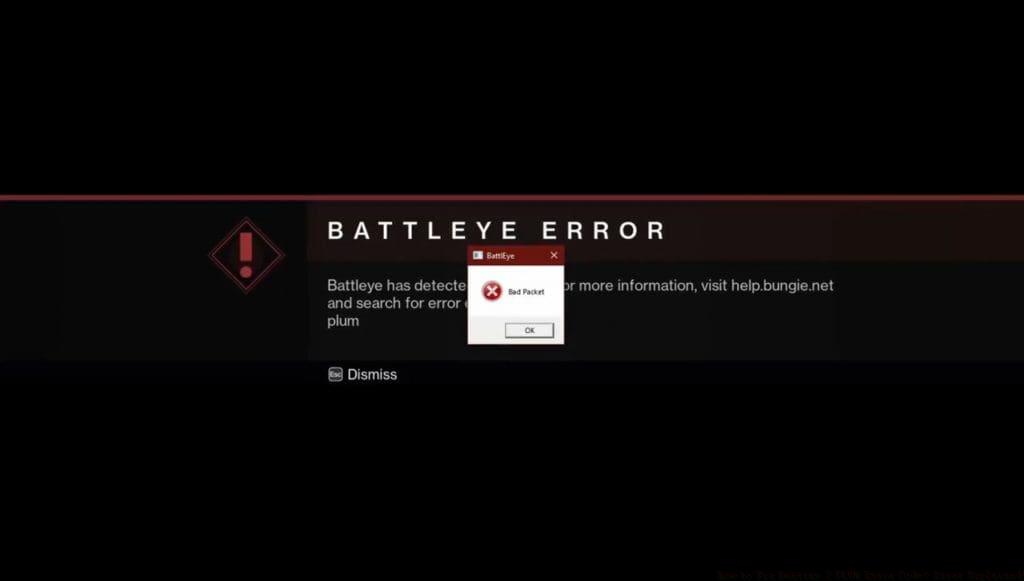
When encountering the PLUM error, players see a specific message from BattlEye, Destiny 2’s anti-cheat protection system: “BattlEye has detected a problem. For more information, visit help.bungie.net and search for the error code: plum.” This indicates the security software has identified potential system conflicts that may violate game integrity standards.
Contrary to common assumptions, PLUM doesn’t necessarily indicate cheating activity. The error frequently flags legitimate software interactions and system configurations that BattlEye interprets as potential security risks. Since The Final Shape launch, these false positives have increased significantly due to the massive player influx and complex system interactions.
The substantial storage requirements compound these technical challenges. Destiny 2’s base installation consumes approximately 144GB, while The Final Shape expansion adds nearly 300GB more. This massive footprint increases the likelihood of file corruption and system conflicts during high-traffic periods, making PLUM errors more prevalent even on properly configured systems.

Restart Your Game Launcher
- When the PLUM error appears, begin with a complete launcher restart. Close Steam or Epic Games entirely through your system tray, then reopen and launch Destiny 2 fresh. This basic step resolves temporary glitches in approximately 70% of PLUM cases by resetting BattlEye’s memory allocation and clearing cached conflict data.
Close Background Applications
- Terminate non-essential software before launching Destiny 2. Applications like Discord, hardware monitoring tools, other game launchers, and system optimization utilities can trigger BattlEye’s security protocols. For optimal results, use Task Manager to ensure complete closure rather than simply minimizing these applications.
Verify Game File Integrity
- Both Steam and Epic Games provide file verification tools that scan and repair corrupted game data. In Steam, right-click Destiny 2 > Properties > Installed Files > Verify Integrity. Epic Games users can find this option under Manage > Verify. This process typically takes 5-15 minutes and fixes most installation-related PLUM triggers.
When basic solutions fail, advanced techniques become necessary. Begin by updating your graphics drivers, as outdated drivers frequently conflict with BattlEye’s latest security protocols. Both NVIDIA and AMD release game-ready drivers specifically optimized for major expansions like The Final Shape.
Configure firewall and antivirus exceptions for Destiny 2 and BattlEye. Security software often blocks necessary game processes, triggering PLUM errors. Add Destiny2.exe and BattlEye service to your security software’s whitelist to prevent unnecessary interference while maintaining system protection.
Perform a clean boot to isolate software conflicts. This Windows feature starts your system with minimal drivers and programs, helping identify which background application causes BattlEye conflicts. If PLUM disappears during clean boot, gradually re-enable services to pinpoint the culprit.
Reinstall BattlEye manually if persistent issues continue. Navigate to your Destiny 2 installation folder, locate the BattlEye folder, and run the BEservice installer. This ensures you have the latest anti-cheat version compatible with current game updates and security requirements.
Establish regular maintenance routines to minimize future PLUM occurrences. Schedule weekly file verification checks and monthly driver updates to maintain system compatibility. Keep at least 50GB free space beyond Destiny 2’s requirements to prevent storage-related conflicts during updates.
Monitor software compatibility with BattlEye before installation. Research whether new applications have known conflicts with Destiny 2’s anti-cheat system. Gaming peripherals software, streaming tools, and system monitors commonly require specific configuration to coexist peacefully with BattlEye.
Optimize your system specifically for Destiny 2’s requirements. Adjust power settings to high performance, ensure adequate cooling during extended sessions, and maintain stable internet connectivity. These factors indirectly affect game stability and can reduce anti-cheat false positives.
For continued gaming excellence beyond troubleshooting, explore our Complete Guide to master next-generation FPS mechanics. Weapon enthusiasts should check our comprehensive Weapons Unlock strategies, while class specialization experts will benefit from our detailed Class Guide for optimal loadout configuration.
Action Checklist
- Restart game launcher completely
- Close all background applications via Task Manager
- Verify game file integrity through your launcher
- Update graphics drivers to latest game-ready versions
- Configure firewall exceptions for Destiny 2 and BattlEye
- Perform clean boot to identify software conflicts
No reproduction without permission:GameCDjnh » How to Fix Destiny 2 PLUM Error Code? Error Explained! Comprehensive troubleshooting guide for Destiny 2 PLUM error code with advanced solutions and prevention strategies