
Complete guide to fixing CS:GO VAC verification errors with practical troubleshooting strategies
Understanding the VAC ‘Unable to Verify’ Error
When Counter-Strike: Global Offensive players encounter the ‘VAC Unable to Verify’ message, it typically indicates that Valve’s Anti-Cheat system cannot authenticate your game installation properly. This security mechanism protects competitive integrity by ensuring all players have legitimate, unmodified game files before joining protected servers.
The verification failure typically originates from three primary sources that disrupt VAC’s authentication process:
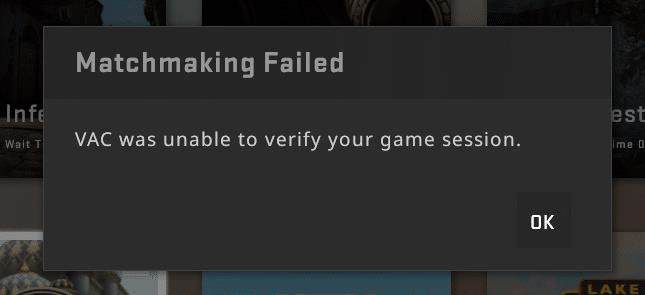
Advanced players should note that VAC operates through signature scanning and memory analysis, making it sensitive to any modifications in game directories or running processes that interact with CS:GO’s memory space.
Advanced Troubleshooting Solutions
Address VAC verification problems using this systematic approach that progresses from basic to advanced solutions, ensuring you resolve the issue efficiently without unnecessary steps.
Professional gamers recommend creating system restore points before making significant changes and testing VAC connectivity on community servers before joining competitive matches to avoid unexpected bans.
Proactive Prevention and Optimization
Preventing future VAC verification issues requires consistent system maintenance and understanding common pitfalls that trigger these errors. Implement these strategies to maintain uninterrupted gameplay.
System Configuration Best Practices: Regularly update your graphics drivers and operating system, as outdated drivers can create compatibility issues with VAC. Configure your antivirus to exclude CS:GO directories from real-time scanning, since security software may mistakenly flag VAC processes as suspicious. Ensure adequate disk space for proper game operation and updates.
Avoiding Common Mistakes: Never modify core game files or use unauthorized custom content in competitive modes. Be cautious with community-made configs that might alter protected game elements. Avoid using any software that injects code into game processes, even if marketed as legitimate utilities. Don’t interrupt game updates or verification processes once initiated.
Advanced Optimization Techniques: For experienced players, consider implementing specific launch options like ‘-allow_third_party_software’ for compatible non-VAC servers while understanding this limits competitive play. Monitor system resource usage during gameplay to identify background applications that might conflict. Regularly clear Steam’s download cache through Settings > Downloads to prevent update corruption.
If persistent VAC issues continue despite thorough troubleshooting, contact Steam Support with detailed information about your troubleshooting steps, system specifications, and error logs for specialized assistance.
No reproduction without permission:GameCDjnh » How to fix CS:GO’s ‘VAC unable to verify’ error Complete guide to fixing CS:GO VAC verification errors with practical troubleshooting strategies