
A complete guide to downloading and using the Lords of the Fallen Friend Pass for seamless cross-platform co-op gameplay.
Unlocking Free Co-op: What the Friend Pass Offers
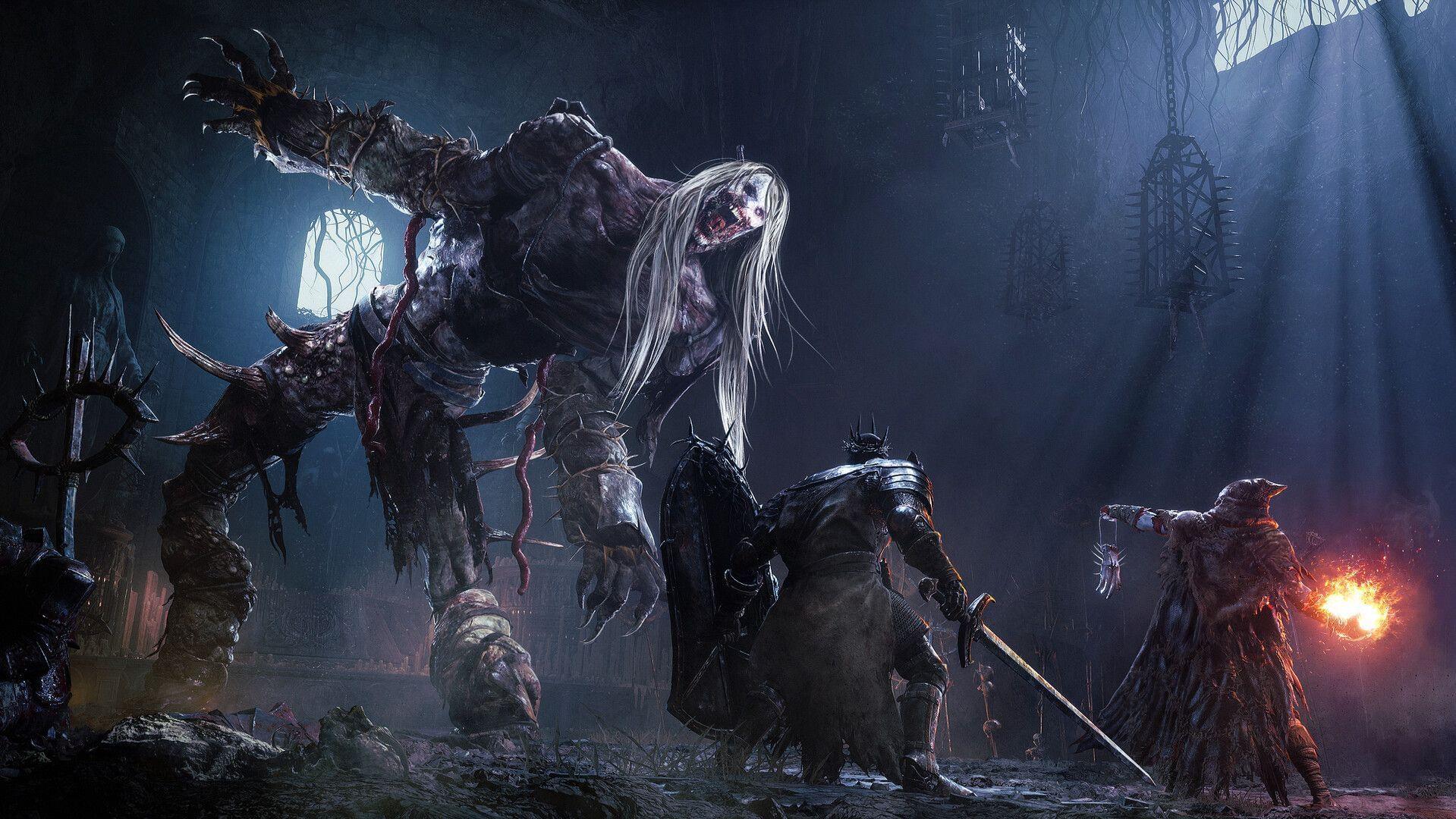
Lords of the Fallen has transformed its cooperative play with the recent 2.0 patch, introducing a game-changing Friend Pass system. This feature allows a player to join the full campaign for free, provided one member of the duo owns a copy. You can experience every boss fight and explore all zones in seamless co-op without any purchase required. Support spans PS5, Xbox Series X|S, Steam, Epic Games Store, and the Microsoft Store, with full crossplay functionality uniting all these platforms.
Looking for Crossword hints & solutions? Check out latest NYT Mini Crossword Answers, LA Times Crossword Answers, and Atlantic Crossword Answers
Step-by-Step Download Guide for Every Platform
Navigating different storefronts can be confusing. Follow this precise guide to secure your Friend Pass without hiccups. A common mistake is looking in the wrong store section; always seek ‘Demo’, ‘Trial’, or ‘Friend Pass’ specifically, not the main game page.
For PC (Steam & Epic Games Store): Locate the official Lords of the Fallen store page. Instead of the prominent purchase button, scroll down to find the dedicated ‘Free Demo’ or ‘Try Free Friend Pass’ section. Click ‘Install Game’ from there. This installs the full client, which will unlock in co-op mode when invited.
For PlayStation 5: Access the PlayStation Store and search for ‘Lords of the Fallen Friend Pass’ or ‘Lords of the Fallen Trial’. Sony often lists these passes separately. Download this specific version. Do not download the full game trial if one exists; you need the explicit Friend Pass.
For Xbox & Microsoft Store (Crucial): You must use the Microsoft Store app on PC or your Xbox console directly. The Xbox PC app does not distribute the Friend Pass correctly. Search for ‘Lords of the Fallen Friend Demo’ and add it to your cart. Complete the checkout process; it’s $0.00. This step is non-negotiable for a successful install on the Xbox ecosystem.
Mastering Co-op Invites and Crossplay Sessions
Once installed, initiating or joining a game depends on your platform alignment. The in-game systems are robust but require correct setup.
Same-Platform Co-op (Simplest Method): If you and your friend are on identical platforms (e.g., both on PS5), the process is intuitive. Both players should launch the game. The host must travel to any Vestige (the game’s checkpoint system). Interact with it and select ‘Beckon Friend’. This pulls up your platform-specific friends list. Select your online friend, and they will be summoned directly into your world.
Crossplay Co-op (Password Essential): For connections across different platforms (Xbox to PC, PS5 to PC, etc.), a matchmaking password is your universal key. The host must access the ‘Session Settings’ or ‘Crossplay’ menu at a Vestige. Here, you can set a custom password. Your friend, on their different platform, must enter the exact same password in their Vestige menu under ‘Join Session’. The game will then bridge the platform gap and connect you. Avoid simple passwords like ‘1234’ as they can cause conflicts with other public sessions.
Joining operates on similar principles:
- On the same platform: Open the Vestige menu and select ‘Join Session’ or ‘Join Session (Shared Progression)’. The latter allows you to progress your own character’s story while assisting.
- On different platforms: Ensure the host has set a password. Navigate to ‘Join Session’ at a Vestige, enable the crossplay option, and input the shared password. Connection is typically swift if both games are updated.
Check out: Clair Obscur: Expedition 33 release date and time across all regions
Advanced Co-op Strategies and Optimization Tips
To elevate your cooperative experience beyond basic connectivity, consider these advanced strategies. First, optimize your network session. If experiencing lag, the host should ensure their game is set to ‘Performance’ mode in settings, and both players should close bandwidth-intensive applications. The game’s netcode prioritizes stable connections over raw speed.
Understand the Shared Progression system. When you select ‘Join Session (Shared Progression)’, you earn Vigor (souls) and items that persist in your own world. However, key story progress and boss defeats are tied to the host’s world. Plan your play sessions accordingly if both players wish to advance their campaigns equally; you may need to swap hosting duties.
Build a complementary team. The Friend Pass allows for full character customization. Discuss builds with your partner—having one player focus on melee aggression and another on ranged magic or healing can make challenging areas significantly more manageable. Utilize the Vestige as a regrouping point to re-strategize and replenish resources before tackling difficult zones.
A final pro tip: If a connection fails repeatedly, both players should perform a full restart of their game and platform. Persistent issues often stem from a stale game session or platform network cache that needs clearing.
No reproduction without permission:GameCDjnh » How to download Friend Pass and play Lords of the Fallen for free A complete guide to downloading and using the Lords of the Fallen Friend Pass for seamless cross-platform co-op gameplay.