
TL;DR
- Viewmodel settings control weapon positioning and visibility through console commands
- Four main commands adjust horizontal, vertical, distance, and field of view parameters
- Professional players optimize viewmodels for screen visibility and aiming precision
- Experimentation is key as there’s no universally ‘best’ configuration
- Always backup settings and know how to reset to defaults when needed
Counter-Strike 2 provides extensive customization options for your heads-up display (HUD) and weapon presentation. When your firearm occupies excessive screen space, adjusting Viewmodel parameters becomes essential for optimal gameplay visibility. This guide explores comprehensive techniques for fine-tuning your Counter-Strike 2 Viewmodel configuration.
Viewmodel settings determine how your character’s hands and weapons appear on-screen. Modifying these parameters alters your weapon’s visual presentation without affecting actual gameplay mechanics. Strategic adjustments can significantly enhance your situational awareness by clearing visual clutter from critical areas of your display.

The most effective method for customizing Viewmodel settings involves using the developer console. Access this interface in Counter-Strike 2 by pressing the tilde (~) key, typically positioned below your Escape key. Here’s an exhaustive breakdown of essential Viewmodel customization commands:
Let’s examine how each command functions in detail:
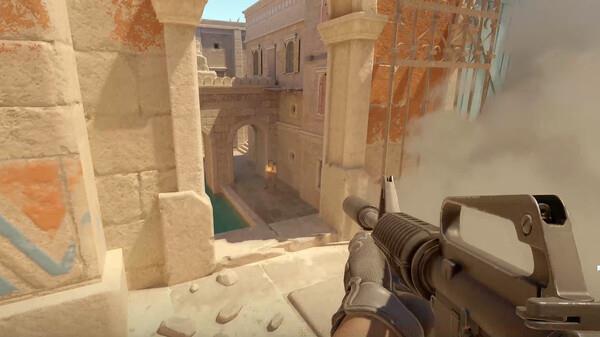
No single Viewmodel configuration dominates the competitive scene, as preferences vary significantly among professional players. Your ideal setup depends on personal comfort, playstyle, and monitor specifications. The optimal approach involves systematic experimentation—though be prepared for some configurations to negatively impact your performance before finding your perfect setup.
Many elite players adopt minimalist viewmodels that maximize screen real estate for target acquisition. Common professional configurations often feature weapons positioned lower and toward the screen’s edges to minimize central visual obstruction. When exploring our Weapons Unlock guide, you’ll notice similar customization principles apply across tactical shooters.
Avoid these common mistakes: dramatically extreme values that distort weapon models, frequent changes that disrupt muscle memory, and copying pro settings without personal testing. Instead, make incremental adjustments and test each change in deathmatch before competitive play. Understanding these fundamentals will also help when reviewing our Class Guide for other tactical games.
If your Viewmodel adjustments create undesirable results and you need to restore default settings, access the console and execute: viewmodel_presetpos 1. This command immediately reverts all Viewmodel parameters to their original values. For comprehensive gameplay optimization, consult our Complete Guide to master additional tactical shooter mechanics.
Before making significant changes, consider saving your current configuration using the ‘host_writeconfig’ command to create a backup. Test new viewmodels in various scenarios—close-quarters combat, long-range engagements, and movement-intensive situations—to ensure they perform well across different gameplay contexts. Allow at least 30-60 minutes of gameplay with new settings before determining their effectiveness, as muscle memory requires time to adapt.
Action Checklist
- Access console with ~ key and test basic commands
- Experiment with one parameter at a time in controlled environments
- Test configurations in deathmatch across various engagement ranges
- Refine settings based on performance feedback and visual comfort
- Backup optimal configuration and note reset command for emergencies
No reproduction without permission:GameCDjnh » How to Customize Counter Strike 2 Viewmodel Settings? Master Counter-Strike 2 Viewmodel customization with console commands, pro tips, and optimization strategies