
Master controller setup for COD Mobile with expert tips, troubleshooting, and performance optimization strategies
Controller Support Overview
Activision has reinstated comprehensive controller compatibility for their acclaimed mobile title Call of Duty: Mobile, allowing players to utilize officially supported gaming controllers. Current compatible devices include DualShock PS4 controllers (excluding first-generation models) and Xbox One wireless controllers, though certain advanced features remain restricted for balance purposes.
The controller integration capability initially debuted during the game’s October 2019 launch period but was unexpectedly withdrawn after approximately one month without detailed explanation. Following over a year without official commentary regarding this feature’s removal, Activision quietly reintroduced controller support with minimal public announcement.
Gamers possessing compatible controllers can now experience both Multiplayer and Battle Royale matches using their preferred input device. However, controller operation is exclusively available during actual gameplay sessions. Players must manually navigate menus, select game modes, configure loadouts, and adjust settings using touchscreen controls before matches commence.
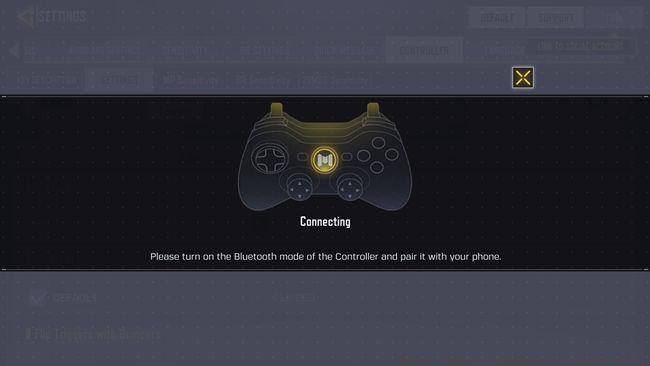
Setup Process Explained
Implementing controller functionality involves straightforward procedures that most gamers can complete within minutes. The fundamental process requires establishing Bluetooth connectivity between your mobile device and controller, followed by activating a single configuration toggle within the game settings. Follow these comprehensive steps for seamless integration:
- Launch Call of Duty: Mobile application and navigate to the Settings menu located in the upper right corner of the main screen
- Access the Controller configuration section and activate the primary toggle switch to enable external controller functionality
- Establish connection between your controller and mobile device via Bluetooth pairing, then select the “connect” option within the game interface. The system will verify connection status and confirm successful controller recognition
- Customize button configurations and control layouts according to personal preference within the same settings section. Experiment with different control schemes to identify the most comfortable configuration for your playstyle
For wired controller connections, follow identical setup procedures but substitute Bluetooth pairing with direct physical connection using appropriate cables. Remember that numerous lobby functions and menu navigation elements remain inaccessible via controller input, necessitating occasional touchscreen interaction.
Advanced Tips & Strategies
Beyond basic setup, several advanced techniques can significantly enhance your controller experience in COD Mobile. Adjust controller sensitivity settings separately from touchscreen controls to achieve optimal aim precision. Begin with moderate sensitivity levels (approximately 60-70) and gradually increase as you develop muscle memory. Utilize the training mode extensively to refine your controller skills without competitive pressure.
Common setup mistakes include attempting to use unsupported third-party controllers, neglecting to update controller firmware, and improper Bluetooth pairing sequences. Ensure your controller operates on the latest available firmware and completely disconnect previous Bluetooth pairings before attempting COD Mobile connection. Many players mistakenly assume controller support extends to menu navigation – remember that pre-match preparations require touchscreen interaction.
Advanced players should experiment with custom button mapping to create optimized control schemes. Consider relocating frequently used actions like reloading, crouching, and weapon switching to more accessible buttons. For competitive play, wired connections typically provide marginally reduced input latency compared to wireless options. Monitor your controller’s battery level during extended sessions to avoid disconnection during critical gameplay moments.
Troubleshooting & Limitations
When encountering connectivity issues, first verify that your controller model appears on the officially supported devices list. Restart both your mobile device and controller before reattempting pairing. Ensure Bluetooth permissions are granted to COD Mobile within your device settings. If connection problems persist, attempt using a different USB cable for wired connections or move closer to your device during wireless pairing.
Significant limitations include the inability to navigate menus, purchase items from the store, or customize loadouts using controller inputs. The game intentionally matches controller users against other controller players to maintain competitive balance. Some specialized mobile-exclusive controls like advanced gesture movements may not translate perfectly to controller input schemes.
For optimal performance, regularly check for game updates that may improve controller compatibility. Consider using controller grips or mounts for enhanced comfort during extended gameplay sessions. Remember that touchscreen controls remain available simultaneously, allowing hybrid input methods for different game aspects.
Also Read | COD MOBILE ADDS A NEW BATTLE ROYALE MODE ‘BLITZ’.
No reproduction without permission:GameCDjnh » How to connect your controller in COD Mobile Master controller setup for COD Mobile with expert tips, troubleshooting, and performance optimization strategies