
TL;DR
- Create dynamic hotbar controls using /hotbar display commands for cleaner UI management
- Implement stylish job changes with snap emotes while avoiding chat spam using motion parameter
- Customize macro icons using job soul crystals instead of default grey icons
- Integrate minions and role-specific emotes for personalized gameplay experience
- Optimize macro execution timing with wait commands for seamless transitions
FINAL FANTASY XIV offers an incredibly robust macro system that experienced players leverage to streamline their gameplay. Beyond basic automation, macros can significantly enhance your interface management and create personalized gaming moments that improve both efficiency and enjoyment.
The macro functionality in FFXIV extends far beyond simple crafting sequences, allowing players to customize their entire user interface and create immersive role-playing experiences. Understanding how to properly structure these commands is essential for maximizing their potential.
This guide explores advanced macro applications that transform how you interact with the game’s systems, from managing screen real estate to creating cinematic job transitions.
Show and Hide Hotbars with a Macro
/hotbar display 5 [on/off]
/hotbar display 6 [on/off]
Replace the numbers 5 and 6 with the specific Hotbar numbers you wish to control.
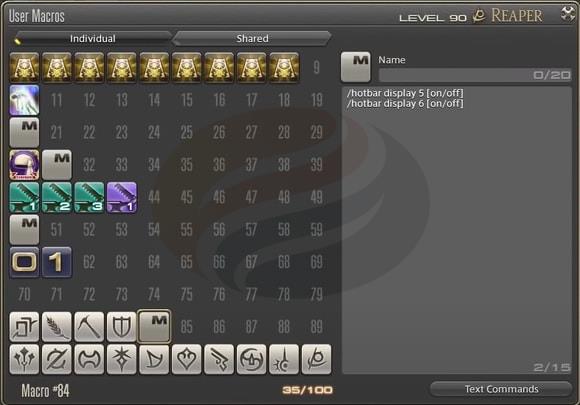
Navigate to HUD Layout mode to identify which hotbar numbers correspond to your desired interface elements. Access User Macros through the main menu to create new macro entries following the visual example provided. Position these macros on existing hotbars or create dedicated hotbars specifically for organizational controls.
Configure keybinds by selecting the Hotbar category, locating your newly created macros, and assigning them to convenient keyboard or controller buttons for instant access.
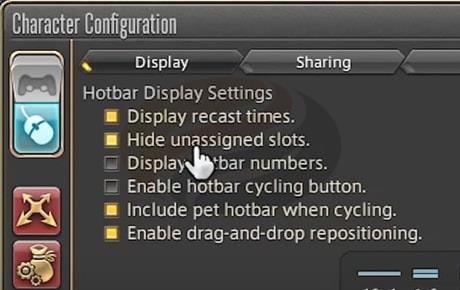
For a cleaner interface appearance, visit Character Configuration, then Hotbar Display Settings, and enable the ‘Hide unassigned slots’ option to remove empty button clutter.
Access your Character screen, select gear sets, and use click-and-drag functionality to transfer desired gear sets to your newly configured hotbars. Activate the show/hide macro button whenever you need to access specific job configurations.
If you prefer not to invest in the premium snap emote (which requires real currency rather than Final Fantasy XIV Gil), you can utilize manual clicking for job changes combined with macro-controlled hotbar visibility for optimal organization.
Job Change Macro with a Snap
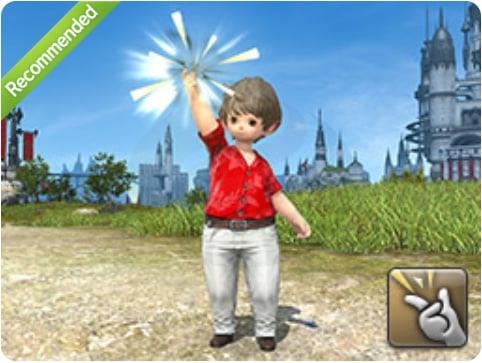
For players seeking enhanced job transitions, the snap emote job change macro provides both functionality and style. This premium feature requires purchasing the FFXIV snap emote from the Mog Station for approximately 7 USD.
The macro structure appears as follows:
/snap motion
/gs change 1
/micon “Astrologian” classjob

/snap executes the emote animation.
Motion suppresses the emote text in chat, preventing spam during frequent job changes.
The command introduces a one-second pause. Adjust this timing to 1.5 or 2 seconds using or respectively if the default timing feels rushed.
/gs change 1 activates your designated gear set change, where the numerical value corresponds to your specific gear set numbering system.
/micon “Astrologian” classjob assigns the appropriate job icon. Modify the job name for different classes, such as /micon “Reaper” classjob.
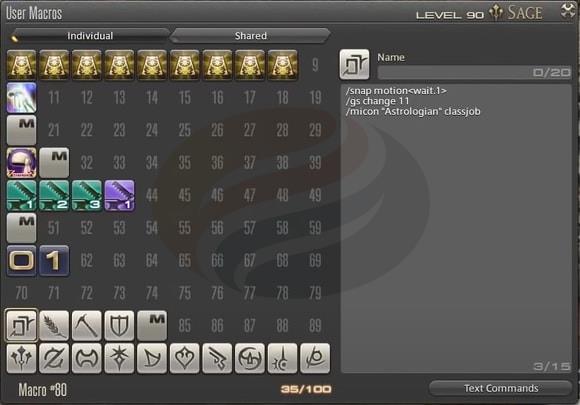
For players dissatisfied with the default grey icons, substitute the final macro line with ‘/micon “Soul of the Astrologian” item‘ to utilize the job’s distinctive soul crystal as your macro visual indicator.
Enhance your macros further by incorporating minion summons for additional personalization:
/micon “Soul of the Astrologian” item
/snap motion
/gs change 1
/minion “Wind-up Alphinaud”
Customize both the job specification and minion selection according to your preferences.
After completing your configuration, drag the finalized macros to your preferred hotbar locations. Activating the macro initiates the snap animation followed immediately by the seamless job transition.
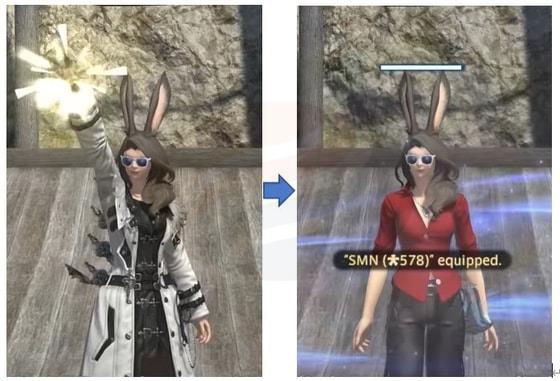
Experiment with alternative emotes for different roles. Consider using snap for healers and physical ranged, megaflare for casters, backflip for melee DPS, power up for tanks, and eureka for crafting specialists.
These sophisticated macro applications dramatically improve both the functional efficiency and aesthetic enjoyment of your FFXIV experience.
For additional gaming insights, explore comprehensive resources like our Complete Guide for other titles, or dive into specialized content such as our Weapons Unlock guides. Players seeking class optimization strategies should consult our detailed Class Guide materials.
Thank you for exploring these advanced techniques, and may your journey through Eorzea be both efficient and memorable.
Action Checklist
- Identify target hotbar numbers in HUD Layout for macro control
- Create show/hide macros using /hotbar display commands
- Configure keybinds for macro accessibility
- Implement job change macros with snap emotes and proper timing
- Customize macro icons using soul crystal items for better visual distinction
No reproduction without permission:GameCDjnh » Fantastic Way to Change Jobs and Hide Hotbars in FINAL FANTASY XIV Master FFXIV macros to enhance gameplay efficiency with customizable hotbar controls and stylish job changes