
Optimize your Battlefield 6 gameplay with precision controller settings for enhanced accuracy and smooth control
Core Gameplay Controller Configuration
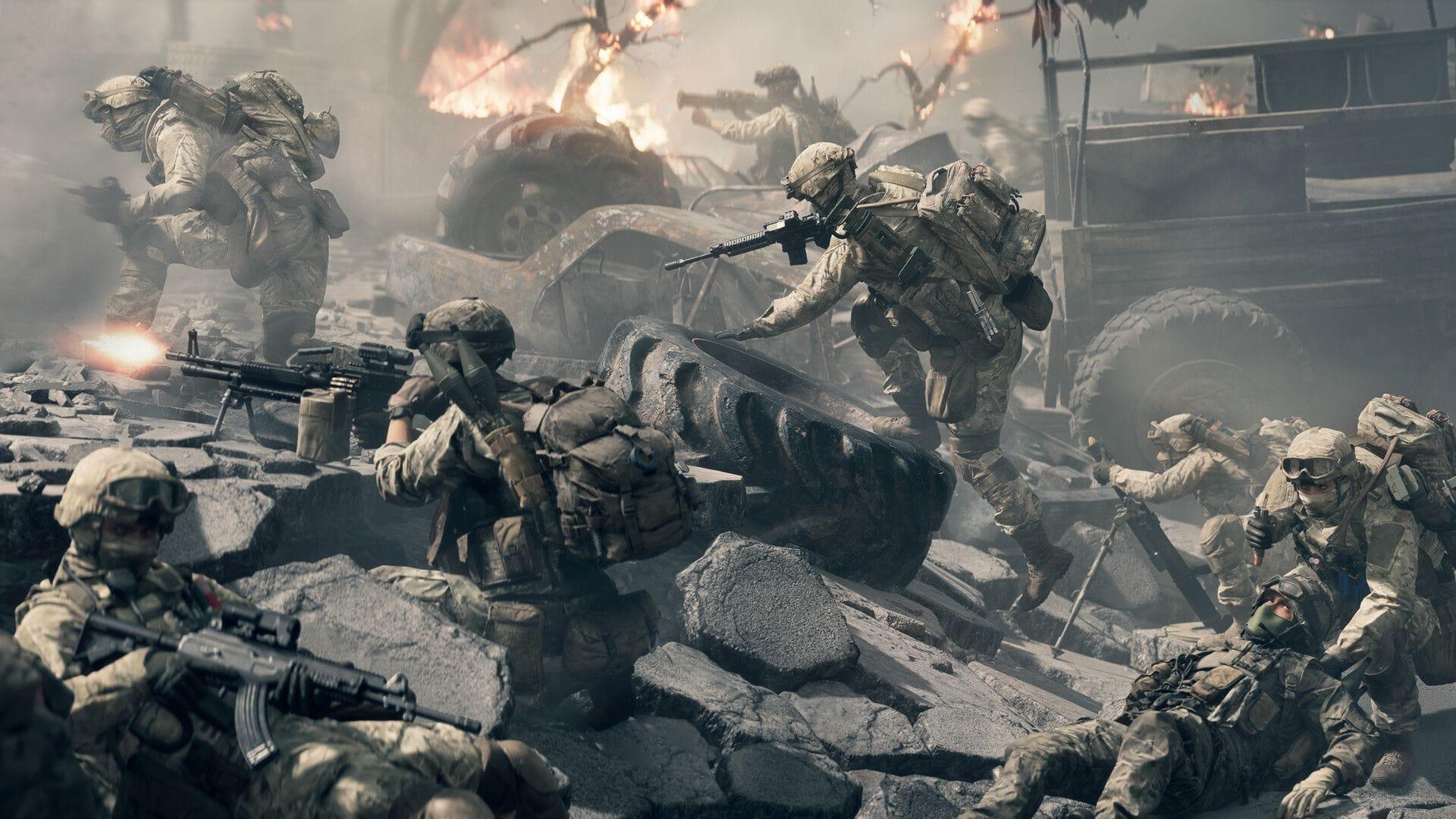
Mastering Battlefield 6 controller settings transforms chaotic firefights into controlled engagements. Electronic Arts’ newest military shooter delivers extensive input customization, accommodating both controller enthusiasts and keyboard-mouse purists. The settings interface presents numerous adjustment layers that can intimidate newcomers, but investing time in calibration pays dividends through markedly improved performance.
Unlike high-sensitivity configurations favoring flick-shot specialists, these settings prioritize consistent target acquisition and smooth transitional movements. The foundation established here serves most combat scenarios effectively while maintaining adaptability for sudden threat responses. Remember that subsequent game updates may necessitate minor adjustments to these recommendations.
Essential Movement and Interaction Settings
- Invert all vertical look: Off (maintains natural stick movement orientation)
- Vertical look settings: All options Off (prevents accidental view inversion)
- Hold/Toggle settings: Set all to Hold, except Infantry Sprint and Vehicle Boost (enables rapid action cancellation)
- Double tap forward sprint: Off (eliminates accidental sprint activation)
- Interact & Reload: Prioritize reload (ensures combat efficiency over environmental interaction)
- Capture Area Outline: On (maintains objective awareness during firefights)
Precision Aiming Configuration
- Infantry aim sensitivity: 40 (below 50 enhances precision, above 50 improves reaction speed)
- Infantry mouse aim sensitivity: 20
- Crouch toggle sprint: Stand
- Vault over sprint: On (maintains movement momentum)
- Sprint foot barfe: On
- Double tap crouch for sprint slide: On (enables advanced movement techniques)
- Mount breakout: Instant (faster disengagement from mounted positions)
- Invert demolition charge: Off
- Inventory visibility: Show
Advanced Infantry Combat Settings
After implementing the foundational configurations, refine your infantry combat effectiveness through these specialized settings. These adjustments fine-tune target acquisition, movement fluidity, and scoped engagement performance.
Aim Assist and Sensitivity Refinement
- Infantry aim sensitivity: 100
- Invert vertical look – Infantry: Off
- Uniform infantry aiming: On (maintains consistent sensitivity across zoom levels)
- Zoom sensitivity coefficient: 133 (optimizes scoped sensitivity relative to hip-fire)
- Infantry aim assist: 100 (maximum target tracking assistance)
- Infantry aim assist slowdown: 100 (strongest slowdown near targets)
- Infantry aim assist zoom snap: 0 (disables auto-rotation for manual aim control)
- Soldier aim input curve: Standard (predictable stick response)
- Soldier zoom aim input curve: Standard
- Stick input acceleration preset: Standard
- Aiming left/right acceleration: 0 (eliminates unpredictable acceleration)
Combat Movement Optimization
- Infantry sprint: Toggle (reduces finger fatigue during extended matches)
- Double tap forward sprint: Off
- Crouch toggle sprint: Stand
- Vault over sprint: On
- Double tap crouch for sprint slide: On
- Infantry weapon zoom: Hold (enables quick scope exiting)
- Vertical aim ratio: 48 (adjusts vertical sensitivity relative to horizontal)
- Vertical zoom ratio: 80 (fine-tunes scoped vertical sensitivity)
- Infantry zoom aim sensitivity: 100
- Zoom transition sensitivity smoothing: On (reduces disorientation during scope transitions)
- 1.25x zoom aim sensitivity: 100
- Interact & reload: Prioritize reload
- Invert demolition charge: Off
- Mount breakout: Instant
- Infantry control mapping: Default recommended (customize based on hand size and grip style)
Pro Tip: Disabling aim assist zoom snap forces manual precision development while maintaining slowdown assistance for target tracking—this significantly improves long-term aiming skill.
Vehicle Control Systems
Vehicle operation demands distinct control schemes separate from infantry combat. These settings balance maneuverability with precision targeting across all military vehicles.
Core Vehicle Sensitivity Settings
- Vehicle aim sensitivity: 50 (balanced ground vehicle targeting)
- Vehicle mouse aim sensitivity: 20
- Aircraft control sensitivity: 45 (smooth aerial maneuverability)
- Helicopter control sensitivity: 45 (stable rotary aircraft control)
- Helicopter control assists: On (assists with stabilization)
- Vehicle aim-relative controls: Off (maintains world-relative aiming)
- Decouple tank turret aiming from turning: Off (synchronized vehicle and turret movement)
- Decouple aiming from turning (as passenger): Off
Vehicle Aim Assist Configuration
- Vehicle aim assist: 100
- Vehicle aim assist slowdown: 100
- Vehicle aim assist zoom snap: 0
Vehicle Control Schemes
- Vehicle Driving: Default
- Control Mapping: Default
The default vehicle configurations work exceptionally well with the sensitivity adjustments above. Most players find additional vehicle-specific customization unnecessary, though you may refine settings based on your piloting proficiency and vehicle preference.
Advanced Technique: Experienced pilots often reduce aircraft sensitivity to 35-40 for smoother bombing runs and more precise rocket strikes, while maintaining higher sensitivity for dogfighting scenarios.
Advanced Controller Features
Modern controllers offer sophisticated features that significantly impact gameplay when properly configured. These settings optimize haptic feedback, motion controls, and quick-look systems.
Vibration and Haptic Configuration
- Controller vibration: Off (recommended for competitive play)
- Vibration intensity: 0
- Vibration mix preset: Immersive
- Vibration mix: Default
- Max input threshold: 100
- Max input threshold: 100
- L2 max input threshold: 100
- R2 max input threshold: 100
Gyroscopic Control Systems
- Soldier gyro button: Enabled
- Soldier gyro aiming mode: Always
- Vehicle gyro button: Disabled
- Vehicle gyro aiming mode: Always
Flick Look Implementation
- Soldier flick look mode: Always
- Soldier flick look threshold: 90
- Soldier flick look speed: 100
- Vehicle flick look mode: Always
- Vehicle flick look threshold: 90
- Vehicle flick look speed: 100
Disabling controller vibration eliminates distracting feedback during precise aiming moments. Gyro controls provide subtle aiming adjustments when enabled, while flick look enables rapid environmental checks without compromising primary aim direction.
Performance Note: Competitive players universally disable vibration to maintain aim stability during sustained firefights, as haptic feedback can subtly disrupt thumbstick precision.
Pro Player Optimization Tips
Beyond basic configuration, understanding common pitfalls and advanced optimization strategies separates competent players from exceptional ones.
Avoid These Common Configuration Mistakes
Many players undermine their performance through these frequent errors:
- Overly High Sensitivity: New players often max out sensitivity hoping for faster reactions, but this sacrifices precision—start low and gradually increase
- Ignoring Zoom Coefficient: The 133 zoom coefficient maintains muscle memory between hip-fire and scoped aiming—neglecting this creates inconsistent aim
- Keeping Vibration Enabled: While immersive, vibration subtly disrupts aim during critical moments
- Overusing Aim Assist Snap: This creates dependency on automation rather than developing genuine aiming skill
Advanced Tactical Adjustments
For players seeking competitive edges:
- Create separate sensitivity profiles for different game modes—lower for large-scale conquest, higher for close-quarters combat
- Experiment with vertical ratio adjustments if you struggle with vertical recoil control
- Consider binding slide to a separate button rather than double-tap for more reliable activation
- Practice in empty servers to test settings without combat pressure
Performance Validation Method
Test your configuration effectiveness through these methods:
- Engage moving targets at various distances in practice range
- Track friendly players during pre-match phases to assess smoothness
- Note your hit percentage before and after changes
- Monitor your ability to quickly acquire targets after sprinting or sliding
These Battlefield 6 controller settings establish a robust foundation suitable for both casual enjoyment and competitive aspiration. While personal preference ultimately dictates final configurations, these recommendations provide the optimal starting point for mastering Battlefield 6’s intense combat scenarios.
No reproduction without permission:GameCDjnh » Best Battlefield 6 controller settings Optimize your Battlefield 6 gameplay with precision controller settings for enhanced accuracy and smooth control