
Essential troubleshooting guide to resolve Battlefield 6 PC crashes with proven fixes and optimization strategies
Understanding Battlefield 6 Crash Causes
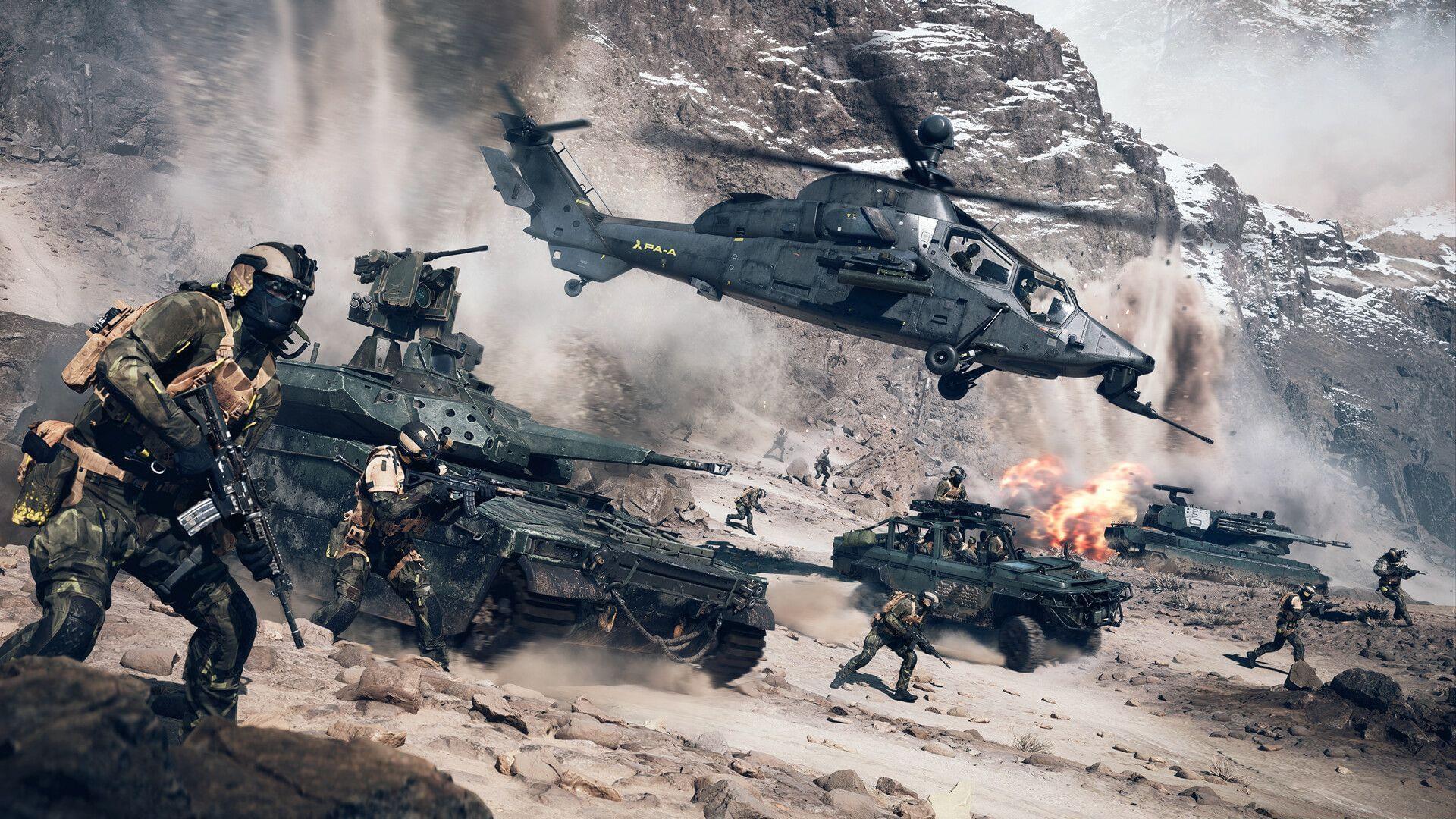
Experiencing Battlefield 6 crashing on PC represents one of the most frequent technical challenges players encounter during game launch sequences. Since its initial release, the title has demonstrated various technical complications ranging from sudden application closures to unexpected server disconnections and additional gameplay interruptions. Development teams have officially acknowledged the extensive error patterns emerging post-launch and committed to providing player compensation for these disruptive experiences.
When server-side complications trigger Battlefield 6 instability, development teams typically deploy rapid hotfix patches to address underlying problems. Although developers have accepted responsibility for unforeseen server capacity issues, persistent game crashes on individual systems often indicate localized client-side configuration problems requiring user intervention.
Modern gaming titles like Battlefield 6 frequently demand substantial hardware resources that may exceed older system capabilities. Insufficient RAM, outdated graphics processing units, or aging central processors often create stability issues that manifest as abrupt game termination during intensive gameplay sequences.
Also read: Battlefield 6 “You can no longer join this party” error
Immediate Crash Solutions
When client-side instability causes persistent Battlefield 6 crashes, implement these systematic troubleshooting approaches to restore gameplay stability:
Initiate with the most fundamental corrective measure: complete game restart procedures. If you consistently experience game termination during match transitions or immediate crashes upon joining sessions, first execute a full application restart from the system level rather than simply returning to main menus.
Typically, this straightforward intervention resolves transient memory leaks or temporary file corruption, enabling smooth gameplay continuation.
Conducting comprehensive local file verification through your gaming platform represents an essential diagnostic step for resolving game-specific technical issues. Given the title’s ongoing development phase, missing critical initialization files or corrupted game assets frequently cause unstable operation leading to complete application failure.
Additionally, unreliable internet connectivity during installation or system crashes throughout the setup process can generate damaged Battlefield 6 game files producing irregular crash patterns. Rectify these concerns by executing file integrity verification through Steam or alternative game distribution platforms.
Steam users should follow this systematic verification process:
- Launch the Steam client application and authenticate your account
- Access your game collection and locate Battlefield 6 within the library interface
- Right-click the game title and select ‘Properties’ to open configuration options
- Navigate to the ‘Installed Files’ management section
- Select ‘Verify integrity of game files’ to initiate automated diagnostic scanning
When Steam identifies problematic local data configurations, the platform automatically retrieves and installs necessary replacement files to restore proper functionality.
You might be interested in: Battlefield 6: Best Recon class loadout guide
Should previous solutions prove ineffective, attempt launching the game using Administrator privileges. This authorization level grants the application enhanced system access permissions, enabling modification of specific system configurations to improve operational stability. Consider this approach as a potential workaround for persistent Battlefield 6 crash scenarios.
Advanced Troubleshooting Methods
Naturally, another critical intervention for resolving Battlefield 6 PC crashes involves updating your graphics drivers to the most recent stable versions. Regardless of whether you utilize AMD or Nvidia graphics hardware, maintaining current driver software remains essential for achieving optimal performance benchmarks. Immediately preceding Battlefield 6’s public release, hardware manufacturers distributed specialized drivers specifically optimized for this title.
If you haven’t yet installed these updates, proactively update your display drivers and retest game stability. This intervention frequently resolves persistent Battlefield 6 crashing incidents.
Beyond driver updates, consider these advanced stabilization techniques:
- Background Application Management: Terminate non-essential background processes before launching Battlefield 6 to free system resources
- Temperature Monitoring: Use hardware monitoring software to ensure your GPU and CPU temperatures remain within safe operational limits during gameplay
- Power Management: Configure Windows power settings to High Performance mode to prevent unexpected power-saving throttling
- DirectX Management: Verify your DirectX installation is current and compatible with Battlefield 6’s rendering requirements
Many players overlook the impact of system-level configurations on game stability. Modern games like Battlefield 6 utilize advanced rendering techniques that can expose underlying system configuration issues not apparent during normal computer use.
Prevention and Maintenance
Implementing proactive maintenance routines can significantly reduce Battlefield 6 crash frequency and enhance overall gaming experience:
- Regular Driver Updates: Establish a monthly driver update schedule rather than waiting for crashes to occur
- System Cleaning: Use compressed air to remove dust from computer internals, preventing thermal throttling during extended gameplay
- Storage Management: Maintain at least 15% free space on your game installation drive to prevent file system errors
- Game Settings Optimization: Adjust graphics settings to match your hardware capabilities rather than using maximum preset configurations
Before purchasing or installing Battlefield 6, verify your system meets or exceeds the recommended specifications rather than just minimum requirements. Games often crash on systems that technically meet minimum specs but lack performance headroom for demanding scenes.
That covers comprehensive knowledge regarding the Battlefield 6 crashing on PC phenomenon.
Explore these additional relevant guides for enhanced gameplay:
- Always Faithful mission walkthrough in Battlefield 6 Campaign (Mission 1)
- The Rock mission walkthrough in Battlefield 6 Campaign (Mission 2)
- Operation Gladius mission walkthrough in Battlefield 6’s Campaign (Mission 3)
- No Sleep mission walkthrough in Battlefield 6’s Campaign (Mission 5)
- Moving Mountains mission walkthrough in Battlefield 6’s Campaign (Mission 6)
- Nile Guard mission walkthrough in Battlefield 6’s Campaign (Mission 7)
- Operation Ember Strike mission walkthrough in Battlefield 6’s Campaign (Mission 8)
- Always Forward mission walkthrough in Battlefield 6 Campaign (Mission 9)
No reproduction without permission:GameCDjnh » Battlefield 6 crashing on PC error: Possible fixes, reasons Essential troubleshooting guide to resolve Battlefield 6 PC crashes with proven fixes and optimization strategies