
Optimize your Dying Light: The Beast experience with expert graphics, controls, and accessibility settings for any hardware configuration
Essential Graphics Configuration Strategies
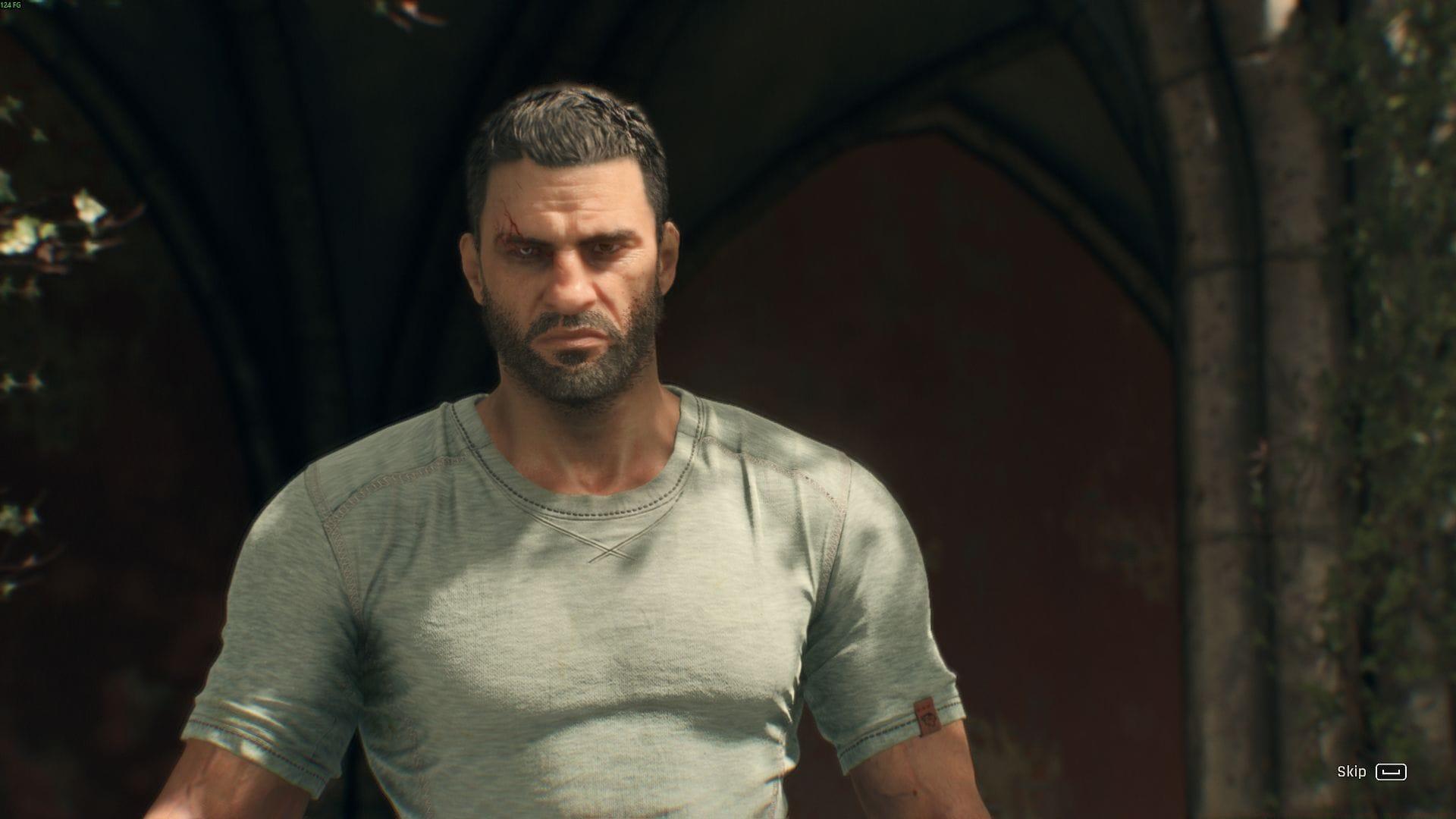
Dying Light: The Beast’s visual presentation and performance settings require careful consideration before exploring Castor Woods. The game provides extensive graphics customization, featuring upscaling technologies and frame generation capabilities alongside traditional visual options. Understanding these settings ensures optimal performance while maintaining visual fidelity.
Begin with core display adjustments that impact overall performance:
Access Advanced Video Settings from the top-right corner of the display tab to reveal additional visual customization options:
Pro Tip: Disable motion blur entirely if you experience nausea during parkour sequences. For competitive players, maximizing draw distance provides tactical advantages when scouting enemy positions from elevated vantage points.
Accessibility and Gameplay Customization
Dying Light: The Beast incorporates comprehensive accessibility features designed to accommodate various player needs. These options significantly enhance comfort and playability for gamers with specific requirements or preferences.
The accessibility menu includes these crucial settings:
These accessibility implementations assist players dealing with motion sensitivity, color perception challenges, or hearing limitations to enhance their gaming experience.
Beyond accessibility, general gameplay settings provide additional customization. Adjust difficulty levels through the Game tab in the Escape menu. Violence intensity can be modified by altering the Brutality Level from the same interface available at the Title Screen.
Additional gameplay mechanics you can customize include:
Common Mistake: Many players leave Auto Ledge Grab enabled, which prevents advanced parkour techniques like controlled drops. Disable this once you’re comfortable with basic movement to unlock the full mobility potential.
Heads-up display customization allows extensive interface modification. You can display additional information or minimize screen clutter based on personal preference and playstyle requirements.
Control Scheme Mastery
Dying Light: The Beast provides an extensive tutorial covering fundamental control mechanics. The game continuously displays contextual prompts indicating available actions and their corresponding inputs throughout gameplay.
For players seeking the default control mappings for essential gameplay functions, reference these highlighted keybindings:
Advanced Technique: Remap the Grappling Hook to a more accessible key if you find Alt uncomfortable during intense parkour sequences. Many experienced players prefer side mouse buttons or caps lock for frequently used mobility tools.
Mastering the default control scheme provides a solid foundation, but don’t hesitate to customize bindings to match your muscle memory and playstyle. The control configuration menu allows extensive remapping of all actions to optimize your combat and movement efficiency.
Hardware-Specific Optimization
Performance optimization varies significantly based on your hardware capabilities. Dying Light: The Beast scales well across different GPU tiers, but requires specific settings adjustments for optimal experience on various systems.
For budget or older GPU configurations, implement these performance-focused settings to ensure smooth gameplay:
For mid-range GPU systems, balance visual quality and performance with these recommendations:
Performance Monitoring: Use the built-in performance overlay or external tools like MSI Afterburner to monitor frame times rather than just FPS. Consistent frame times prevent stuttering during combat and parkour sequences, significantly improving gameplay smoothness.
Regardless of your hardware, regularly update graphics drivers before playing new game patches. Driver optimizations can provide substantial performance improvements, especially for newer titles with frequent updates.
For additional Dying Light: The Beast coverage, follow Sportskeeda’s gaming section:
No reproduction without permission:GameCDjnh » All Dying Light: The Beast graphics settings and controls Optimize your Dying Light: The Beast experience with expert graphics, controls, and accessibility settings for any hardware configuration