
TL;DR
- Restart Riot Client and update graphics drivers as immediate first steps
- Use ALT+ENTER display mode switching for resolution compatibility issues
- Run Valorant as administrator and verify game file integrity
- Check system compatibility and adjust graphics settings accordingly
- Implement preventative maintenance to avoid recurring black screen problems
The Valorant black screen during startup represents one of the most frequent technical challenges encountered by players of Riot Games’ competitive tactical shooter. This display malfunction can manifest either immediately upon game launch or unpredictably during active gameplay sessions, creating significant frustration for users.
Beyond simply preventing access to gameplay, the black screen error in Valorant presents complex troubleshooting requirements that demand systematic investigation. Understanding the underlying causes is essential for implementing effective solutions.
Fortunately, multiple proven methodologies exist to resolve Valorant’s black screen startup problems. This comprehensive guide explores both immediate fixes and long-term preventative strategies.
Common root causes include graphics driver incompatibility, resolution setting mismatches, system permission conflicts, and corrupted game files. Each requires specific diagnostic approaches and remediation techniques.

When confronting Valorant’s black screen at startup, begin with these rapid-response solutions that address the most common triggering factors:
Restart Riot Client: The initial troubleshooting step involves completely closing Valorant and restarting the Riot Client infrastructure. This resolves temporary memory conflicts and service interruptions that frequently cause display failures. After client restart, relaunch Valorant to verify normal operation.
Update Graphics Drivers: Outdated or corrupted graphics drivers represent a primary contributor to black screen incidents in Valorant. Install all available driver updates from your GPU manufacturer (NVIDIA, AMD, or Intel) and perform a system reboot before attempting to launch the game again.
Switch Display Modes: Monitor resolution compatibility issues often trigger black screen events. Press ALT + ENTER simultaneously during game launch to toggle between fullscreen and windowed modes. If this resolves the issue, access Valorant’s settings to manually configure a supported resolution for your display hardware.
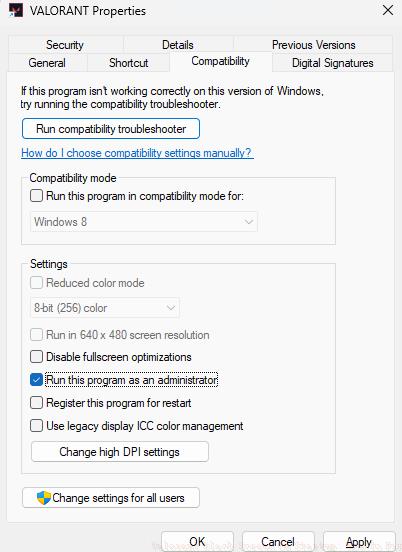
Run Valorant in Admin Mode: System permission conflicts can prevent proper game initialization. Right-click the Valorant desktop shortcut, select ‘Properties,’ navigate to the ‘Compatibility’ tab, and enable ‘Run this program as an administrator.’ Apply changes and restart the game with elevated privileges.
When basic troubleshooting fails to resolve Valorant black screen problems, these advanced technical interventions address deeper system-level issues:
Driver Clean Installation: Rather than simply updating graphics drivers, perform a clean installation using Display Driver Uninstaller (DDU) to remove all existing driver components before installing the latest stable version. This eliminates driver conflict artifacts that standard updates might overlook.
System File Verification: Use Windows System File Checker (SFC) by running ‘sfc /scannow’ in an administrator Command Prompt to identify and repair corrupted system files that might interfere with game execution.
Valorant Repair Tool: The Riot Client includes a built-in repair function accessible through the client settings menu. This automated tool identifies and replaces corrupted game files while preserving user settings and progression data.
Reinstall Valorant: As a last resort before advanced system troubleshooting, completely uninstall Valorant using the Windows Apps & Features utility, then download and install a fresh copy from the official Riot Games website. This replaces all game components while maintaining account integrity.
Graphics Configuration Adjustment: Manually modify Valorant’s graphics configuration file to enforce compatible settings. Navigate to the game’s configuration directory and adjust resolution, fullscreen mode, and graphics API settings to match your system capabilities.
Implement these proactive strategies to minimize future Valorant black screen occurrences and maintain optimal system performance:
Regular Driver Maintenance: Establish a monthly graphics driver update schedule rather than waiting for issues to emerge. Subscribe to manufacturer notifications for critical updates that address game compatibility.
System Resource Management Close unnecessary background applications before launching Valorant, particularly resource-intensive programs like web browsers with multiple tabs, video editing software, or other gaming platforms.
Hardware Monitoring: Use system monitoring tools to verify that your GPU and CPU temperatures remain within normal operating ranges during gameplay, as overheating can trigger display failures.
Antivirus Configuration: Configure your security software to create exceptions for Valorant and Riot Client executables, preventing false positive blocking that can cause startup failures.
Display Setting Standardization: Maintain consistent display resolution and refresh rate settings between Windows and Valorant configuration to prevent mode switching conflicts during game initialization.
For comprehensive gaming optimization strategies that extend beyond black screen fixes, explore our Complete Guide to system configuration and performance tuning.
Action Checklist
- Restart Riot Client and relaunch Valorant
- Update graphics drivers and reboot system
- Use ALT+ENTER to toggle display modes
- Run Valorant as administrator
- Perform clean graphics driver installation
- Use Riot Client repair tool
- Reinstall Valorant completely
No reproduction without permission:GameCDjnh » Valorant Black Screen On Startup: How To Fix Comprehensive guide to troubleshoot and permanently fix Valorant black screen issues with advanced solutions