
TL;DR
- Use Fullscreen mode and native resolution for optimal performance stability
- Disable V-Sync and Motion Blur while keeping Screen Space Reflections enabled
- Prioritize View Distance and Effects Quality over Shadow and Foliage settings
- Configure upscaling based on your GPU (FSR for AMD, DLSS for NVIDIA RTX)
- Enable Frame Generation only if your system has sufficient performance headroom
Bethesda’s highly anticipated release of The Elder Scrolls 4: Oblivion Remastered on April 22nd has captivated the gaming community with its stunning visual enhancements while preserving the beloved core gameplay mechanics from the original 2006 masterpiece. This comprehensive remaster delivers a complete graphical transformation that has earned widespread acclaim from both dedicated Elder Scrolls enthusiasts and professional critics.
Despite the overwhelmingly positive reception, the remastered edition faces significant performance optimization challenges that have impacted player experiences. Many users report encountering frustrating frame rate drops and noticeable stuttering, particularly during transitions from interior environments to the expansive open world landscapes. Gamers using mid-range and budget PC configurations describe persistent low FPS issues that can severely compromise gameplay fluidity.
These performance hurdles are characteristic of many Unreal Engine 5 titles, where advanced rendering features can strain system resources. However, strategic graphics configuration adjustments can dramatically improve your gaming experience. Understanding the optimal settings balance is crucial for achieving smooth performance without sacrificing the visual enhancements that make this remaster special.
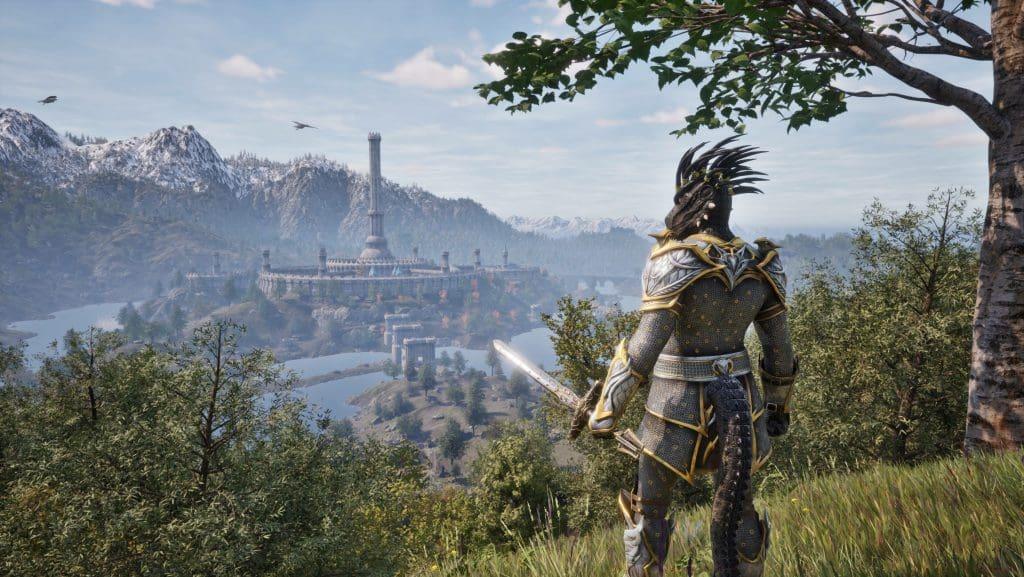
Our meticulously tested graphics configuration provides the ideal balance between visual fidelity and performance stability. These settings target eliminating stutters while maintaining the remaster’s enhanced graphical presentation.
| Window Mode | Fullscreen (exclusive mode reduces input lag) |
| Display Resolution | Native resolution (maintains sharpness; lowering degrades image quality significantly) |
| Resolution Scale | 100% (reduces rendering overhead) |
| V-Sync | Off (eliminates vsync-induced stuttering; use monitor refresh rate limiting instead) |
| Frame Rate Limited | Match your display’s maximum refresh rate |
| FOV First/Third Person | Adjust based on personal comfort and preference |
| Motion Blur | Off (reduces visual clutter and improves clarity during fast movements) |
| Screen Space Reflections (SSR) | On (minimal performance impact with significant visual enhancement) |
| Quality Level | Custom (enables granular performance tuning) |
| View Distance Quality | High (crucial for open-world navigation and immersion) |
| Effects Quality | High/Ultra (maintains spell and environmental effect quality) |
| Foliage Quality | Medium (balanced visibility and performance in forest areas) |
| Shadow Quality | Medium (high performance cost; lower for significant FPS gains) |
| Global Illumination Quality | High (enhances lighting realism with moderate performance impact) |
| Texture Quality | Medium (optimizes VRAM usage while maintaining detail) |
| Reflection Quality | Medium (balanced approach to reflective surfaces) |
| Hair Quality | High (preserves character detail without heavy performance cost) |
| Cloth Quality | High (maintains clothing physics and appearance) |
| Lumen Hardware RT | Off (significant performance hit on most hardware) |
| Lumen Hardware RT Lighting Mode | High (if hardware RT enabled) |
| Lumen Software RT Quality | Low (software-based ray tracing alternative) |
| Upscaling Technique | AMD FSR (optimal for most GPUs; NVIDIA DLSS exclusive to RTX cards) |
| DLSS/FSR Mode | Quality (best balance; lower modes reduce image clarity substantially) |
| Sharpening | Adjust to personal preference (15-30% recommended) |
| Frame Generation (FSR/DLSS) | On (requires stable base framerate above 60 FPS) |
| Nvidia Reflex | On (reduces system latency for responsive controls) |
This configuration represents the performance sweet spot for most gaming systems. The settings prioritize stability during demanding open-world segments while preserving the visual enhancements that define the remastered experience.
Beyond the basic settings, several advanced optimization techniques can further enhance your Oblivion Remastered experience. For systems struggling with persistent stuttering, consider reducing Shadow Quality to Low – this single adjustment can provide a 15-20% performance boost in dense urban areas. Monitor your GPU utilization through tools like MSI Afterburner; if consistently above 95%, lower Texture Quality or Resolution Scale to 90%.
A common mistake many players make is enabling all ray tracing features simultaneously. Lumen Hardware RT imposes a substantial performance penalty that may not be justified by the visual improvement. Instead, focus on maintaining stable framerates through strategic settings combinations. If you’re using an NVIDIA RTX card, our Weapons Unlock guide discusses similar optimization principles that apply across modern games.
For competitive players focused on responsive gameplay, ensure Nvidia Reflex remains enabled and consider lowering Effects Quality during intense combat sequences. The Complete Guide to modern gaming performance covers additional system-level optimizations that can benefit Oblivion Remastered. Remember that individual hardware configurations respond differently – use these settings as a foundation and adjust based on your system’s specific performance characteristics and your personal visual preferences.
Advanced users can explore .ini file modifications for further tuning, though these require careful implementation. The key to optimal performance lies in understanding which settings impact CPU versus GPU load and balancing accordingly based on your system’s strengths and limitations.
Action Checklist
- Configure display settings: Fullscreen mode, native resolution, V-Sync Off
- Set core quality settings: View Distance High, Shadows Medium, Foliage Medium
- Configure upscaling: FSR Quality for AMD, DLSS for NVIDIA RTX cards
- Enable Frame Generation only if maintaining 60+ FPS baseline
- Test performance in open-world areas and adjust shadow quality accordingly
No reproduction without permission:GameCDjnh » Oblivion Remastered PC: Best Graphics Settings for Improving Performance Expert PC graphics optimization guide for Oblivion Remastered to eliminate stutters and maximize performance