
TL;DR
- Force 21:9 aspect ratio for wider raid visibility even on 16:9 monitors
- Disable Bloom, Flare, and Distortion effects for significant performance gains
- Customize combat effects to maintain visibility of boss mechanics and attack patterns
- Adjust cursor size and color for better tracking during intense combat situations
- Utilize right-click attack option for alternative control scheme preferences
As with most modern MMO titles, Lost Ark offers extensive configuration options that can dramatically impact your gaming experience. While many settings are straightforward, several hidden configurations can resolve common performance issues and enhance gameplay clarity. This comprehensive guide reveals the optimal configurations to elevate your Lost Ark journey. Let’s begin our optimization process!
Video Setting
Video configurations directly influence both visual fidelity and overall game performance, making them crucial for smooth gameplay.
1. Aspect Ratio Configuration
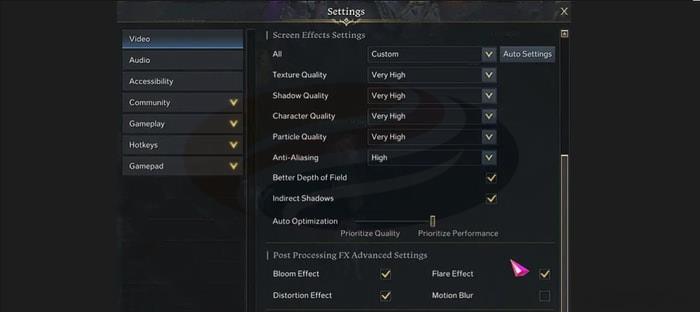
The aspect ratio settings allow you to override your monitor’s native display proportions. Within the screen resolution menu, activating the force aspect ratio options enables 21:9 ultrawide display, even on standard 16:9 monitors. This expanded field of view proves invaluable for challenging raids like Brelshaza where peripheral awareness determines success. However, if your display natively supports 21:9 aspect ratio, this setting becomes irrelevant to your configuration.
2. Performance Impacting Effects
Similar to other graphically intensive games, Lost Ark includes specific settings notorious for causing frame rate drops: Shadow quality and Particle quality. Players with high-end gaming systems can maintain these at maximum settings without performance degradation. For those using mid-range or budget hardware, reducing these two options significantly improves frame rate stability during demanding encounters. Deactivating Auto Optimization enhances control over your gaming experience, while enabling the out focusing option provides noticeable visual quality improvements.
3. Advanced Post-Processing
Within the advanced visual effects menu, disabling Bloom Effect, Flare Effect, and Distortion Effect delivers substantial performance improvements across all hardware configurations. Motion Blur represents the exception to this rule, as its performance impact is minimal while providing cinematic movement effects.
Accessibility Setting
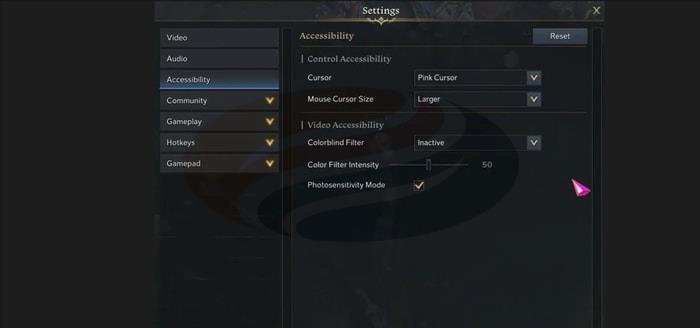
Accessibility configurations modify cursor display properties, colorblind filters, and photosensitivity protections. Many of these options benefit the general player population beyond their intended accessibility purposes.
1. Cursor Customization
The Control Accessibility section provides comprehensive cursor modification options, including size adjustment and color changes. A convenient keyboard shortcut enables rapid cursor color cycling: simultaneously press Ctrl and scroll your mouse wheel to instantly switch between available color schemes.
Gameplay Setting
Gameplay configurations represent the most impactful settings for your overall Lost Ark experience.
1. Combat Visibility Controls
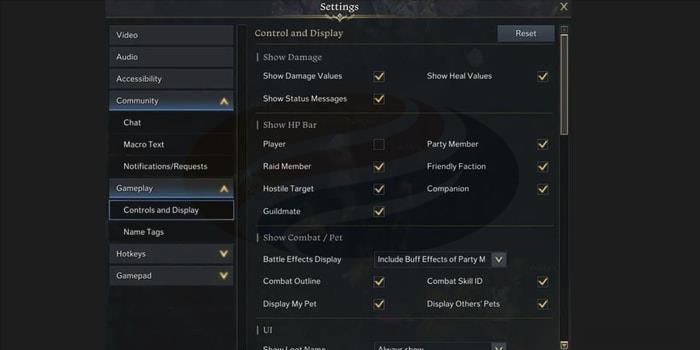
The control and display tab contains arguably the most critical gameplay configuration: the combat/pet effect intensity slider. This setting governs environmental battle effect visibility, which proves essential because excessive visual effects can obscure critical combat indicators and enemy attack ranges. While completely disabling all effects creates cleaner visuals, this approach carries significant risk in high-level content. Strategically reducing specific effect intensities often determines survival success during challenging raid encounters.
Directly beneath this configuration, you’ll discover the back attack and head attack indicator color settings. Rather than struggling with default color schemes for directional indicators, you can select more distinguishable colors that enhance recognition during fast-paced combat. This customization ensures you consistently identify proper attack angles on boss enemies.
Within the same configuration panel, health bar display options allow further interface customization. Although these adjustments might seem unusual initially, they substantially improve visual clarity during intensive gameplay sequences. Consider enabling these display enhancements for superior situational awareness.
2. Interface Customization
The combat settings tab includes screen shake options that merit careful consideration. Disabling skill-induced screen shake benefits players experiencing motion discomfort during ability usage. However, many veteran players recommend maintaining this feature for its immersive combat feedback. Additionally, the automatic cutscene skip function represents standard etiquette; enable this option to bypass unnecessary cinematic sequences before raid engagements.
Loot notification alerts can be minimized through the gameplay interface options. These alerts are configurable to appear smaller and less intrusive. Experiment with these settings if frequent loot notifications disrupt your gameplay focus.
3. Control Scheme Options
Lost Ark’s default control configuration provides solid foundation, but one particular option deserves special attention: ‘Attack with Right-Click.’ Activating this setting reverses the functional assignments of your mouse buttons. Though frequently overlooked, this configuration proves extremely valuable for players unaccustomed to the standard control scheme.
Action Checklist
- Configure aspect ratio to 21:9 for expanded raid visibility
- Adjust Shadow and Particle quality based on your PC performance
- Disable Bloom, Flare, and Distortion effects for performance boost
- Customize combat effect visibility to maintain boss mechanic clarity
- Set back/head attack indicators to highly visible colors
- Enable auto cutscene skip and adjust loot notification sizes
No reproduction without permission:GameCDjnh » Lost Ark Settings Guide: Best & Recommended Setting Optimize your Lost Ark experience with essential settings for performance, accessibility, and gameplay success