
TL;DR
- Customize overlay map transparency and position for optimal navigation
- Change cursor colors for better visibility and accessibility support
- Adjust AFK timers up to 60 minutes to prevent unwanted status tags
- Enable persistent network latency display for performance monitoring
- Utilize Procyon’s Compass for tracking world events and rewards
Lost Ark contains numerous powerful customization options that significantly improve gameplay, but many remain buried deep within menus that most players never discover. This comprehensive guide reveals essential interface adjustments that enhance navigation, accessibility, and overall gaming efficiency. Understanding these settings can transform your experience from frustrating to fluid.
Many players struggle with visibility issues, inconvenient map placement, or missing critical event notifications simply because they haven’t explored these configuration options. We’ll walk through each feature systematically, ensuring you can implement these improvements immediately.
Overlay Map Transparency
The overlay map activated by pressing Tab provides crucial navigation assistance, but its default appearance may obstruct your view. What many players miss is the ability to reposition this map by clicking the middle mouse button, allowing you to place it anywhere on screen for optimal visibility.
Located in the top right corner, the Transparency Button offers granular control over map visibility. Moving the slider upward increases opacity for better readability, while lowering it creates a more transparent overlay that minimizes screen obstruction during combat or exploration.
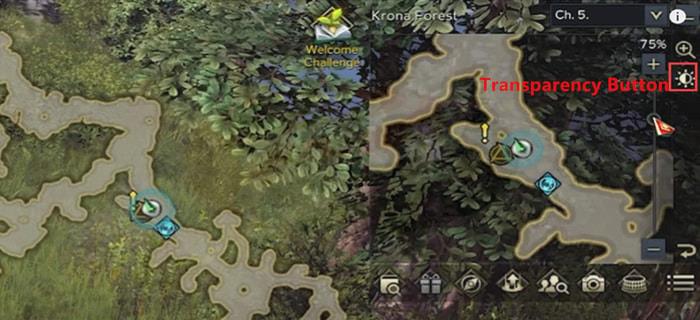
This adjustment affects both your minimap and the full overlay map simultaneously. For players who frequently reference their position, setting higher transparency prevents unnecessary map toggling during intense gameplay moments.
Change Cursor Color
Cursor visibility presents a significant challenge for players with color vision deficiencies or those playing on monitors with poor contrast. The default red and gold cursor can easily blend into certain environments, causing tracking difficulties during fast-paced combat.
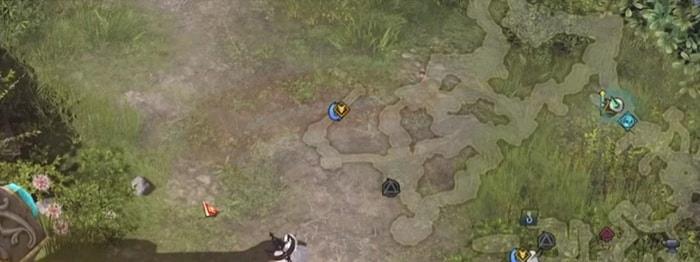
By holding Control while scrolling your mouse wheel, you cycle through multiple cursor color options. This feature proves invaluable when your pointer disappears against similarly colored backgrounds, especially during boss fights with elaborate visual effects.
The color rotation includes high-contrast options specifically designed for visibility. Players with color blindness should test each variant to determine which provides the clearest tracking against Lost Ark’s diverse environmental palettes.
Change AFK Timer
The AFK timer configuration addresses a common frustration for players who need to step away briefly but want to avoid the Away From Keyboard status. This setting proves particularly useful for parents, students, or anyone requiring frequent short breaks without disrupting their gaming session.

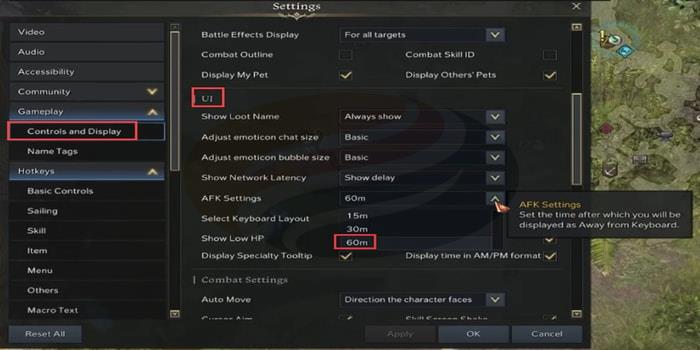
Navigate to Settings > Controls and Display > UI section to locate AFK Settings. The adjustable timer extends up to 60 minutes, though this doesn’t override server disconnect timers for extended inactivity.
To access this feature, scroll through the UI options until you find AFK Settings. Note that while this prevents the AFK tag from appearing on guild and friend lists, it won’t stop automatic server disconnection after prolonged inactivity periods.
Show Ping / Latency
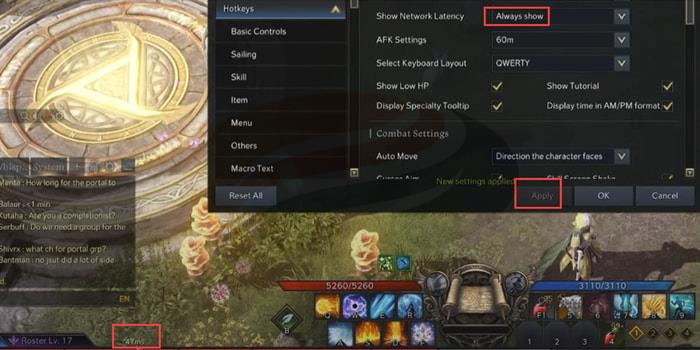
Network performance monitoring becomes accessible through the Show Network Latency option. The default “Show Delay” setting only displays latency during network spikes, which can mask underlying connection issues.
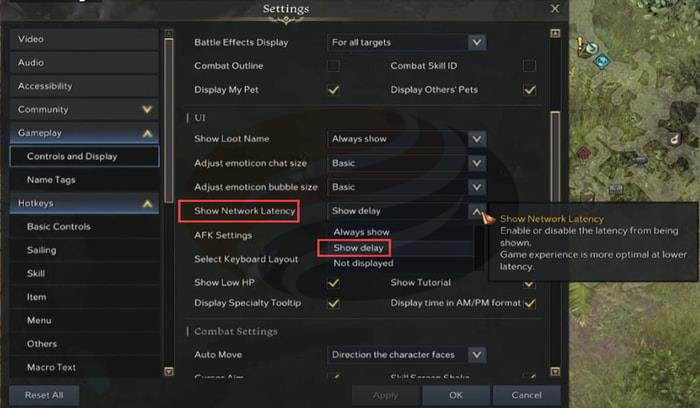
Selecting “Always Show” and applying the change places a persistent latency indicator beside your Roster information, enabling real-time network performance assessment.
Swap Mouse Buttons
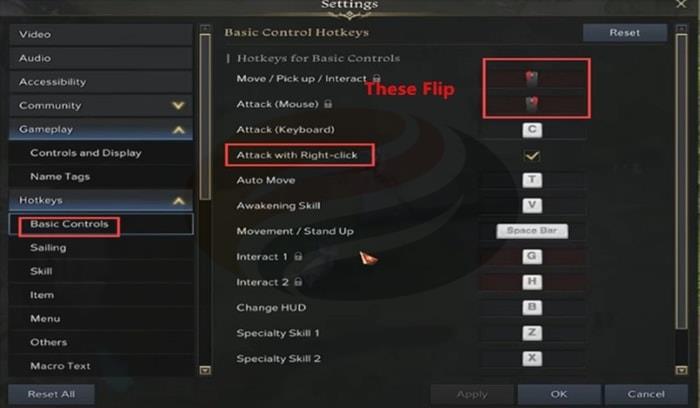
Left-handed players or those accustomed to different control schemes will appreciate the mouse button swapping capability. Access this through Settings > Hotkeys > Basic Controls section.
The “Attack with Right-click” toggle box reverses primary mouse functions. When activated, the two lock icons visually flip positions, confirming the control scheme modification.
Claim Drop Items
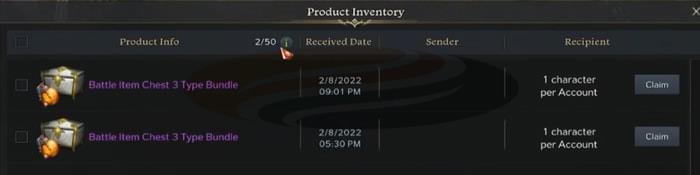
Founder’s Packs and Twitch Drops reside in the product inventory, accessible through the small white box with an incoming arrow icon in the upper left corner. This centralized location stores all unclaimed promotional items and rewards.

Upon accessing your product inventory, you’ll find items like Battle Chests and character slots awaiting collection. These can be claimed individually or in batches depending on your preference.
Procyon’s Compass
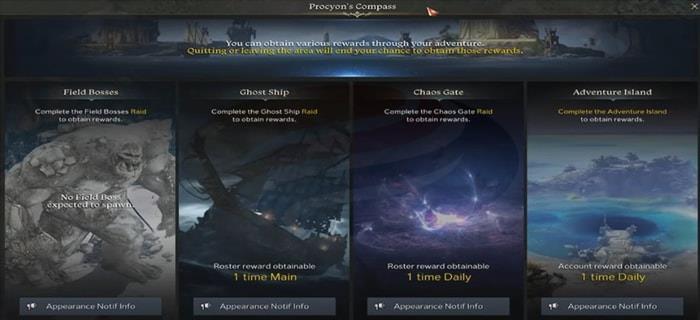
Procyon’s Compass represents one of Lost Ark’s most overlooked yet valuable tools for world event participation. Located prominently on your interface, this feature unlocks scheduled content tracking.
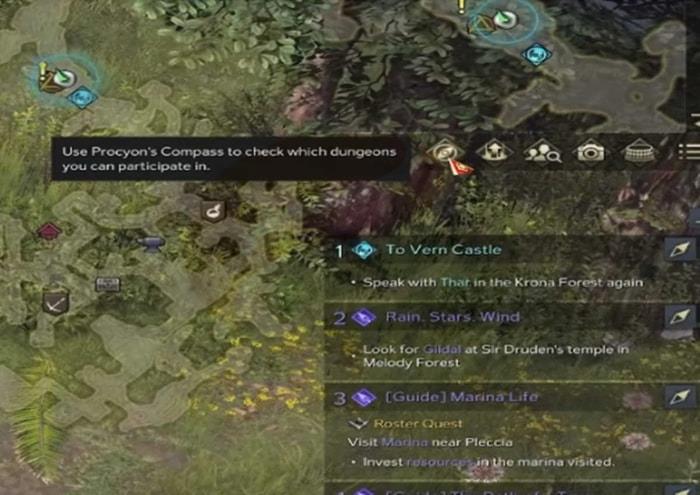
Activating the Compass reveals four primary world activities: Field Bosses, Ghost Ships, Chaos Gates, and Adventure Islands. Each category provides detailed scheduling information to help plan your gameplay sessions effectively.
Field Boss encounters like Signatus require specific item levels (380 in this case) and provide valuable rewards including Rift Pieces, Secret Maps, Rage Runes, and Card Packs. These items can be exchanged for Gold Lost Ark, providing significant economic benefits.
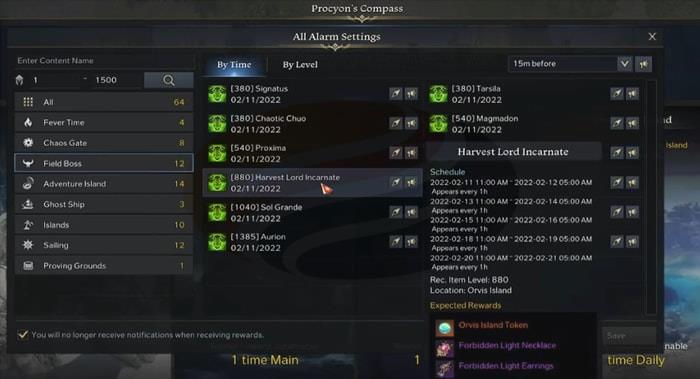
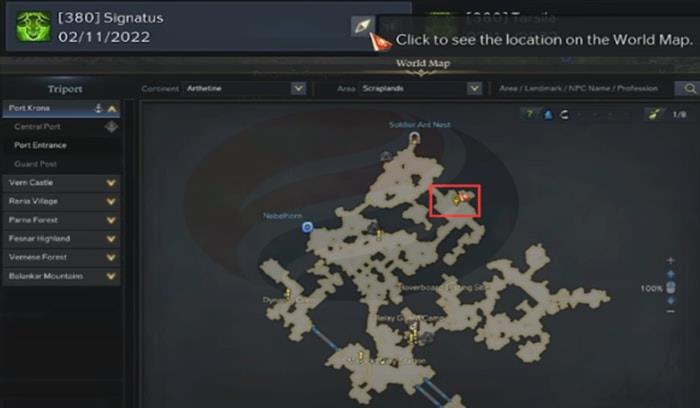
Clicking location markers displays precise spawn positions for world events. The reward preview system allows strategic planning by showing potential loot before commitment.
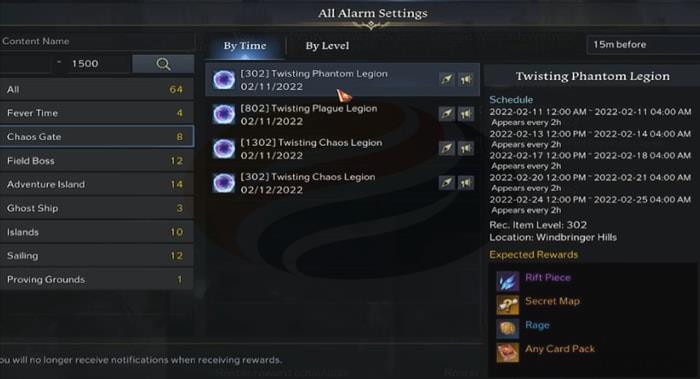
For advanced players, regularly checking Procyon’s Compass becomes crucial for maximizing daily rewards and gold acquisition. Events like Twisting Phantom Legion at item level 302 offer consistent high-value returns.
Action Checklist
- Adjust overlay map transparency using top-right slider for optimal visibility
- Reposition overlay map by clicking middle mouse button and dragging
- Cycle through cursor colors with Control + Mouse Wheel for better tracking
- Configure AFK timer to 60 minutes in Settings > Controls and Display > UI
- Enable Always Show network latency for continuous performance monitoring
- Check Procyon’s Compass daily for world event schedules and rewards
No reproduction without permission:GameCDjnh » Lost Ark: Important Settings and Features You Need to Know About! Master Lost Ark's hidden UI settings and features to enhance gameplay experience and accessibility