
Master Stellar Blade’s screenshot system with advanced techniques for capturing stunning in-game moments without a dedicated photo mode
Understanding Stellar Blade’s Visual Capture Limitations
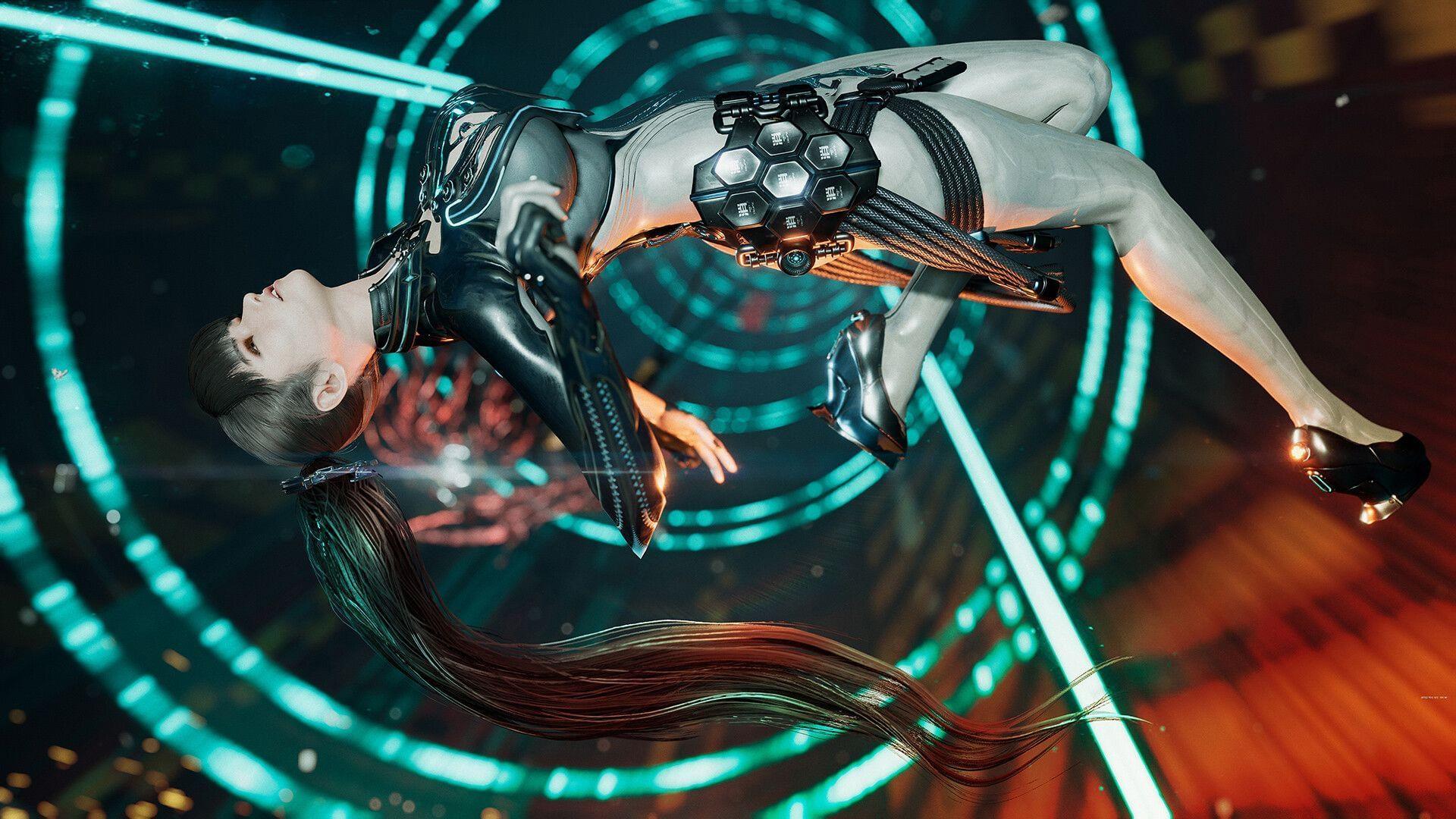
Stellar Blade presents players with a visually spectacular sci-fi universe featuring intricately designed character models and meticulously crafted environmental details. As adventurers navigate through devastated urban landscapes and confront terrifying Naytiba creatures, countless breathtaking scenes emerge that demand preservation. This naturally raises the crucial question circulating among demo participants: Does the current build include a comprehensive photo mode system?
Unfortunately, the demonstration version doesn’t incorporate a specialized photography feature, requiring players to employ alternative methods for capturing the game’s visual splendor. This limitation stems from the demo’s focused purpose of showcasing core gameplay mechanics rather than supplementary features. However, understanding these constraints helps set realistic expectations while maximizing available capture capabilities.
Many contemporary action games implement sophisticated photo modes with camera controls, filters, and posing options. Stellar Blade’s absence of this feature in the demo doesn’t necessarily indicate its exclusion from the final release. Developers often prioritize stability and core gameplay in early builds, adding quality-of-life features closer to launch.
Step-by-Step HUD Removal Process
To achieve clean, immersive screenshots free from interface distractions, follow this comprehensive HUD elimination process. The method requires precise menu navigation but delivers professional-grade visual results.
- Access the pause interface during gameplay and proceed to the Interface configuration section. This menu houses all display customization options affecting your visual experience.
- Locate the “Display HUD Elements” toggle within the settings. By standard configuration, this operates in Adaptive mode, which intelligently shows interface components during combat engagements and critical interactions while minimizing clutter during exploration.
- Switch this parameter to Disabled position to eliminate all on-screen informational elements entirely. This creates a pristine canvas for your photographic endeavors, removing health bars, minimaps, objective markers, and action prompts.
Common mistakes include forgetting to re-enable HUD elements after photography sessions, which can disorient players during challenging combat sequences. Always toggle the display back to Adaptive mode when resuming normal gameplay to maintain situational awareness. Additionally, some players overlook the need to access settings during actual gameplay rather than from the main menu, as certain options remain inaccessible from the title screen.
Advanced Camera Positioning Strategies
After successfully disabling interface elements, mastering camera manipulation becomes essential for capturing compelling compositions. The right analog stick provides complete rotational control, allowing dynamic framing of characters against Stellar Blade’s stunning backdrops.
Position your protagonist in visually engaging locations that showcase environmental storytelling. Ruined cityscapes offer dramatic architectural elements, while natural environments provide organic framing opportunities. Consider the rule of thirds when composing shots, imagining a three-by-three grid and placing key elements at intersection points for balanced imagery.
Timing represents another critical factor for action sequence photography. During combat encounters, brief pauses between attack animations create perfect moments for capturing dynamic poses. Enemy telegraphing movements also present opportunities for dramatic action shots that convey the game’s intensity.
Advanced practitioners experiment with different times of day and weather conditions within levels, as lighting dramatically affects mood and visual impact. Backlit scenes create striking silhouettes, while frontal lighting emphasizes character details and facial expressions.
Display Optimization for Maximum Quality
Before initiating your photography session, optimize visual settings to ensure the highest possible image quality. Navigate to the Display preferences tab and activate “Resolution Priority” mode, which maximizes rendering resolution for crystal-clear 4K captures.
This setting prioritizes image clarity over performance metrics, ensuring screenshots contain maximum detail and sharpness. The difference becomes particularly noticeable in environmental textures, character model intricacies, and special effect rendering.
Performance-conscious players should note that switching to resolution priority may affect frame rate consistency during active gameplay. However, for dedicated photography sessions where gameplay pauses, this tradeoff becomes negligible while delivering substantially superior visual fidelity.
Different platforms may offer additional display customization options. PlayStation 5 users can leverage system-level HDR calibration for enhanced color depth and contrast in their screenshots. Always ensure your display settings match your capture intentions for optimal results.
Pro-Level Screenshot Techniques
Even without dedicated photography tools, skilled players can capture stunning imagery through technique mastery and situational awareness. These professional approaches transform simple screenshots into artistic compositions.
Environmental storytelling shots leverage the game’s detailed settings to convey narrative without words. Position your character observing devastated landscapes or examining artifacts to create emotionally resonant images that suggest untold stories.
Action sequence photography requires anticipating movement patterns and attack animations. The most dynamic combat screenshots often occur during evasion maneuvers or special ability activations, where motion blur and particle effects enhance visual drama.
Character-focused shots benefit from careful attention to lighting angles and facial expressions. During dialogue sequences or idle animations, characters display nuanced emotions that can be highlighted through thoughtful framing and timing.
While the demonstration version provides limited photography options, these techniques ensure you can comprehensively document your journey through Stellar Blade’s captivating world. The community eagerly anticipates potential dedicated photo mode implementation in the final release, but until then, these methods deliver impressive results.
Also read: Stellar Blade review: A stellar first effort
Here are some other articles on Stellar Blade for you to read:
- SB creates history with highest PlayStation user score of all time
- SB reportedly beats Dragon’s Dogma 2 sales numbers in Japan
- The SB controversy, explored
- SB pre-order and Deluxe Edition bonuses not unlocking error: Possible fix and more explored
- Is SB a souls-like game?
- Can you carry over progress from SB Demo to full game?
No reproduction without permission:GameCDjnh » Is there a photo mode in Stellar Blade Demo? Master Stellar Blade's screenshot system with advanced techniques for capturing stunning in-game moments without a dedicated photo mode