
TL;DR
- Marvel Rivals requires regular updates for new characters, balance changes, and events
- Manual updates through Steam Library show Update button when patches are available
- Configure automatic updates in Steam Downloads settings for background installations
- Common update issues include disk space, network connectivity, and download speed problems
- Maintaining current game version ensures optimal performance and access to all content
As a continuously evolving live service title, Marvel Rivals receives frequent content drops that transform the gaming experience. These patches introduce new playable superheroes, cosmetic customization options, and crucial balance adjustments that keep the competitive meta dynamic and engaging. Staying current with the latest version ensures you never miss time-limited events, new Battle Pass content, or character releases that could significantly impact your gameplay strategy.
For newcomers to Marvel Rivals, understanding the update ecosystem can initially seem overwhelming. The game’s development team maintains an aggressive content schedule similar to other successful live service models, with major updates typically arriving every few weeks alongside smaller hotfixes addressing critical issues. This approach keeps the gameplay fresh but requires players to maintain their installation diligently.
This comprehensive guide examines both manual and automatic update methods for Marvel Rivals, providing clear instructions for PC players using Steam. We’ll explore not just the basic steps but also troubleshooting techniques for common problems and optimization strategies to ensure your gaming sessions remain uninterrupted by update-related issues.

When you need to manually update Marvel Rivals, begin by launching the Steam client and navigating to your Library section. Locate Marvel Rivals within your games collection—you can use the search function or filter by recently played titles for quicker access. The game’s entry will display visual indicators when an update is pending, typically showing download progress or an Update button prominently.
If an update is available, you’ll notice an ‘Update’ button instead of the usual ‘Play’ option. Click this to initiate the download process. The time required varies significantly based on patch size and your internet connection speed—major content updates can range from a few hundred megabytes to several gigabytes. During this process, avoid launching other bandwidth-intensive applications to maximize download velocity.
Once the download completes, the Update button will transform back to ‘Play,’ indicating your game is ready. Before launching, consider reviewing the patch notes (accessible through the game’s news section or official website) to understand what changes the update introduces. This knowledge helps you adapt your gameplay strategies to new balance adjustments or mechanics.
- Access your Steam Library and locate Marvel Rivals in your games list
- Identify available updates through the visible Update button when patches are ready
- Allow the installation to complete fully before attempting to launch the game
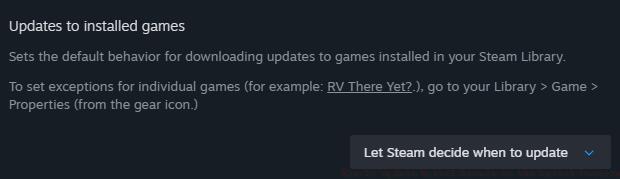
For seamless update management, configure Marvel Rivals to update automatically through Steam’s settings. Access the Steam menu in the top-left corner, select ‘Settings,’ then navigate to the ‘Downloads’ tab. Here, locate the ‘Automatic updates’ section and ensure the option for ‘Keep my games up to date’ is enabled. This setting allows Steam to manage update timing intelligently, typically downloading patches when system resources are idle.

The ‘Let Steam decide when to update’ option represents the most hassle-free approach for most players. With this activated, updates will download automatically whenever Steam is running on your system, even if you’re not actively gaming. For optimal results, ensure Steam launches automatically with your operating system or remains open in the background during your typical computer usage periods.
Once configured, any new Marvel Rivals patch released by developers will queue for download automatically. These updates typically install in the background without interrupting your current activities, though very large patches might temporarily affect system performance if you’re running other applications simultaneously. The automatic system checks for updates daily but can be manually triggered by restarting Steam if you’re anticipating a specific patch release.
Update failures in Marvel Rivals typically stem from a few common issues that are generally simple to resolve. Insufficient disk space represents the most frequent culprit—verify you have at least 20GB free beyond the game’s installation size to accommodate update files and temporary data. Network connectivity problems can also interrupt downloads; restarting your router or switching between WiFi and wired connections often resolves these issues.
If updates persistently fail or download extremely slowly, examine Steam’s download region settings. Selecting a geographically closer server can dramatically improve transfer rates. Additionally, temporary download corruption can occur—clearing Steam’s download cache through the Settings > Downloads menu frequently resolves stuck updates. This process doesn’t affect your installed games but clears temporary files that might be causing conflicts.
For players experiencing the game launching before updates complete, verify that Steam has adequate permissions to write to your installation directory. On Windows, running Steam as administrator once can resolve permission-related update blocks. Remember that maintaining your game installation properly ensures you’re always ready for new content drops and competitive play sessions without unexpected update delays interfering with your gaming time.
Understanding these update mechanisms not only keeps your Marvel Rivals experience current but also prepares you for similar processes in other live service titles. The principles applied here translate well to maintaining other frequently updated games in your library, creating a consistent approach to managing your gaming ecosystem across multiple platforms and titles.
Action Checklist
- Verify 20GB+ free disk space before major updates
- Configure automatic updates in Steam Downloads settings
- Check patch notes after updates for gameplay changes
- Restart Steam manually if urgent updates are available
- Clear download cache if updates repeatedly fail
No reproduction without permission:GameCDjnh » How To Update Marvel Rivals to the Latest Version Complete Marvel Rivals update guide with troubleshooting tips and automatic patch management