
Master CSGO bot management with console commands, troubleshooting tips, and advanced server control techniques
Understanding CSGO Bots in Private Servers
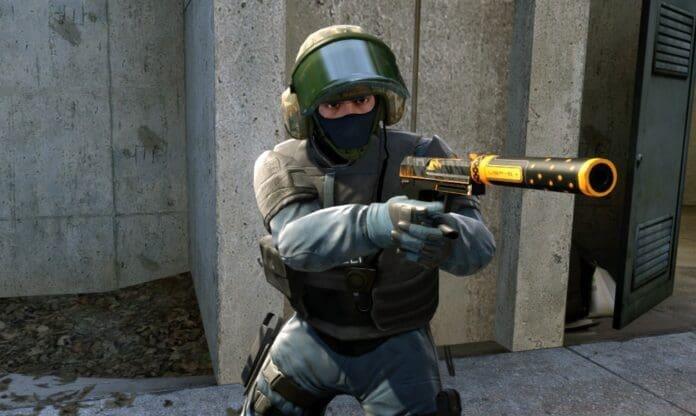
Remember the classic bot announcements like “I am taking the bomb to B”? While Valve eliminated CSGO matchmaking bots from official servers earlier this year, these AI opponents still populate private servers where they can disrupt your practice routines. Understanding why bots persist in these environments helps you manage them effectively.
When you’re practicing smoke lineups, mastering map angles, or playing with friends on custom servers, unwanted bots create unnecessary distractions. Their unpredictable movements and automatic respawning can interfere with targeted training exercises. This comprehensive guide provides multiple strategies for removing bots from your private gaming sessions while explaining the underlying mechanics.
Setting Up Developer Console Access
Before executing any bot removal commands, you must first activate the developer console. Navigate to your game settings menu and locate the “Game” tab. Here you’ll find the “Enable Developer Console” option—switch this setting to “Yes” to unlock advanced command functionality. This essential tool provides direct communication with the game engine.
Once activated, access the console by pressing the tilde (~) key on your keyboard, typically located below the Escape key. Some international keyboard layouts may require using a different key combination—consult your regional keyboard mapping if the standard key doesn’t work. The console window will appear overlaying your game screen, ready to accept commands.
Essential Bot Management Commands
The foundation of bot control involves three critical console commands that work together to eliminate and prevent bot interference. Begin by typing mp_limitteams 1 and pressing Enter. This parameter restricts team size differences, effectively blocking bots from automatically rejoining the server after removal. Understanding this prevention mechanism is crucial for long-term bot management.
Next, enter mp_autoteambalance 0 to disable automatic team balancing. This command prevents the server from attempting to equalize team sizes by adding bots when player counts become uneven. Combined with the previous command, it creates an environment where bots cannot automatically respawn or rebalance.
The final execution command, bot_kick, immediately removes all bots from your server. For more precise control, use bot_kick t to eliminate only Terrorist bots or bot_kick ct to remove Counter-Terrorist bots exclusively. This selective approach allows you to maintain bots on one team for specific practice scenarios while clearing the other side.
Advanced Bot Control Strategies
Beyond basic removal, experienced players can implement advanced bot management techniques for specialized training scenarios. Consider creating custom configuration files that automatically execute your preferred bot settings when launching private servers. This saves time and ensures consistent bot-free environments for repeated practice sessions.
For aim training exercises, you might want to keep one bot on the server as a moving target. Use the selective bot_kick t or bot_kick ct commands to maintain a single opponent while clearing the rest. Combine this with bot_stop 1 to freeze the remaining bot in place for stationary target practice, then use bot_stop 0 to resume normal bot behavior.
Server administrators can implement these commands directly in server configuration files for permanent bot management solutions. Adding the commands to your server.cfg file ensures they execute automatically every time the server starts, maintaining your preferred bot settings across multiple sessions without manual intervention.
Common Issues and Solutions
If bots continue to reappear after using the kick commands, verify that both mp_limitteams 1 and mp_autoteambalance 0 are properly set. The most common mistake is executing the kick command without first implementing these preventive measures, allowing bots to automatically respawn. Always establish the prevention parameters before removing existing bots.
When commands don’t execute properly, check that you’ve correctly enabled the developer console in settings. Some players overlook this fundamental step and wonder why their commands have no effect. Additionally, ensure you’re using the correct syntax—console commands are case-sensitive and must be entered exactly as specified, with proper spacing and numerical values.
For persistent issues, investigate your server’s specific configuration. Some community server plugins or mods may override standard bot management commands. In these cases, consult the server documentation or administrator for plugin-specific bot control options that might differ from vanilla CSGO commands.
Recommended | CSGO Smoke Bug Wallhack Is Back
No reproduction without permission:GameCDjnh » How to Remove Bots in CSGO? Master CSGO bot management with console commands, troubleshooting tips, and advanced server control techniques