
TL;DR
- Use console command ‘r_fullscreen_gamma 3’ to replicate CS:GO’s darker tone and contrast
- Adjust digital vibrance to 70% through GPU control panel for enhanced color saturation
- Install Vibrance GUI for automated color management and dynamic saturation control
- Configure advanced video settings to low/medium for better performance and visual clarity
- Combine monitor calibration with in-game settings for optimal visual customization
Many Counter-Strike enthusiasts transitioning from CS:GO to CS2 notice significant visual differences that impact gameplay familiarity. While CS2 introduces advanced graphical features and improved lighting systems, many competitive players prefer CS:GO’s distinct color palette and contrast ratios that they’ve trained their eyes to recognize over thousands of hours.
The Source 2 engine powering CS2 implements different color science and rendering techniques compared to its predecessor. This results in altered gamma curves, modified saturation levels, and changed contrast behavior that can affect target visibility and environmental perception. Understanding these technical differences is crucial for effective visual customization.
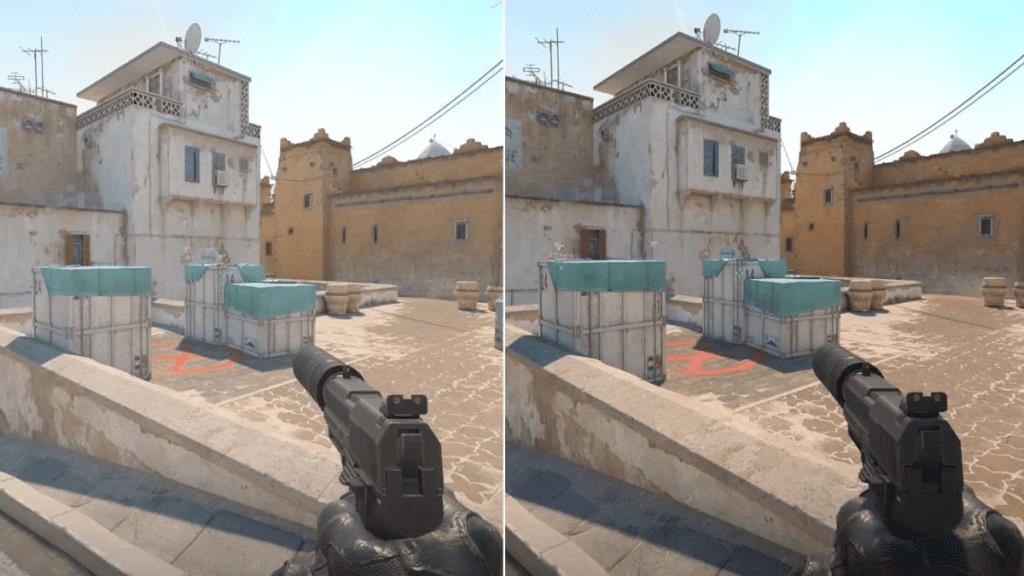
Performance considerations remain paramount for competitive play. While CS:GO visuals won’t inherently boost frame rates, the psychological advantage of familiar visual feedback can significantly impact player confidence and reaction times. Many professional players report that visual comfort directly influences their gameplay performance, making these adjustments more than just aesthetic preferences.
Gamma adjustment serves as the foundation for replicating CS:GO’s visual characteristics. The command ‘r_fullscreen_gamma 3’ directly modifies how dark and light values are displayed, creating the signature darker tones that many CS:GO veterans prefer for target acquisition. This setting affects shadow detail and overall contrast, crucial elements for spotting enemies in dimly lit areas.
Digital vibrance enhancement through your graphics control panel dramatically improves color saturation without affecting performance. Setting this value to approximately 70% creates more vibrant team colors and environmental details while maintaining visual clarity. NVIDIA users can access this through the NVIDIA Control Panel under ‘Adjust desktop color settings,’ while AMD users will find similar options in Radeon Software under ‘Color’ tab.
- Access the developer console by pressing the tilde (~) key during gameplay
- Input the precise command: r_fullscreen_gamma 3 (without quotation marks)
- Navigate to your graphics driver control panel and increase digital vibrance to 70%
- Consider installing third-party applications like Vibrance GUI for automated saturation management
- Configure video settings to balanced presets between low and medium for optimal visibility
Vibrance GUI provides advanced color management beyond basic driver settings. This utility automatically applies vibrance settings when CS2 launches and can be fine-tuned for specific lighting conditions. The software allows for per-game profiles, ensuring your color settings remain consistent across gaming sessions without manual reconfiguration.
Strategic graphics configuration balances visual preference with competitive performance. Setting advanced video options to low or medium reduces visual clutter while maintaining essential environmental details. Lower settings typically provide cleaner visuals with fewer distracting particles and effects, though this comes at the cost of some visual fidelity.
Monitor calibration plays a crucial role in achieving desired visual outcomes. Beyond in-game settings, your display’s native color profile, response time, and contrast ratio significantly impact how CS2 appears. Professional players often combine specific monitor models with customized ICC profiles to create their ideal visual environment, similar to approaches used in other competitive titles like BF6 weapon customization.
Avoid common configuration mistakes that can degrade visual quality or performance. Over-saturation beyond 80% digital vibrance can cause color banding and loss of detail. Similarly, extreme gamma values may crush black levels, making dark areas impenetrable. The optimal approach involves incremental adjustments followed by test matches to assess both visual comfort and gameplay performance.
Experiment systematically with setting combinations rather than making multiple changes simultaneously. Track your preferences and performance metrics to identify optimal configurations for your specific hardware and playstyle. This methodical approach ensures you achieve the visual characteristics you want without compromising competitive advantage, much like the strategic planning required in Battlefield 6 tactical gameplay.
Action Checklist
- Open CS2 developer console using tilde (~) key and enter ‘r_fullscreen_gamma 3’
- Access graphics control panel and set digital vibrance to 70%
- Download and configure Vibrance GUI for automated color management
- Adjust advanced video settings to low/medium presets and test in deathmatch
- Calibrate monitor settings and create custom color profile for consistency
No reproduction without permission:GameCDjnh » How to Make CS2 Look Like CS:GO? Expert guide to optimize CS2 visuals and achieve CS:GO's classic look through gamma, vibrance, and performance settings