
TL;DR
- Optimize display settings with Fullscreen mode and native resolution for maximum FPS gains
- Adjust graphics quality settings strategically to balance visual clarity and performance
- Implement system-level optimizations including driver updates and background process management
- Monitor performance metrics to identify and resolve specific bottlenecks
- Apply advanced in-game tweaks for competitive advantage in fast-paced encounters
As Bad Guitar Studio’s explosive hero shooter FragPunk continues capturing global attention, competitors worldwide are diving into its high-octane tactical battles where every frame counts.
In precision-focused tactical shooters like FragPunk, maintaining exceptional performance isn’t just about visual quality—it’s about competitive survival. Suboptimal frame rates severely impact target acquisition, reaction times, and overall combat effectiveness, putting you at a distinct disadvantage against better-equipped opponents.
Fortunately, FragPunk’s engine demonstrates remarkable scalability, allowing substantial performance improvements even on modest hardware configurations when optimized correctly. Understanding the relationship between settings and performance is your first step toward dominance.
This comprehensive guide delivers everything required to transform your FragPunk experience from sluggish to supremely responsive, covering both basic adjustments and expert-level optimizations.
When facing inconsistent frame rates in FragPunk, your initial focus should target video configuration. Proper graphics settings not only boost FPS significantly but also minimize input latency and eliminate disruptive stuttering that can cost you critical engagements.

Let’s examine the definitive FragPunk graphics configurations that deliver maximum frames per second while maintaining essential visual information for competitive play.
Begin by launching FragPunk and accessing the video settings interface using the ‘Esc’ key followed by selecting ‘Settings’. Implement these carefully calibrated configurations for peak performance:
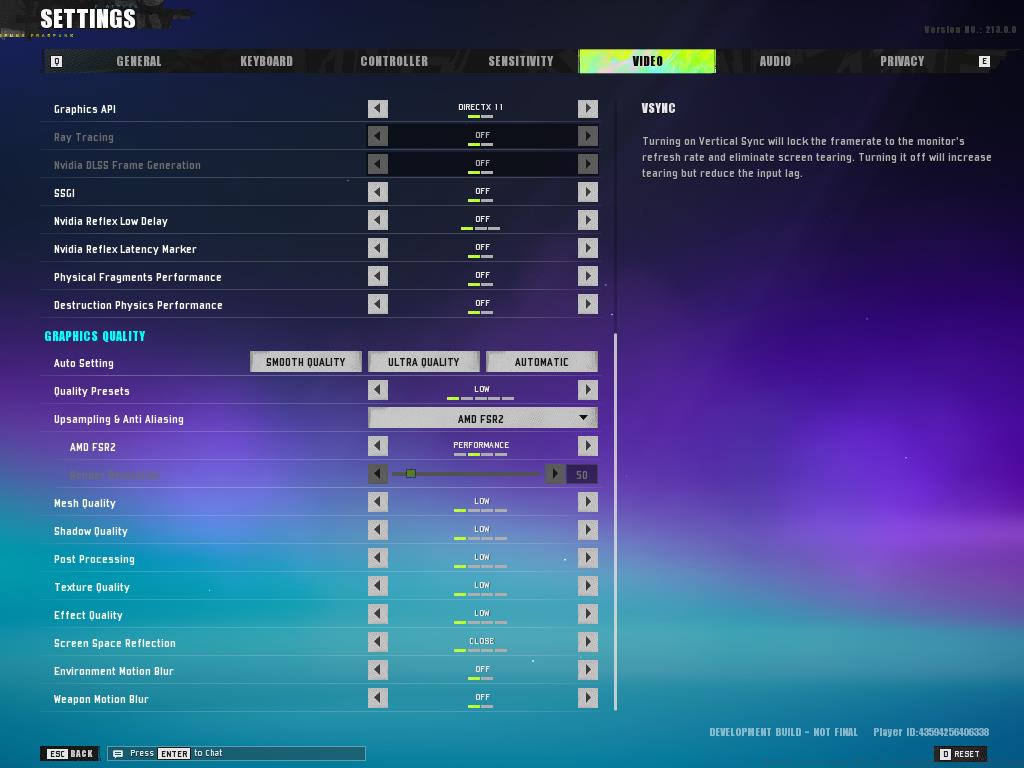
These settings prioritize raw performance over visual fidelity, which is essential for competitive gameplay. The most significant FPS gains typically come from reducing shadow quality, disabling post-processing effects, and turning off vertical sync.
Advanced players should consider that while higher texture settings consume more VRAM, they have minimal impact on FPS if your graphics card has sufficient memory. However, on cards with 4GB VRAM or less, sticking to medium textures prevents memory-related stuttering.
For those struggling with CPU limitations (common on older quad-core processors), reducing crowd density and draw distance can provide additional performance headroom. These settings shift workload from the processor to the GPU, balancing system resources more effectively.
Beyond in-game settings, several system-level optimizations can dramatically improve FragPunk performance. Start by ensuring your graphics drivers are current—NVIDIA and AMD regularly release game-specific optimizations that can boost FPS by 5-15% in new titles.
Configure your system power plan to ‘High Performance’ in Windows settings to prevent CPU throttling during intense gaming sessions. Additionally, close background applications—particularly web browsers with multiple tabs and streaming software—as these consume valuable RAM and CPU cycles that FragPunk needs for consistent performance.
For NVIDIA users, access the NVIDIA Control Panel and create a custom profile for FragPunk. Set ‘Power Management Mode’ to ‘Prefer Maximum Performance’ and ‘Texture Filtering Quality’ to ‘High Performance’. These adjustments can provide an additional 3-8% FPS improvement beyond in-game settings alone.
AMD GPU owners should utilize the Radeon Software application to disable unnecessary features like Radeon Image Sharpening and Anti-Lag when maximum FPS is the priority. The ‘Standard’ profile typically delivers the best balance of performance and stability for competitive gaming.
Monitor your performance metrics using tools like MSI Afterburner with RivaTuner Statistics Server to identify specific bottlenecks. If your GPU utilization consistently sits below 95% while CPU usage is high, you’re likely CPU-bound and should consider reducing CPU-intensive settings like physics quality and draw distance.
For players interested in broader tactical shooter mastery, our Complete Guide covers fundamental positioning and teamplay strategies that apply across multiple competitive titles.
Regular maintenance is crucial—defragment your hard drive (if using HDD), clear temporary files, and ensure adequate free space on your system drive. FragPunk, like many modern games, streams assets during gameplay, and storage performance directly impacts loading times and potential stuttering.
If you’re still struggling with performance after implementing these optimizations, consider checking our Weapons Unlock guide for loadout strategies that can compensate for technical limitations through superior tactical planning and engagement selection.
Action Checklist
- Configure in-game video settings using optimized competitive presets
- Update graphics drivers to latest stable version
- Adjust system power plan to High Performance mode
- Create custom GPU profile in control panel software
- Monitor performance metrics to identify specific bottlenecks
- Implement system maintenance and background process management
No reproduction without permission:GameCDjnh » How To Increase FPS in FragPunk: Best Settings Expert strategies to maximize FragPunk FPS performance with optimized settings and advanced techniques