
Comprehensive troubleshooting guide to fix Warzone 2.0 game crashes on PC with advanced optimization strategies
Understanding Warzone 2.0 Crash Issues
Following the global release of Call of Duty: Warzone 2.0 across multiple gaming platforms, Activision has encountered significant player frustration stemming from persistent technical difficulties. The most prevalent concern involves sudden game crashes on PC systems during startup sequences, presenting unpredictable behavior that complicates resolution efforts for affected users.
Both Modern Warfare 2 and Warzone 2.0 represented highly anticipated gaming releases this year, though the deployment of Warzone 2.0 fell short of polished performance expectations. Current player experiences reveal numerous software defects, graphical anomalies, and system stability challenges that demand attention.
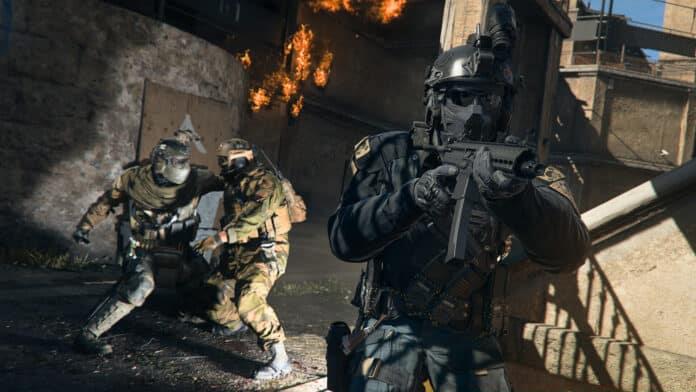
This comprehensive guide addresses practical solutions for resolving game crash incidents. Continue reading through each section to implement effective troubleshooting strategies that restore gameplay functionality.
Immediate Fixes and Quick Solutions
When encountering the “Application Has Unexpectedly Stopped Working” error message after launching Warzone 2.0, immediate action can often resolve the issue. Follow these structured troubleshooting approaches to address common crash triggers.
Begin by validating game file integrity through your distribution platform. Steam users should right-click Warzone 2.0 in their library, select Properties, navigate to Local Files, and choose Verify Integrity of Game Files. Battle.net users can find this option under Game Settings > Scan and Repair. This process identifies and replaces corrupted or missing game components.
Simple system reboots frequently resolve temporary memory conflicts and software clashes. Multiple community reports confirm that completely powering down your computer, waiting 30 seconds, and restarting eliminates many crash scenarios by clearing system caches and terminating conflicting processes.
Graphics driver updates represent critical stability improvements. Visit NVIDIA GeForce Experience or AMD Adrenalin software to download the latest certified drivers specifically optimized for Warzone 2.0. Outdated drivers remain a primary contributor to game crashes and performance issues.
Network connectivity verification ensures stable online gameplay. Warzone 2.0 requires consistent internet access, and connection drops can trigger crash events. Test your connection speed and stability before launching the game.
Administrative privileges often resolve permission-related crashes. Right-click the game executable file or shortcut, select Properties, navigate to the Compatibility tab, and enable “Run this program as an administrator” to ensure proper system access.
Advanced Troubleshooting Techniques
When basic solutions prove insufficient, advanced techniques address deeper system conflicts. Adjusting graphics settings represents a primary approach—lower shadow quality, reduce texture resolution, and disable ray tracing to decrease GPU strain. Many crashes stem from hardware struggling with maximum visual settings.
Windows compatibility modes can resolve software conflicts. Access the game executable’s Properties menu, navigate to Compatibility settings, and experiment with Windows 8 compatibility mode, which often stabilizes newer games on current operating systems.
Background application management significantly impacts game stability. Close resource-intensive programs like web browsers, streaming software, and communication tools before launching Warzone 2.0. Discord overlay features particularly conflict with many games.
Temperature monitoring prevents hardware-related crashes. Use applications like HWMonitor to check GPU and CPU temperatures during gameplay. Overheating components automatically throttle performance or crash applications to prevent damage.
Antivirus software exceptions sometimes resolve conflict issues. Add Warzone 2.0’s executable files to your security software’s exclusion list to prevent false positive blocking of legitimate game operations.
Prevention and Long-Term Stability
Proactive system maintenance reduces future crash likelihood. Regularly update Windows operating systems, as Microsoft frequently releases patches that improve game compatibility and performance. Enable automatic updates or manually check for updates weekly.
Hardware requirement verification ensures your system meets Warzone 2.0’s demands. The game requires at minimum a GTX 960 or RX 470 GPU, 8GB RAM, and substantial storage space. Exceeding minimum specifications provides performance headroom that prevents crashes during intense gameplay moments.
Routine driver maintenance involves checking for updates every 2-3 weeks. Both NVIDIA and AMD release game-ready drivers optimized for new titles and patches. Subscribe to driver update notifications to stay current.
System cleanup procedures enhance stability. Regularly clear temporary files using Disk Cleanup, defragment hard drives (not SSDs), and ensure at least 15% free space on your game installation drive.
For additional gaming insights and esports coverage, continue following TalkEsport through Google News updates.
Also Read | COD Warzone 2.0 Ultimate Weapons And Meta Loadouts
No reproduction without permission:GameCDjnh » How to fix Warzone 2.0 game crash on PC? Comprehensive troubleshooting guide to fix Warzone 2.0 game crashes on PC with advanced optimization strategies