
TL;DR
- Schedule I’s infinite loading screen typically stems from software conflicts, outdated drivers, or corrupted game files
- Immediate fixes include adjusting launch options with -windowed -noborder commands and verifying game file integrity
- Advanced solutions involve updating graphics drivers, checking system compatibility, and resolving software conflicts
- Regular maintenance and proper system configuration can prevent recurring loading screen issues
- Documentation of troubleshooting steps helps identify patterns and permanent solutions
Are you experiencing the frustrating infinite loading screen in Schedule I? This persistent issue typically arises from multiple technical factors including software incompatibilities, outdated system drivers, or compromised game file integrity. Our comprehensive guide examines the root causes and provides systematic solutions to restore your gaming experience.
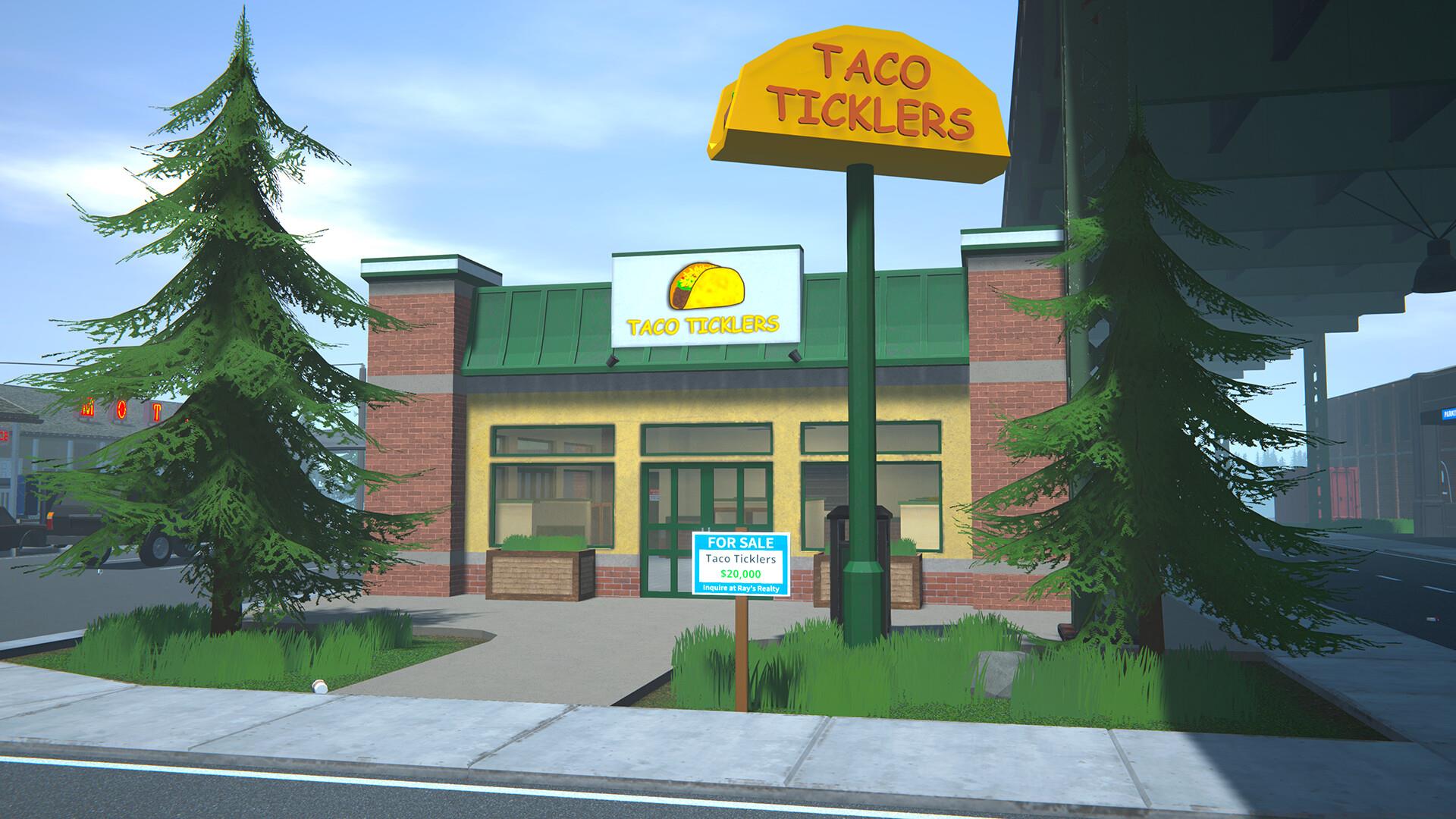
Schedule I represents an immersive crime simulation experience where players navigate the challenging journey from entry-level narcotics distribution to potentially establishing a dominant drug empire. The gameplay encompasses complex mechanics involving production methodologies for various substances, strategic resource management, and market demand adaptation—all requiring seamless technical performance to maintain immersion.
When loading screen failures occur, they disrupt the critical flow of operations management, from initial ingredient acquisition through final product quality control. Understanding these technical interruptions requires examining both immediate fixes and long-term prevention strategies.
Let’s explore practical solutions to resolve the Schedule I loading screen dilemma efficiently. Multiple troubleshooting approaches exist, each targeting specific aspects of the problem. We recommend proceeding systematically through these methods.
Modifying the game’s launch configuration frequently circumvents loading complications by altering how the application initializes:
- Access Steam and navigate to your Game Library interface
- Right-click on “Schedule I” and choose “Properties” from the context menu
- Within the “General” settings tab, identify the “Launch Options” field
- Input this specific command sequence:
-windowed -noborder - Initiate the game launch process to test the configuration
Beyond launch options, verifying game file integrity represents another crucial step. Through Steam’s validation feature, the platform scans for missing or corrupted files and automatically replaces them. This process typically resolves issues stemming from incomplete installations or accidental file deletion.
Graphics driver updates often provide immediate relief for loading screen problems. Outdated drivers frequently conflict with game engine requirements, causing initialization failures. Regular driver maintenance should become part of your gaming routine, similar to strategic planning in our BF6 Weapons Unlock guide optimization techniques.
When basic solutions prove insufficient, advanced troubleshooting methods become necessary. System compatibility represents a frequent culprit—Schedule I may conflict with background applications, antivirus software, or system optimization tools. Creating exceptions in security software for game executables often resolves these conflicts.
Performance optimization extends beyond simple fixes. Adjusting graphics settings to match your system specifications prevents overload during loading sequences. Reducing shadow quality, texture resolution, and post-processing effects can significantly decrease loading demands, similar to optimization strategies discussed in our Battlefield 6 Complete Guide.
Administrative privileges sometimes resolve permission-based loading issues. Running Steam and Schedule I as administrator ensures the game has necessary system access. Additionally, monitoring system resources during startup identifies potential hardware limitations contributing to extended loading times.
For persistent problems, clean boot procedures isolate software conflicts by disabling non-essential startup programs. This method helps identify specific applications interfering with game initialization, allowing targeted resolution rather than random troubleshooting attempts.
Proactive measures significantly reduce recurrence of loading screen issues. Establishing a regular maintenance routine ensures your gaming environment remains optimized. This includes scheduled driver updates, disk cleanup procedures, and periodic game file verification—similar to the systematic approach recommended in our BF6 Class Selection Guide for character optimization.
Optimal system configuration involves both hardware and software considerations. Ensuring adequate free space on your installation drive, maintaining updated DirectX components, and monitoring temperatures during extended sessions all contribute to stable loading performance. Overheating components can throttle performance during intensive loading sequences.
Backup strategies protect your progress against technical issues. Regular saves to cloud storage and local backups prevent data loss during troubleshooting. Documenting successful resolution methods creates a personalized knowledge base for future reference, transforming frustrating technical issues into manageable maintenance tasks.
Action Checklist
- Adjust launch options with -windowed -noborder commands
- Verify game file integrity through Steam validation
- Update graphics drivers to latest stable versions
- Check system compatibility and create antivirus exceptions
- Perform clean boot to identify software conflicts
No reproduction without permission:GameCDjnh » How to Fix Schedule 1 Infinite Loading Screen Error? Comprehensive troubleshooting guide to resolve Schedule I infinite loading screen errors and optimize game performance