
Complete guide to fix PS5 CE-108360-8 camera error with troubleshooting steps and prevention tips
Understanding the PS5 CE-108360-8 Error Code
The PlayStation 5 CE-108360-8 error code represents a specific hardware communication failure between your console and connected camera devices. This technical issue primarily affects gamers attempting to utilize camera functionality during gameplay sessions or streaming activities. The error manifests when the system detects improper communication protocols or incompatible hardware configurations with peripheral imaging devices.
Common symptoms include sudden game crashes when camera features activate, streaming software failures, and persistent error messages interrupting gameplay sessions. Users frequently report the error occurring during specific gaming scenarios that require camera input, such as facial recognition features or motion-controlled gameplay elements. The timing of these errors often correlates with specific game launches or system updates that modify camera interaction protocols.
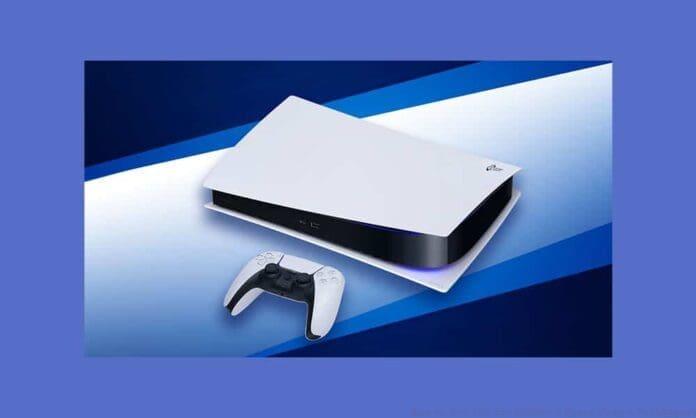
Root causes typically involve three main categories: hardware compatibility issues (particularly with PS4 camera adapters), firmware version mismatches between camera hardware and system software, or physical connection problems with USB ports and cables. Understanding these underlying factors helps implement targeted solutions rather than random troubleshooting attempts.
Step-by-Step Troubleshooting Solutions
Begin with comprehensive hardware verification by inspecting all physical connections between your camera and PlayStation 5 console. Examine the USB-C connection ports for debris, bent pins, or physical damage that could interrupt data transmission. Test multiple USB ports on your PS5 to eliminate port-specific malfunctions as potential culprits. For PlayStation Camera users, confirm the dedicated adapter is securely connected to both the camera and console without loose fittings.
Software configuration checks involve navigating to Settings > Accessories > Camera to verify detection status and functionality. Reset camera settings to default parameters if custom configurations might be causing conflicts. Update your PS5 system software to the latest version through Settings > System > System Software > System Software Update and Settings. Outdated firmware frequently creates compatibility gaps with peripheral devices.
- Acquire the official PlayStation Camera adapter specifically designed for PS5 compatibility
- Perform thorough physical inspection of all cable connections and port conditions
- Consult manufacturer documentation for device-specific troubleshooting protocols
- Validate camera configuration settings within the PS5 system menu
- Test camera functionality on alternative systems to isolate hardware failures
Advanced diagnostic procedures include booting your PS5 in Safe Mode (hold power button until second beep) to reset system configurations. Select Clear Cache and Rebuild Database options to refresh system-camera communication protocols. For persistent issues, perform a complete system reset after backing up game data, though this should remain a last-resort solution.
Camera Compatibility and Setup Requirements
PlayStation 5 requires specific hardware adaptations for camera compatibility, particularly when utilizing previous-generation imaging devices. The official PlayStation Camera adapter represents a mandatory component for PS4 camera functionality on current-generation consoles. This adapter converts the proprietary AUX connector to standard USB-C, enabling communication with PS5 hardware architecture.
Connection protocols demand precise execution: connect the adapter to your PS4 camera first, then plug the USB-C end into any available port on your PS5. The system should automatically detect the device upon successful connection. If detection fails, unplug both ends, restart your console, and reattempt the connection process. Avoid using third-party adapters or modified cables that may not meet Sony’s technical specifications.
Device specifications require verification against PS5 compatibility lists. While the official PlayStation Camera maintains support through the adapter, third-party cameras may require manufacturer-specific drivers or compatibility updates. Check your camera manufacturer’s website for PS5 certification status before purchasing or troubleshooting extensively. Some streaming-specific cameras may need additional software configurations beyond basic system recognition.
Advanced Troubleshooting and Prevention
When standard troubleshooting fails, implement system-level solutions addressing deeper software conflicts. Navigate to Settings > Users and Accounts > Other > Restore Licenses to refresh digital rights management, which occasionally impacts peripheral device authorization. Check for game-specific patches or updates that might resolve camera compatibility issues with particular titles.
Common user mistakes include using damaged or third-party USB cables, attempting connection during system startup, and neglecting regular system updates that contain crucial driver improvements. Many users incorrectly assume PS4 cameras connect directly to PS5 consoles without the mandatory adapter, resulting in persistent error codes. Always power down your console completely before connecting or disconnecting camera hardware to prevent electrical surges or data corruption.
If hardware testing confirms camera malfunction as the root cause, replacement becomes necessary. Before purchasing new equipment, verify return policies in case compatibility issues persist. Proactive maintenance includes regularly cleaning connection ports, keeping system software updated, and testing camera functionality monthly to catch issues early. Consider maintaining backup camera options for streaming professionals who depend on consistent functionality.
Also Read: PUBG Mobile India App Register Link Is Fake?
Document your troubleshooting process to identify patterns or recurring issues that might indicate broader system problems. Persistent CE-108360-8 errors despite proper hardware function could signal motherboard-level USB controller issues requiring professional repair services.
No reproduction without permission:GameCDjnh » How to Fix PS5 CE-108360-8 Error Code » TalkEsport Complete guide to fix PS5 CE-108360-8 camera error with troubleshooting steps and prevention tips