
Master CS:GO Field of View settings to gain competitive advantage and optimize your gameplay experience
Understanding FOV in CS:GO
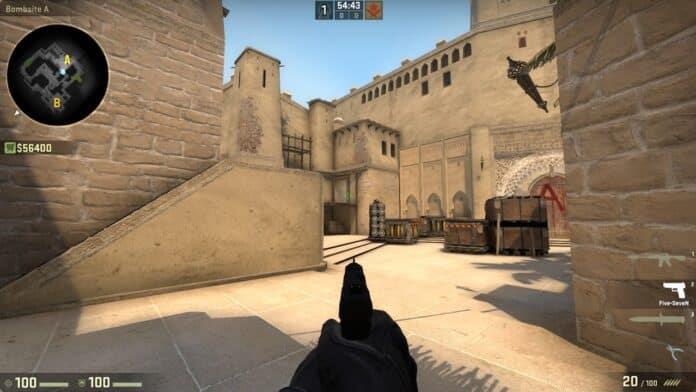
Field of View (FOV) represents one of the most crucial visual settings in Counter-Strike: Global Offensive, directly influencing how much game environment you can see simultaneously. This setting determines your peripheral vision range and significantly impacts target acquisition speed and situational awareness during intense firefights.
Beyond mere visual customization, FOV serves as a tactical advantage tool that separates casual players from competitive contenders. The ability to monitor wider areas without excessive mouse movement can mean the difference between spotting an enemy flank or falling victim to an unexpected attack. However, optimal FOV configuration varies dramatically based on individual factors including monitor size, viewing distance, and personal visual preferences.
Practical FOV Configuration
Unlike modern shooters with comprehensive visual settings menus, CS:GO requires console commands for precise FOV adjustments. Begin by activating the developer console through the Game Settings menu—ensure ‘Enable Developer Console’ is toggled to ‘Yes’ for access to advanced customization options.
The primary viewmodel_fov command accepts values ranging from 54 to 68, with 60 serving as the default configuration. This command specifically adjusts your weapon model positioning relative to your viewpoint—higher values pull the weapon model closer to the center of your screen, providing clearer peripheral vision. For maximum visibility without distortion, most experienced players recommend settings between 64-68.
Advanced users can experiment with additional viewmodel commands including viewmodel_offset_x, viewmodel_offset_y, and viewmodel_offset_z for micro-adjustments to weapon positioning. These secondary commands help fine-tune exactly where your weapon appears on screen, complementing your primary FOV settings for optimal visual clarity.
Competitive vs Casual Settings
Valve maintains strict FOV limitations in competitive matchmaking to preserve fair play standards. While the fov_cs_debug command functions in private matches and community servers, it remains disabled in official competitive modes to prevent potential unfair advantages between players with different hardware capabilities.
Higher FOV settings introduce additional rendering demands that can impact frame rates, particularly on lower-end systems. This performance consideration represents another reason for competitive restrictions—ensuring players don’t gain advantages through superior hardware alone. In casual environments however, these restrictions relax to accommodate personal preference and experimental gameplay styles.
The philosophical approach to FOV restrictions highlights CS:GO’s commitment to competitive integrity. Unlike games prioritizing individual customization, CS:GO sacrifices some personalization options to maintain level playing fields where skill determines victory rather than configuration advantages.
Pro Player Strategies
Professional CS:GO competitors typically utilize viewmodel_fov settings between 60-68, with subtle variations based on role and playstyle. Entry fraggers often prefer higher values (66-68) for maximum peripheral vision during site executions, while AWPers might choose lower settings (60-62) for better focus on narrow angles.
Common configuration mistakes include setting extreme values that cause visual distortion or weapon model clipping. Beginners frequently overlook the importance of testing settings across multiple maps—what works on Dust II might feel uncomfortable on Nuke. Always spend at least 30 minutes in Deathmatch with new FOV settings before committing to them in competitive play.
Advanced techniques involve combining FOV adjustments with custom crosshair settings and optimal resolution configurations. Many professionals use 4:3 stretched resolutions with higher FOV values to create wider enemy models while maintaining reasonable peripheral visibility. Remember that FOV represents just one component of your visual setup—harmonize it with other settings for maximum effectiveness.
No reproduction without permission:GameCDjnh » How To Change FOV In CSGO? Master CS:GO Field of View settings to gain competitive advantage and optimize your gameplay experience