
Master CS:GO FOV customization for better visibility, aiming precision, and competitive advantage
Understanding FOV in CS:GO
When diving into Counter-Strike: Global Offensive, many players overlook the critical role that field of view (FOV) plays in their gameplay performance. The default FOV settings often create a tunnel vision effect that can hinder both situational awareness and reaction times during intense firefights.
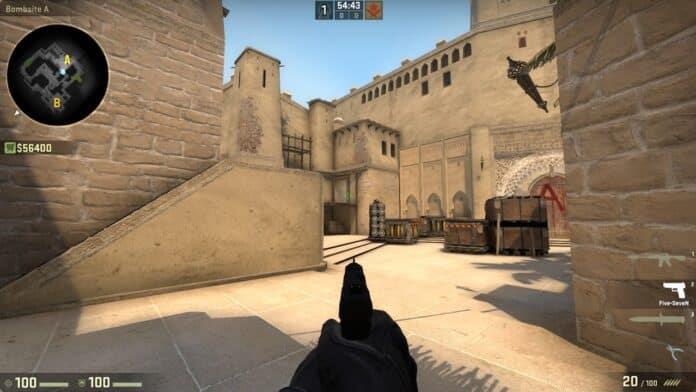
Field of view represents the angular extent of the game world visible through your screen at any moment. Increasing your FOV expands your peripheral vision, allowing you to spot flanking enemies and environmental cues that would otherwise remain hidden. However, this broader perspective comes with a trade-off: distant targets appear smaller and more challenging to precisely aim at, which can affect long-range engagements.
Competitive players often debate the ideal FOV setting, with aggressive entry-fraggers typically preferring wider views for better close-quarters awareness, while AWPers might opt for narrower settings to enhance their scoped accuracy. Understanding these dynamics helps you make informed decisions about your personal configuration.
Step-by-Step FOV Configuration
Customizing your FOV requires accessing CS:GO’s developer console, a powerful tool that unlocks numerous gameplay customization options. The process is straightforward but requires precise execution to avoid configuration errors.
Here’s your comprehensive configuration guide:
- Begin by enabling the developer console through your game settings menu. Navigate to Settings > Game Settings and toggle the “Enable Developer Console” option to Yes. This grants access to advanced commands not available in standard menus.
- Activate the console during gameplay by pressing the tilde (~) key, typically located below the Escape key. If this fails, verify your key bindings in Settings > Keyboard/Mouse > Console Key to ensure proper activation.
- Input the command “viewmodel_fov x” where x represents your desired value between 54 and 68. This parameter controls your weapon model’s position relative to your screen, with lower values bringing weapons closer and higher values pushing them further away.
- Experiment systematically: start at 60 (the default) and adjust incrementally by 2-3 points per session. This gradual approach helps your brain adapt to the visual changes without disrupting your muscle memory.
- Confirm your selection by pressing Enter and immediately test the feel in deathmatch or casual modes before committing to competitive matches.
Pro tip: Combine FOV adjustments with custom viewmodel presets using commands like viewmodel_offset_x, viewmodel_offset_y, and viewmodel_offset_z for truly personalized weapon positioning.
Advanced FOV Strategies
Beyond basic customization, understanding the technical and strategic implications of FOV settings separates casual players from competitive contenders. Your FOV choice directly influences both gameplay performance and system resource allocation.
Performance considerations are crucial: expanding your FOV increases rendering workload as your GPU must process more visible game world elements. Players using older hardware or integrated graphics may experience frame rate drops of 10-20% when maximizing FOV values. Monitor your FPS using net_graph 1 after adjustments and scale back if you dip below your monitor’s refresh rate.
Server administrators often impose FOV restrictions between 60-65 to maintain competitive integrity, preventing players from gaining excessive visual advantages. When joining community servers or tournaments, expect potential limitations and have backup configurations ready.
Professional player insights reveal interesting patterns: most CS:GO pros use FOV values between 60-64, balancing visibility with aiming precision. Notable exceptions include some aggressive riflers who prefer 68 for maximum peripheral awareness, though this remains controversial in the competitive scene.
Common Mistakes and Solutions
Many players encounter avoidable issues when adjusting their FOV settings, leading to frustration and suboptimal gameplay experiences. Recognizing these pitfalls helps you achieve optimal configuration faster.
Avoid these frequent errors:
Drastic value changes often disrupt aiming muscle memory. Instead of jumping from 54 to 68 immediately, implement gradual adjustments over multiple gaming sessions. Your brain needs time to recalibrate depth perception and spatial awareness.
Overlooking performance impacts causes gameplay issues. Higher FOV values increase rendering load significantly—test new settings in demanding scenarios like smoke-filled sites or particle-heavy environments before competitive use.
Ignoring server restrictions leads to configuration resets. Many competitive servers enforce maximum FOV values, automatically reverting excessive settings. Always verify server rules and prepare appropriate presets for different gaming environments.
Neglecting complementary settings diminishes FOV benefits. Combine your FOV adjustments with optimal crosshair customization, monitor positioning, and sensitivity settings for truly enhanced gameplay.
No reproduction without permission:GameCDjnh » How To Change FOV In CSGO Easily In 2023 Master CS:GO FOV customization for better visibility, aiming precision, and competitive advantage